Get started with the Performance dashboard
Learn about Unity User Acquisition performance anayltics in the Performance dashboard.
Read time 7 minutesLast updated 3 months ago
The Performance dashboard is a customizable reporting tool in the Unity User Acquisition dashboard that helps you review and analyze campaign activity. Use campaign dimensions and metrics to tailor your reports based on your needs.
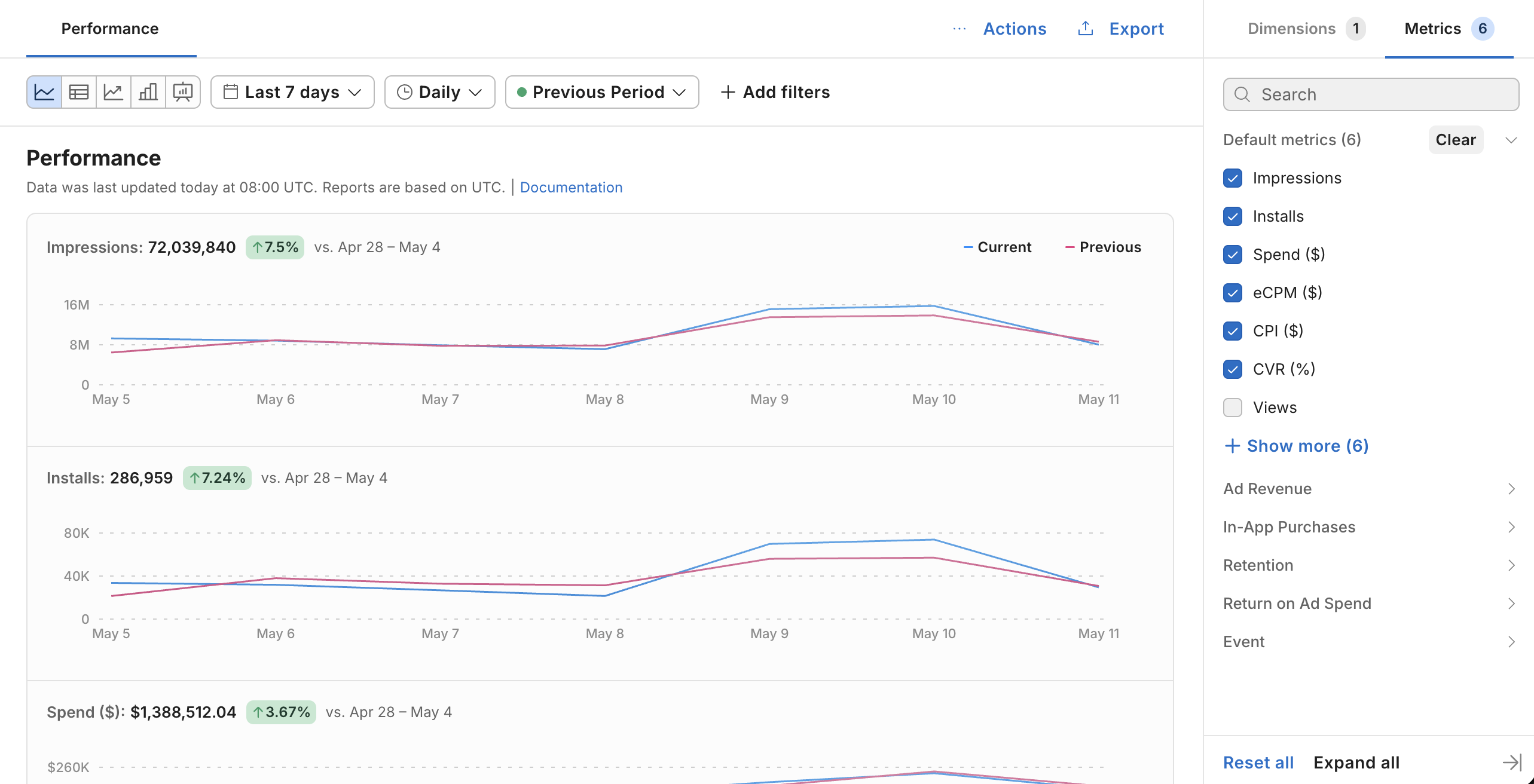
The User Acquisition Performance dashboard
To access the dashboard, go to Performance from the secondary navigation menu. You can configure the data displayed there in the following ways:
- Set the main parameters of your report using the dashboard toolbar.
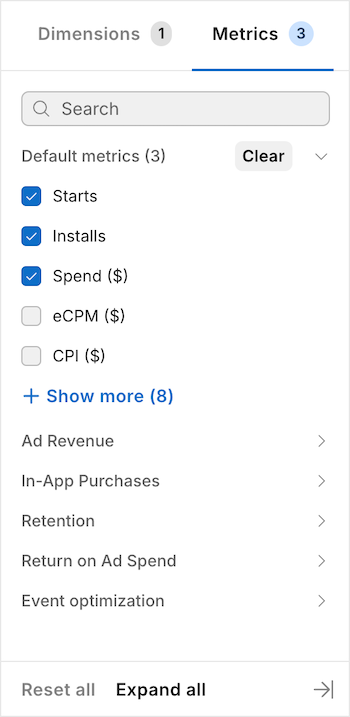
- Choose key performance indicators to review with the Metrics sidebar.
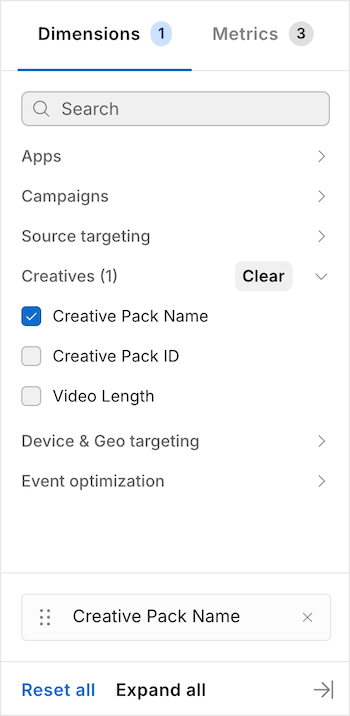
- Select data points like Game ID or Video length with the Dimensions sidebar.
- Refine report data with specific filters.
After you configure your report data, you can manage it in the following ways:
- Save your configuration as a future view.
- Schedule the dashboard to generate future reports automatically.
- Export reports as CSV files.
Configure reports
To start analyzing your campaign performance, use the Performance dashboard to configure custom reports. Refer to the following sections to set up a report.
Set report parameters
The report parameters determine what your report looks like, how much data to include, the cadence of data, and whether you want to compare two different time periods. When you create a new report, follow these steps to set these parameters:
- Choose a chart type from the following options:
|
|
|
|---|---|---|
Line | Shows how your data changes over time with a continuous line connecting each data point | Line graphs can help you identify trends and patterns in your campaign performance. Consider this chart type when you want to analyze how your metrics change over time. |
Table | Displays your data in rows and columns with exact numbers | Tables allow you to review precise values and compare specific numbers side-by-side. Consider this chart type when you want to export data or examine detailed breakdowns of campaign data. |
Stacked line | Shows comparison periods stacked on top of each so you can see both individual parts and the combined total | Stacked line graphs help you compare two time periods. Consider this chart type when you want to compare time periods to identify the cause of performance differences. |
Bar | Uses vertical bars to compare campaign metrics | Bar graphs provide quick metric comparisons at a specific point in time. Consider this chart type when you want to review quick comparisons of campaign metrics like Impressions or Installs on specific dates. |
Overview | Shows each campaign metric in its own tab with a line graph as well as an overview table | The overview offers a health check of all your metrics without switching between views. Consider this chart type when an overview of your campaign performance. |
- Select the report period. You can choose from presets like Last 7 days and D7 Cohort or select the dates manually on the calendar.
- Choose a data cadence between Hourly and Monthly.
- Optionally, if you want to compare two different report periods, choose the period from the Comparison dropdown
Manage reports
The dashboard allows you to save, schedule, and export your reports after you configure them. Use the following tabs to manage your report configurations.
Save report views
After you set up your report, you can save your settings as a report view for future use. Your saved views become tabs in the Performance dashboard. To save your current report configuration as a new view, do the following in the Performance dashboard:
- Select … Actions > Save as from the Performance dashboard menu.
- In the Save a view dialog, give your report view a Name.
- Optionally, you can make this the default view when you open the Performance dashboard. To do so, select the Save as default checkbox.
- Select Save.