Project Assets interface reference
Explore the UI elements and settings available in the Project Assets interface.
Read time 2 minutesLast updated 2 months ago
This page describes the user interface elements available in the Project Assets interface. Use it to identify controls, understand their purpose, and locate common actions for managing repositories, folders, and assets.
Explore the UI elements in the Project Assets interface:
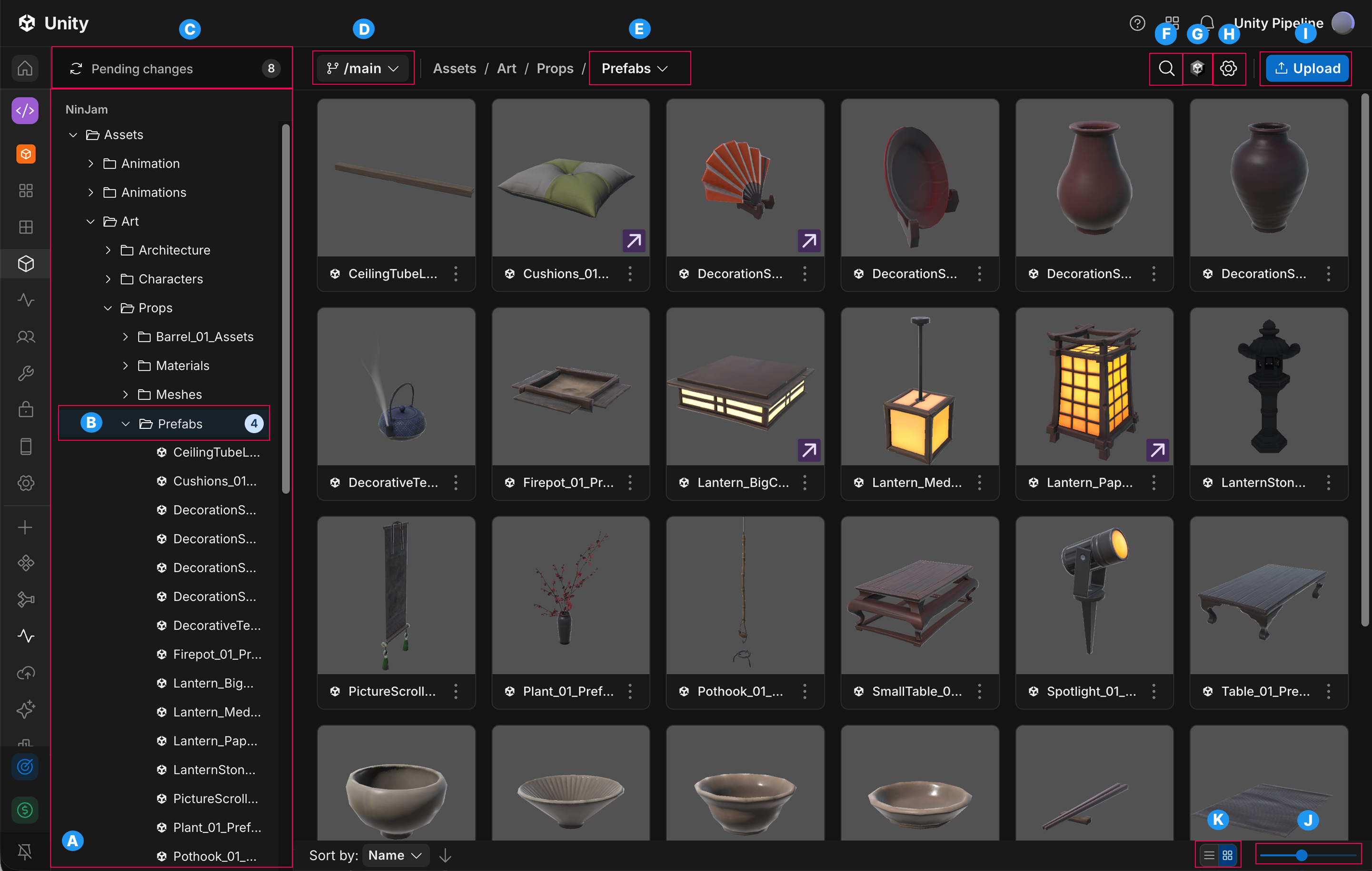
The UI elements available in the Project Assets interface
Label | UI element | Description |
|---|---|---|
| A | Repository project list | Browse your repository's folders and assets. |
| B | Changed asset count | View the number of modified assets in each folder. |
| C | Pending changes | View the total number of changes in the current branch compared to the parent or base branch. |
| D | Branch selector | Switch branches, create a new branch, or manage existing branches. |
| E | More actions |
|
| F | Search assets | Search for assets or folders in the repository. |
| G | Open in Unity Editor | Open the selected asset or project in the Unity Editor through Unity Hub using deep linking. |
| H | Manage repository | Change the source control provider, organization server, or repository. |
| I | Upload | Upload files or folders from your local computer. |
| J | Zoom | Increase or decrease the size of asset tiles. |
| K | View | Switch between list and tile views. |
Asset/Folder action menu
In the Project Assets interface, select the More (⋮) menu for the asset.
Action | Description |
|---|---|
| Open in Unity Version Control | Open the selected asset or folder in Unity Version Control. |
| Open in Unity Editor | Open the selected asset or folder in the Unity Editor through Unity Hub using deep linking. |
| Copy link | Copy a shareable link to the selected asset or folder. |
| Rename | Change the name of the selected asset or folder. |
| Download | Download the selected asset or folder to your local computer. |
| Delete | Permanently delete the selected asset or folder. |