Use Push Notifications
Create and schedule notifications to target players based on analytics data.
Read time 3 minutesLast updated 4 months ago
- In the Unity Dashboard, go to Development > Products.
- Select Push Notifications.
- Select Notifications.
- Select Create Notifications. Give your Push Notification campaign a name and select Next.
- Choose your Audience, which comes from Analytics. To target all users, don't specify an audience. Select Next.
- Give your Push Notification a title and optional subtitle (iOS-only), a body and/or image. The body contains the message players will see in the notification.
The following sample image shows how text would appear on player devices:
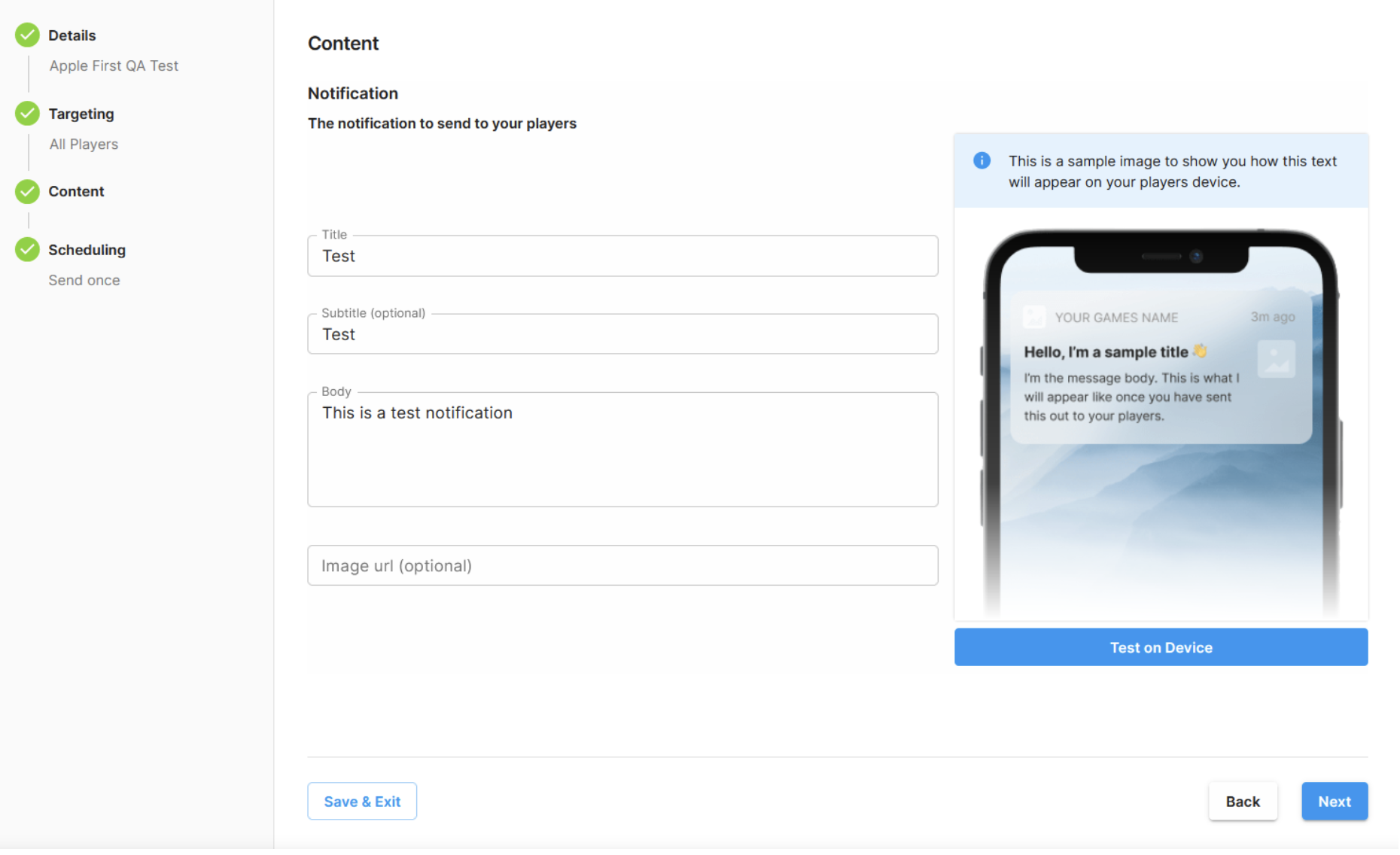
The image shows how sample text appears as notification on player devices.
Push Notifications can be sent either at a specified time in the future or as an automated notification, sending regularly as players enter the Audience you have chosen to target.
If you want to send a notification once, select Send Once then specify the Send Time. If Player Timezone is selected, players will be notified at the specified Send Time in their local timezone.
If you want to set up an ongoing notification, select Ongoing. The Start Date and End Date defines the period in which the notification will be active. If Player Timezone is selected, players will be notified at the specified Send Time in their local timezone.
The Send Time will be the time that players receive the notification. For example, if you set a send time of 8th May at 2pm and the player becomes eligible on the 15th May they will receive the notification at 2pm.
The Cooldown Period is the time that must pass before a player can receive the notification again. With a period of seven days, for example, if a player receives the message on the 20th May they won’t be eligible for another until the 28th May.
You can see a list of your Push Notifications with their names, status, and Start Date.
An event is sent when the Push Notification is sent, and when the player interacts with it. The events are:
Event | Description |
|---|---|
| When the Push Notification is sent. |
| When the Push Notification is opened. |
Push-specific reporting is available to help you measure the success of your campaign. You’ll also see reporting on dismissed messages.
Environments
You can switch between and manage your environments using the toggle on the top left of the dashboard.
Use environments in separate Push Notifications in your different development environments for safety and testing.
You can:
- Switch between environments.
- Silo notification campaigns within environments.
- Test notifications with only player in your test or development environments.