Integrate using Blueprints
Use the Matchmaker Blueprint API to add matchmaking functionality to your Unreal Engine game without writing code.
Read time 8 minutesLast updated 3 months ago
The following section shows how to integrate with the Matchmaker SDK using Blueprints in the Unreal Engine.
The two Matchmaker interfaces you can interact with within the Unity Gaming Services SDK are the:
Install the Matchmaker SDK plugin
Before continuing, add the as a public dependency of your module, then include the plugin header files in your classes as shown below.
MatchmakerSDKAdd and to your module's dependencies to your Unreal project build file ():
MatchmakerServerMatchmakerClientYourProjectName.Build.csPublicDependencyModuleNames.AddRange(new string[] { "Core", "CoreUObject", "Engine", "InputCore" });PublicDependencyModuleNames.AddRange(new string[] { "MatchmakerClient", "MatchmakerServer" });PublicDependencyModuleNames.AddRange(new string[] { "Json", "JsonUtilities" });
Matchmaker Client Blueprint API
The Matchmaker client subsystem controls the client portion of matchmaking and finding matches. This includes creating, deleting, and polling matchmaking tickets.
Use the static functions from to interact with the Matchmaker client subsystem through the following Blueprints:
UMatchmakerClientBlueprintApiCreateTicket
To use , place a Create Ticket node in your blueprint. Populate the Players and Options fields for the inputs to create a ticket.
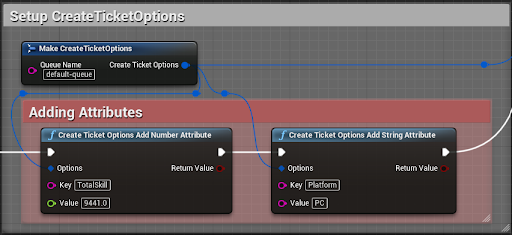
CreateTicketThe following example shows how to pass in a single player and a queue name to create a ticket. It also shows an event that handles the response to get an output for the .
FStringTicketId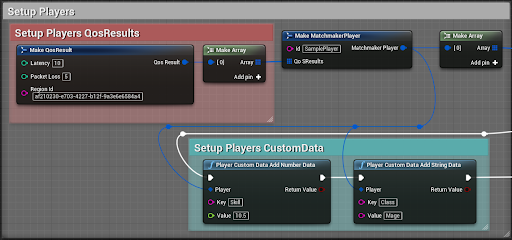
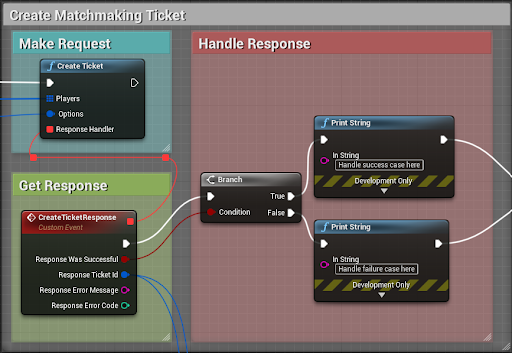
You can set up a custom event for the response handler and right-click (macOS: Ctrl+click) the event's struct pin and select to access all the individual values in .
ResponseSplit Struct PinCreateTicketResponseDeleteTicket
Use the blueprint to issue a delete ticket call, passing in the TicketId to delete.
DeleteTicketBelow is a simple example demonstrating how to use Delete Ticket and how to handle the response.
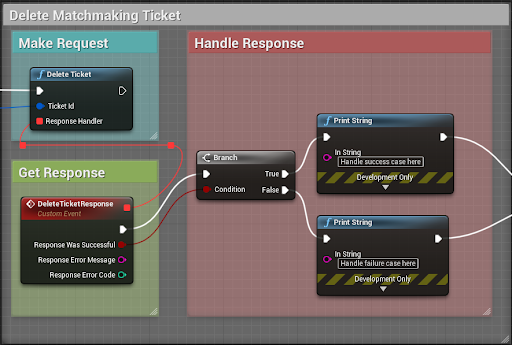
You can set up a custom event for the response handler and right-click (macOS: Ctrl+click) the event's struct pin and select to access all the individual values in .
ResponseSplit Struct PinDeleteTicketResponseGetTicketStatus
Use to poll the matchmaker for a match using the retrieved from the CreateTicket blueprint.
GetTicketStatusTicketIdAfter polling completes either successfully or not, or if the user wishes to manually cancel matchmaking, use the blueprint to stop considering the player(s) for matchmaking.
DeleteTicket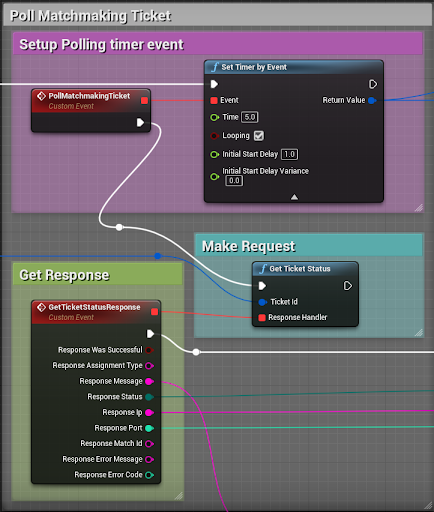
You can set up a custom event for the response handler and right-click (macOS: Ctrl+click) the event's struct pin and select to access all the individual values in .
ResponseSplit Struct PinGetTicketStatusResponse]The image above shows an example of polling a matchmaking ticket with the node. When the looping condition is true, this node triggers its event continuously in the frequency that is set in the Time variable. In this case, Time is set to 5; therefore this event occurs every five seconds until the timer handler is canceled. The return value is the timer handler which you can use to cancel the timer using a .
Set Timer by EventClear and Invalidate Timer by Handle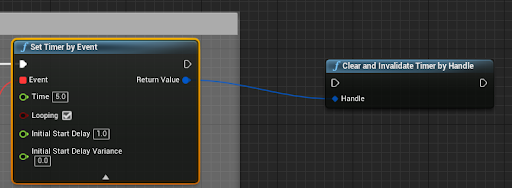
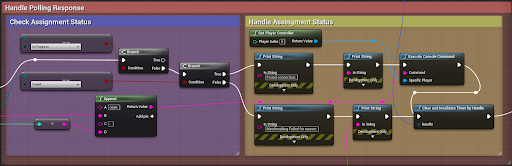
The Timer handle gets passed from the Set Timer by Event node to the Clear and Invalidate Timer by Handle node. You should have some conditional logic to trigger Clear and Invalidate Timer by Handle. You must make most consecutive calls to before a match is returned. After the status no longer returns as InProgress, it's safe to stop polling and delete the ticket.
GetTicketStatusThe following image shows a basic example of how to handle a polling response and trigger a Clear and Invalidate Timer.
Matchmaker Server Blueprint API
The Matchmaker Server Subsystem controls the server portion of matchmaking. This includes creating, approving, deleting, and updating backfill tickets.
You can use the to:
UMatchmakerServerBlueprintApi- Create a backfill ticket to begin backfill on the server.
- Approve a backfill ticket to let new players into the server.
- Update a backfill ticket to notify the matchmaker as players leave and join outside of the matchmaking process.
- Delete a backfill ticket after the server stops accepting new players.
CreateBackfillTicket
You need to create a new backfill ticket after a player (or players) leaves a full match, and the server needs to fill the empty slots. Use the Create Backfill Ticket blueprint to create a new backfill ticket for the server.
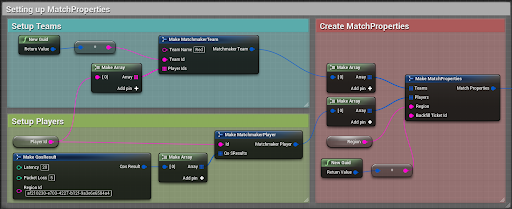
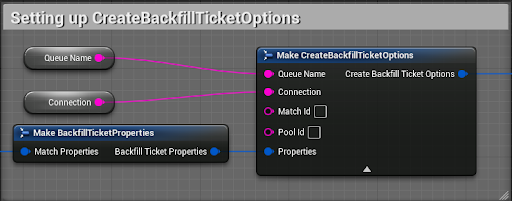
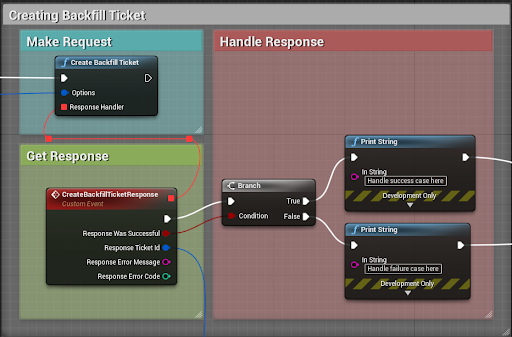
You can set up a custom event for the response handler and right-click (macOS: Ctrl+click) the events struct pin and select to access all the individual values in .
ResponseSplit Struct PinCreateBackfillTicketResponseApproveBackfillTicket
Use the Approve Backfill Ticket blueprint to periodically approve your backfill ticket to let new players into the server.
It's recommended to approve backfill tickets no faster than once a second. If a ticket goes for 20 seconds without approval, the Matchmaker service deletes it.
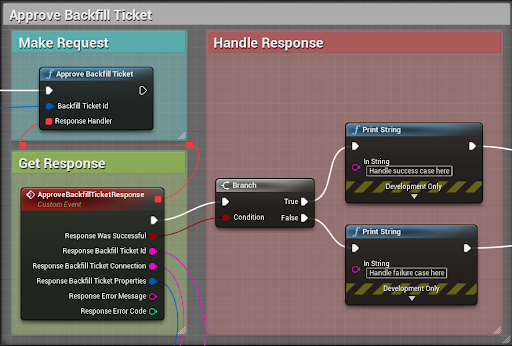
In the example above, approval runs in a loop every second. Be sure to use a Clear and Invalidate Timer by Handle node after deleting the backfill ticket.
You can set up a custom event for the response handler and right-click (macOS: Ctrl+click) the events struct pin and select to access all the individual values in .
ResponseSplit Struct PinApproveBackfillTicketResponseUnity recommends caching the values from the response and using them to build the in .
BackfillTicketUpdateBackfillTicketUpdateBackfillTicket
Update the backfill ticket whenever:
- A player leaves the server
- A player joins the server from outside of matchmaking logic
This can include but isn't limited to party invites, direct connections, and friend invites.
Use the Update Backfill Ticket blueprint to update a server's current backfill ticket.
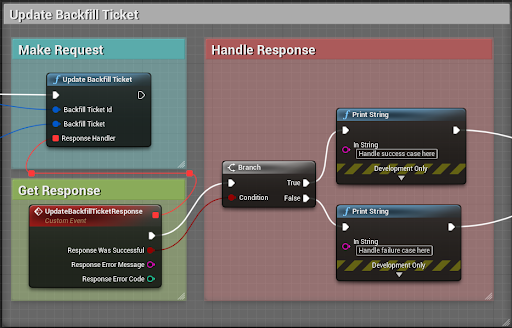
You can set up a custom event for the response handler and right-click (macOS: Ctrl+click) the events struct pin and select to access all the individual values in .
ResponseSplit Struct PinUpdateBackfillTicketResponseYou should call this no more than once every three seconds or after sees a change in the backfill ticket to guarantee a matchmaking cycle has passed.
ApproveBackfillTicketUnity recommends calling first and using the returned from to modify as needed and pass into the .
ApproveBackfillTicketBackfillTicketApproveBackfillTicketUpdateBackfillTicketDeleteBackfillTicket
You can delete a backfill ticket after a match becomes full and the server no longer needs to accept new players. You should also do this after a match ends.
Use the Delete Backfill Ticket blueprint to stop backfill on a server.
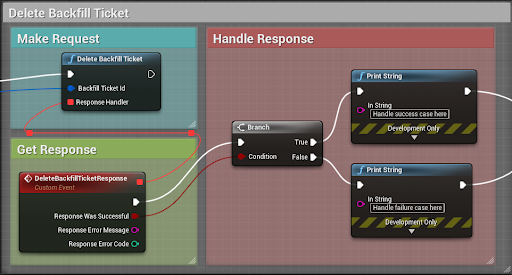
You can set up a custom event for the response handler and right-click (macOS: Ctrl+click) the events struct pin and select to access all the individual values in .
ResponseSplit Struct PinDeleteBackfillTicketResponseBlueprint utility functions
Due to limitations in Blueprints, JSON data types (such as and ) are not natively compatible and don’t support direct manipulation. The SDK implements a set of utility functions that allow you to manage JSON data as part of the API:
FJsonObjectFJsonValue- as part of
MatchmakerServerBlueprintUtilMatchmakerServer - as part of
MatchmakerClientBlueprintUtilMatchmakerClient
MatchmakerCoreMatchmakerClientMatchmakerServerMatchmakerClient
Player custom data
In the module there is with
MatchmakerClientMatchmakerClientBlueprintUtilPlayerCustomDataAddStringData(FMatchmakerPlayer& Player, FString Key, FString Value)
You can use this blueprint to add a string data field to a player’s CustomData object.
This returns true if the data is set successfully; otherwise, it returns false.
PlayerCustomDataAddNumberData(FMatchmakerPlayer& Player, FString Key, float Value)
You can use this blueprint to add a number data field to a player's CustomData object.
This returns true if the data is set successfully; otherwise, it returns false.
PlayerCustomDataRemoveData(FMatchmakerPlayer& Player, FString Key)
You can use this blueprint to remove a data field from a player’s CustomData object.
This returns true if the player’s CustomData contains a and it was removed. It returns false if a wasn't found.
KeyKeyAttributes
In the module there is with
MatchmakerClientMatchmakerClientBlueprintUtilCreateTicketOptionsAddStringAttribute(FCreateTicketOptions& Options, FString Key, FString Value)
Use this blueprint to add a string-based attribute to a object. This returns true if the attribute is set successfully, and false otherwise.
CreateTicketOptionsCreateTicketOptionsAddNumberAttribute(FCreateTicketOptions& Options, FString Key, float Value)
Use this blueprint to add a number-based attribute to a object. This returns true if the attribute is set successfully, and false otherwise.
CreateTicketOptionsCreateTicketOptionsRemoveAttribute(FCreateTicketOptions& Options, FString Key)
Use this blueprint to remove an attribute from a object.
CreateTicketOptionsThis returns true if contains the attribute and it was removed. If the attribute wasn't found, it returns false.
CreateTicketOptionsMatchmakerServer
In the module, there’s with
MatchmakerServerMatchmakerServerBlueprintUtilCreateBackfillTicketOptionsAddStringAttribute(FCreateBackfillTicketOptions Options, FString Key, FString Value)
You can use this blueprint to add a string-based attribute to a object. This returns true if the attribute is set successfully, and false otherwise.
CreateBackfillTicketOptionsCreateBackfillTicketOptionsAddNumberAttribute(FCreateBackfillTicketOptions& Options, FString Key, float Value)
This blueprint is used to add a number-based attribute to a object.
CreateBackfillTicketOptionsThis returns true if the attribute is set successfully, and false otherwise.
CreateBackfillTicketOptionsRemoveAttribute(FCreateBackfillTicketOptions Options, FString Key)
Use this blueprint to remove an attribute from a object. This returns true if contains the attribute and it was removed, and false if the attribute wasn't found.
CreateBackfillTicketOptionsCreateBackfillTicketOptions