Create a new project
Use Unity Hub to set up a new project from templates and manage template options.
Read time 5 minutesLast updated 5 days ago
To create a project in the Unity Hub, you need an active Unity license associated with your account. The Hub creates and stores projects locally. You can also store projects remotely through Unity Version Control, GitHub, or GitLab.
Create a project from a template
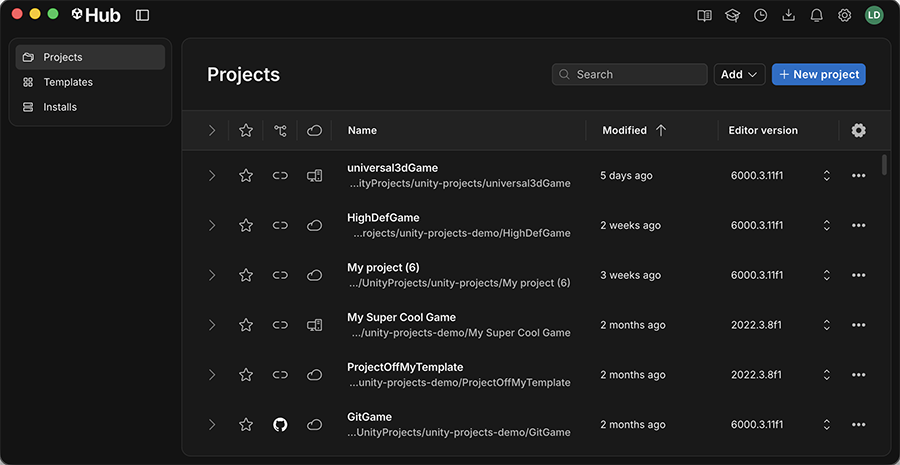
To create a new project select Projects. The New project window appears:
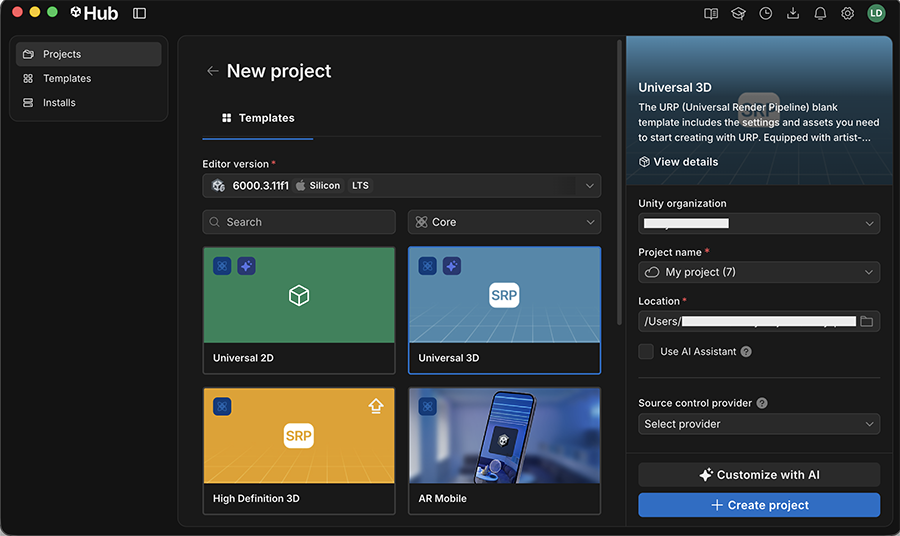
- Select New project.
- Select the Editor version you want to use . For information on installing a Unity Editor version, refer to Download and install the Unity Editor.
- Choose a project template. Templates are organized into three categories: Core, Sample, and Learning. For more information about each category, refer to Template categories. To learn more about a template, select it and select Read more to display more information, including the platforms that the template supports and the Unity packages it installs.
- If a template that you want to use isn't downloaded, select Download template and wait for the download to complete.
- Enter a Project name. The Hub uses this name for the project folder that stores your assets, scenes, and other project files.
- Choose a Location on your device to store the project. By default, projects are stored in your user home directory. To choose a different location, select the Location field and navigate to your preferred folder.
- Optionally select Use the Unity CLI to control this project from the command line. For more information, refer to Use the Unity command-line interface (CLI).
- You can optionally Select source control provider to create a remote repository for a new project. To learn more, refer to Create a source control repository for a project
- Select Create project. The Hub creates the project, adds it to your Projects list, and opens it in the Unity Editor.
For more information about the properties in the Projects window, refer to Projects window reference.
Create a source control repository for a project
When you create a new project, you can also create a new repository to connect the project to through Unity Version Control, GitHub or GitLab. To learn how to set up Unity Version Control in the Hub, refer to Get started with Unity Version Control via the Unity Hub.
Create and add to a GitHub repository in the Unity Hub
To set up a GitHub repository for a Unity project:
- Select Generate to create a personal access token (PAT).
- Configure the personal access token so that Unity can make changes to the repository:
- For fine-grained personal access tokens, add the Administration and Contents permissions, and set each to Read and Write. For more information, refer to Creating a fine-grained personal access token.
- For classic personal access tokens, select the repo scope. For more information, refer to Creating a personal access token (classic).
To add a new project to a GitHub repository:
- Expand the Select a source control provider dropdown and select GitHub.
- Enter your Personal Access Token and select Authenticate.
- Enter a name in the Project name field.
- Optionally, expand Additional configuration to set the owner, visibility status, description, and a default branch name for your repository.
- Select Create project.
The Hub creates a repository at the location you selected, adds the project to your list, and opens it in the Unity Editor.
Create a GitLab repository in the Unity Hub
To set up a GitLab repository for a Unity project:
- Select Generate to Create a Personal Access Token (PAT) in GitLab
- Configure the token so Unity can create and push to repositories. Add the scopes and
api.read_user
To add a new project to a GitLab repository:
- Expand the Select a source control provider dropdown and select GitLab.
- Enter your Personal Access Token and select Authenticate.
- Enter a name in the Project name field.
- Optionally, expand Additional configuration to set the User/group, visibility, description, and default branch name for your repository.
- Select Create project.
The Hub creates a repository in the selected GitLab namespace, adds the project to your list, and opens it in the Unity Editor.
Template categories
Project templates provide pre-selected settings based on common best practices for different types of projects. Templates optimize your project settings for specific use cases and platforms.
Note: The available templates depend on the Editor version you select. When you choose a different Editor version, the template list updates to show the templates compatible with that version.
Core templates
Core templates are general-purpose templates for common development scenarios. They include templates for 2D and 3D application development, virtual reality (VR), augmented reality (AR), mixed reality (MR), and mobile platforms. Core templates configure the appropriate render pipeline and packages for the project type you choose.
Sample templates
Sample templates include pre-built scenes, assets, and configurations that demonstrate certain project setups and workflows.
Learning templates
Learning templates include guided tutorials, sample scenes, and assets designed to help you learn the fundamentals of the Unity Editor. For more learning resources, visit the Unity Learn website.
Update a template
If an update is available for a template you've already downloaded, its tile displays an Upgrade button. You can download the update or continue using the current version of the template.
Check for template updates when you switch Editor versions.