Preview mock ads in the Unity Editor
Simulate banner, interstitial, and rewarded ads directly within the Unity Editor to test ad placement and behavior without deploying the app.
Read time 3 minutesLast updated 3 months ago
Overview
Use the Preview Mock Ads feature in the Unity Editor to simulate banner, interstitial, and rewarded ads directly within the Unity Editor. This eliminates the need to build and deploy your app just to verify ad placement or behavior. It allows you to test and debug your ad integration early in the development process to help you iterate on improvements for users' ad experiences.
Mock ads for different ad types
The following previews are examples of how mock ads can appear in the Unity Editor for different ad types, specifically, rewarded ads, interstitial ads, and banner ads:
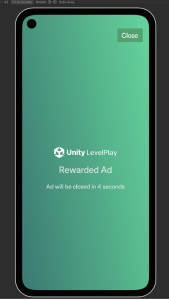
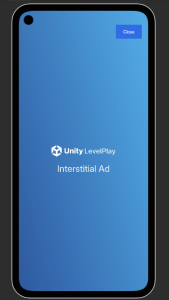
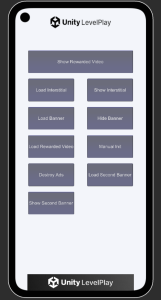
Benefits of using mock ads
Mock ads are a useful tool for publishers during development to help:
- Validate your ad integration flow to ensure ad events are firing correctly in the intended placements of your app
- Preview how the ads will display in your app UI to your users, including the layout and positioning of different ad formats
- Test ads during initial development, including the initialization, load, show and all other callbacks
Usage modes
You can preview mock ads in the Unity Editor in two ways:
- Using LevelPlay APIs in code: for testing ad flow and behavior
- Using drag-and-drop prefabs: for quickly previewing ad layout and positioning
Use LevelPlay APIs in code
This method simulates real ad behavior within the Editor by using the same API calls that are used in production. It is best used for testing ad logic, callbacks, and ad integration flows for rewarded, interstitial, and banner ads.
To preview mock ads using LevelPlay APIs, you're required to first initialize the SDK to call its APIs before implementing the standard ad integration flows.
Code example
LevelPlay.OnInitSuccess += SdkInitializationCompletedEvent; LevelPlay.OnInitFailed += SdkInitializationFailedEvent; LevelPlay.Init(“editor”); bannerAd = new LevelPlayBannerAd("editor_banner"); bannerAd.OnAdLoaded += BannerOnAdLoadedEvent; bannerAd.OnAdLoadFailed += BannerOnAdLoadFailedEvent; bannerAd.OnAdDisplayed += BannerOnAdDisplayedEvent; bannerAd.OnAdDisplayFailed += BannerOnAdDisplayFailedEvent; bannerAd.OnAdClicked += BannerOnAdClickedEvent; bannerAd.OnAdCollapsed += BannerOnAdCollapsedEvent; bannerAd.OnAdLeftApplication += BannerOnAdLeftApplicationEvent; bannerAd.OnAdExpanded += BannerOnAdExpandedEvent;
After the LevelPlay SDK is successfully initialized and a mock ad is loaded and displayed, they will appear during Play mode. Unity will simulate ad events and callbacks.
Use drag-and-drop prefabs
This method is useful for visual testing without writing any code, and is best used for quickly checking ad size and position within your UI.
To preview mock ads using predefined ad prefabs into your scene, follow these instructions:
- In your Unity project, go to your SDK folder.
- Go to Runtime > Platforms > Editor > Resources > Prefabs.
- Select one of the following prefabs to apply based on your ad type:
- MockBanner.prefab
- MockInterstitial.prefab
- MockRewarded.prefab
- Drag the relevant prefab into your Scene. The ad mockup will appear in the Game view, enabling you to preview positioning and size.
- Enter Play mode to preview the ad layout in the Game view.