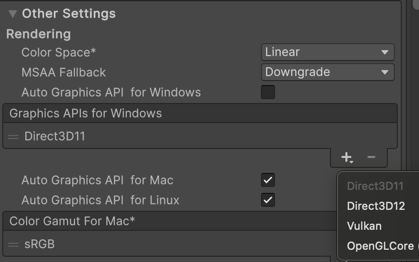
Navigate to Other Settings > Rendering section and enable Auto Graphics API for a platform (Windows/Mac/Linux):
Using the default graphics APIs
When you enable Auto Graphics API for a platform (Windows/Mac/Linux), the Player build includes a set of built-in graphics APIs and uses the appropriate one at runtime to produce a best case scenario.
Override default graphics APIs
You can override the default graphics APIs and use an alternate graphics API for the Editor and Player. Use the following steps:
In the
Player settings
?
> Other settings > Rendering section, disable the Auto Graphics API for a platform (Windows/Mac/Linux).
When Auto Graphics API for a platform (Windows/Mac/Linux) is disabled, the Unity Editor displays a list of supported graphics API for that platform and uses the first API in the list. The graphics API at the top of the Graphics API list is the default API. If the default API isn’t supported by a specific platform, Unity uses the next API in the Graphics API list. For the Player builds, Unity tries to use only those graphics APIs added to the list.
Select the Add (+) button, then select the graphics API from the dropdown.
Adding OpenGLCore to the Graphics APIs for Windows list
.
You can reorder the graphics APIs in the list. For example, to check how your application runs on OpenGL Core in the Editor, move OpenGLCore to the top of the list and the Editor switches to use OpenGL Core rendering.
Note
If your system doesn't support the graphics API at the top of the list, the Unity Editor automatically tries to use the next graphics API in the list. If none of the specified APIs are supported, the Unity Editor falls back to the built-in list of supported graphics APIs.
Note
The Editor's graphics API is only affected by the platform settings that match your operating system (for example, Windows settings on a Windows Editor). Changing the graphics API list for other platforms, such as Android or iOS, only affects Player builds.
Note
Unity compiles two sets of shaders if you add both DX11 and DX12 to the list, and you enable using the DXC compiler for DX12 in your build profile settings.