Use numeric field expressions
Use mathematical expressions to set numeric field values.
Read time 2 minutesLast updated 20 days ago
Numeric field inputs accept:
- Positive and negative numbers. Some properties might limit the range. For example, RGB values can't be negative.
- Mathematical expressions.
- Special functions for multiple selections.
Use mathematical expressions
You can use a mathematical expression to calculate the value of a numeric field.
For example, if you enter , the field calculates the value and uses it. When you change focus away from the field, the field refreshes and shows the calculated value.
2+35For more information about supported expressions, refer to .
ExpressionEvaluatorUse special functions
You can use special functions to edit multiple selected objects at once. For example, a linear ramp can distribute the selected objects along an axis.
Linear
For a linear ramp between and , use .
abL(a,b)
The X field has the value L(-10,10). The selected capsules are evenly distributed along the x-axis from -10 to 10.
Random
For random values between and , use .
abR(a,b)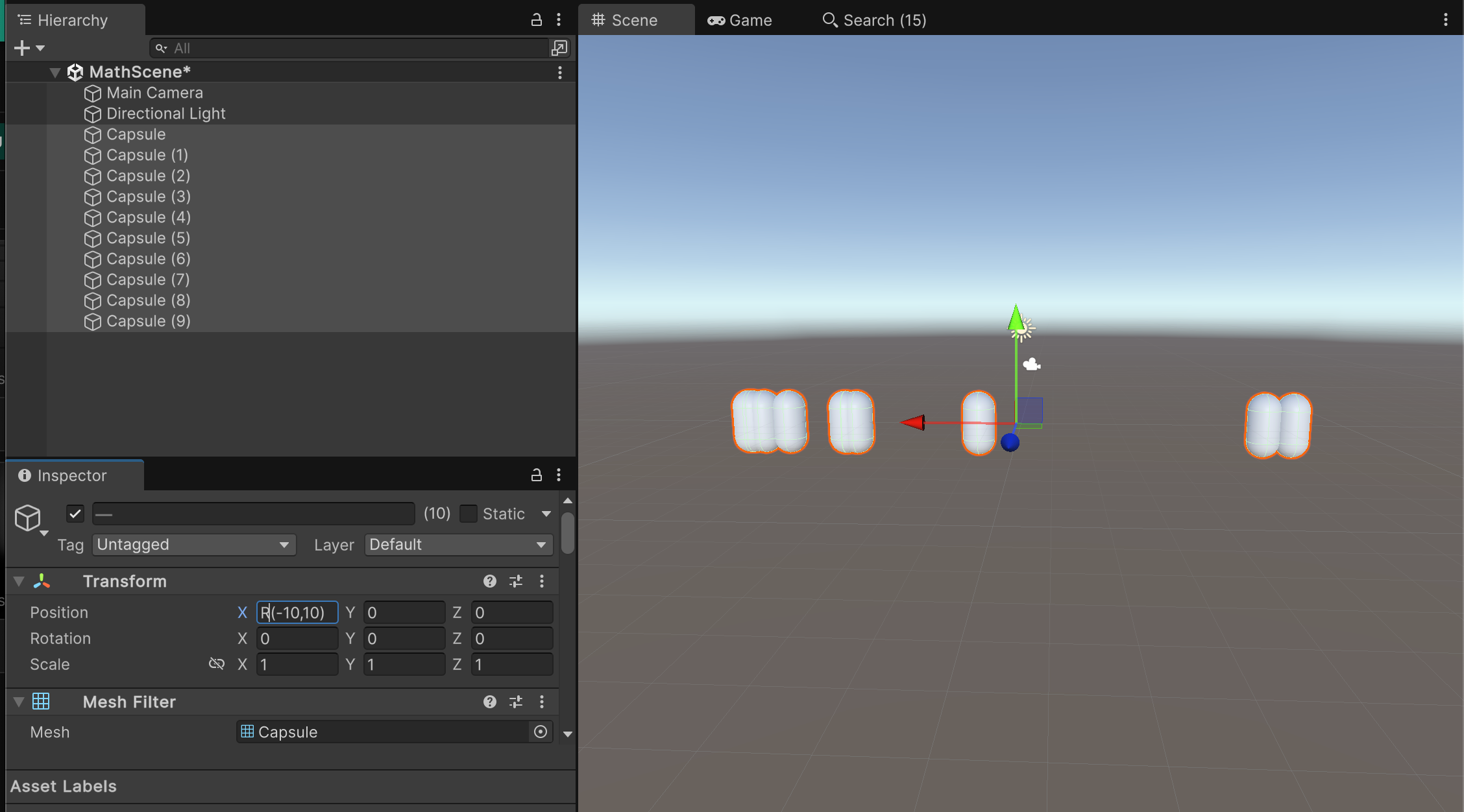
The X field has the value R(-10,10). The selected capsules are placed at random intervals along the x-axis from -10 to 10
Assign
To modify the current values, use the , , , and expressions. For example, to double the field's value for all selected objects, enter .
+=-=*=/=*=2
The X field has the value /=3, which divides the randomised values from the previous example by three.
Combine expressions
You can use mathematical expressions in function. For example, the expression produces a linear distribution of values between and .
L(0,2*pi)02piThe following examples uses the linear ramp function as the argument in sine and cosine functions in the X and Z fields. This distributes the objects in a circle:

This circle was created by using cos(L(0,2*pi))*5 for X and sin(L(0,2*pi))*5 for Z.
Use expressions in custom editors
When you create custom editors, support for numeric expressions are automatically available in all and properties that have a numerical value.
EditorGUI.PropertyFieldEditorGUILayout.PropertyField