Creating, loading, and saving scenes
Create new scenes, load existing scenes, and save your work in the Unity Editor.
Read time 4 minutesLast updated 21 days ago
Creating a new scene
There are several ways to create a new scene:
- Use the New Scene dialog to create a new scene from a specific scene template.
- Use the menu or the Project window to create new scenes from your Project's Basic scene template without opening the New Scene dialog.
- Create a scene from a specific template directly from a C# script.
Unity creates every new scene from a scene template. For information about creating and managing scene templates, see Scene templates.
Creating a new scene from the New Scene dialog
Use the New Scene dialog to create new scenes from specific scene templates in your Project. You can also use the New Scene dialog to find and manage scene templates. For details see The New Scene dialog.
By default, the New Scene dialog opens when you create a new scene from the menu (File > New Scene) or by using a shortcut (Ctrl/Cmd + n).
To create a new Scene:
- Select a template from the list.
- If you want Unity to load the new scene additively (see note below), enable Load Additively.
- Click Create to create a new scene from the template.
If the template does not have any cloneable dependencies, Unity loads the new scene in memory, but does not save it.
If the template has cloneable dependencies, Unity prompts you to choose a location in the Project to save it to. When you save the scene, Unity creates a folder in the same location, and with the same name as the new scene. It then clones the cloneable dependencies into the new folder, and updates the new scene to use the cloned assets instead of the original assets used by the template scene.
Creating a new scene from the menu:
Use the menu (Assets > Create > ) to create a new scene without opening the New Scene dialog.
Scene
?
When you create a new scene from the menu, Unity automatically copies the project's Basic template, and adds the new scene to whichever folder is currently open in the project window.
Creating a new scene from the project window
Use the context menu in the Project window to create a new scene without opening the New Scene dialog.
- Navigate to the folder where you want to create the new scene.
- Right click the folder in the left-hand pane, or right-click an empty area in the right hand pane, and select Create > Scene from the context menu.
When you create a new scene from the menu, Unity automatically copies the project's Basic template, and adds the new scene to the selected folder.
Creating a new scene from a C# script
To create a new scene from a C# script using a specific scene template, use the method.
SceneTemplateService.InstantiateThe method instantiates a new scene from a scene template. It returns the newly created handle, and its matching . You can create this scene additively. If the scene contains assets that need to be cloned, you must provide a path for Unity to save the scene to disk.
InstantiateSceneSceneAssetNew scene events
When you create a new scene from a template, either from a script or using the New Scene dialog, Unity triggers an event. Unity triggers this event after the template is instantiated, and also after it triggers the or events.
EditorSceneManager.newSceneCreatedEditorSceneManager.sceneOpenedpublic class SceneTemplate{ public delegate void NewTemplateInstantiated(SceneTemplateAsset sceneTemplateAsset, Scene scene, SceneAsset sceneAsset, bool additiveLoad); public static event NewTemplateInstantiated newSceneTemplateInstantiated;}
Loading scenes
To open a scene, do one of the following:
- In the Project window, double-click the scene asset.
- From the menu, select File > Open Scene.
- From the menu, select File > Recent Scenes and select the name of the scene.
If your current scene contains unsaved changes, Unity prompts you to save the scene or discard the changes.
Opening multiple scenes at once
You can open multiple scenes for editing at the same time. For details, see Multi-Scene editing.
Saving scenes
To save the scene you're currently working on, choose File > Save Scene from the menu, or press Ctrl + S (Windows) or Cmd + S (macOS).
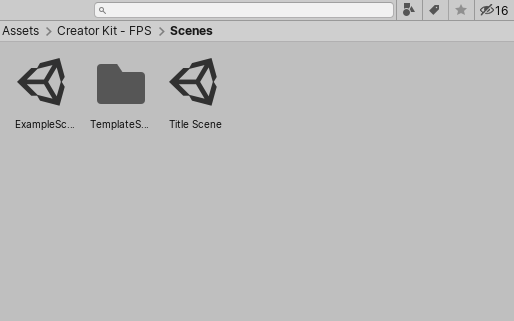
Saved scene assets visible in the Project window