Programming with gizmos and handles
Draw lines and shapes in the Scene view and Game view, and create interactive handles and controls.
Read time 2 minutesLast updated 18 days ago
The and classes allow you to draw lines and shapes in the view and Game view, as well as interactive handles and controls. These two classes together provide a way for you to extend what is shown in these views and build interactive tools to edit your project in any way you like.
GizmosHandlesScene
?
For example, rather than entering numbers in the Inspector, you could create a draggable circle radius gizmo around a non-player character in a game, which represents the area within which they can hear or see the player.
Gizmos
The class allows you to draw lines, spheres, cubes, icons, textures and meshes into the Scene view to use as debugging, set-up aids, or tools while developing your project.
GizmosThe following example draws a 10 unit yellow wire cube around a GameObject:
using UnityEngine;public class GizmosExample : MonoBehaviour{ void OnDrawGizmosSelected() { // Draw a yellow cube at the transform position Gizmos.color = Color.yellow; Gizmos.DrawWireCube(transform.position, new Vector3(10, 10, 10)); }}
The following image shows how this cube looks when placed on a Directional Light GameObject:
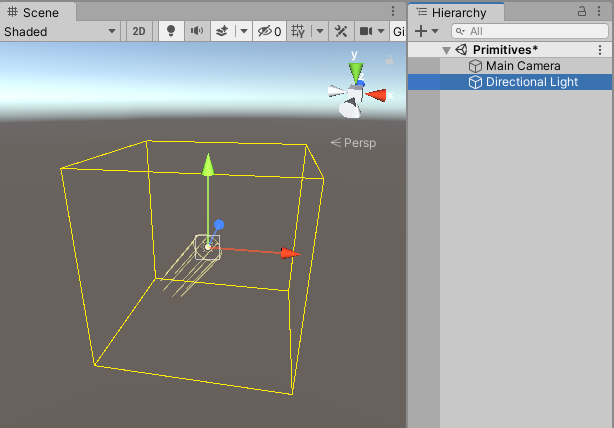
A light GameObject with an extra script applied which draws a cube gizmo around its position
For a full API reference including usage examples, refer to the API reference page for .
GizmosHandles
Handles are similar to gizmos, but provide more interactivity and manipulation. The default 3D controls that Unity provides to manipulate items in the Scene view are a combination of gizmos and handles. There are a number of built-in handle GUIs, such as the familiar tools to position, scale and rotate an object via the Transform component.
You can define your own handle GUIs to use with custom component editors. Such GUIs can be a very useful way to edit procedurally-generated Scene content, "invisible" items and groups of related objects, such as waypoints and location markers.
The following example creates an arc area with an arrowhead handle, allowing you to modify a "shield area" in the Scene view:
using UnityEditor;using UnityEngine;using System.Collections;//this class should exist somewhere in your projectpublic class WireArcExample : MonoBehaviour{ public float shieldArea;}// Create a 180 degrees wire arc with a ScaleValueHandle attached to the disc// that lets you modify the "shieldArea" value in the WireArcExample[CustomEditor(typeof(WireArcExample))]public class DrawWireArc : Editor{ void OnSceneGUI() { Handles.color = Color.red; WireArcExample myObj = (WireArcExample)target; Handles.DrawWireArc(myObj.transform.position, myObj.transform.up, -myObj.transform.right, 180, myObj.shieldArea); myObj.shieldArea = (float)Handles.ScaleValueHandle(myObj.shieldArea, myObj.transform.position + myObj.transform.forward * myObj.shieldArea, myObj.transform.rotation, 1, Handles.ConeHandleCap, 1); }}
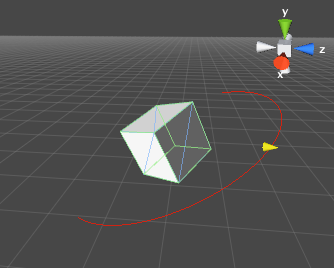
An example of an Arc handle and an Scale handle
For a full API reference including usage examples, refer to the API reference page for .
Handles