Playables Examples
Provides example scripts that demonstrate how to use the Playables API.
Read time 8 minutesLast updated 24 days ago
PlayableGraph Visualizer
The examples on this page use the PlayableGraph Visualizer to illustrate the trees and nodes created by the Playables API. The PlayableGraph Visualizer is a tool available through GitHub.
To use the PlayableGraph Visualizer:
-
Download the PlayableGraph Visualizer from the GitHub repository.
-
Open the tool by selecting Window > PlayableGraph Visualizer.
-
Register your graph using.
GraphVisualizerClient.Show(PlayableGraph graph, string name)

The GraphVisualizer window
Playables in the graph are represented by colored nodes. Wire color intensity indicates the weight of the blending. Consult GitHub for more information on the PlayableGraph Visualizer.
Play a single animation clip on a GameObject
This example demonstrates a simple with a single playable output that is linked to a single playable node. The playable node plays a single animation clip (clip). An must wrap the animation clip to make it compatible with the Playables API.
PlayableGraphAnimationClipPlayableusing UnityEngine;using UnityEngine.Playables;using UnityEngine.Animations;[RequireComponent(typeof(Animator))]public class PlayAnimationSample : MonoBehaviour{ public AnimationClip clip; PlayableGraph playableGraph; void Start() { playableGraph = PlayableGraph.Create(); playableGraph.SetTimeUpdateMode(DirectorUpdateMode.GameTime); var playableOutput = AnimationPlayableOutput.Create(playableGraph, "Animation", GetComponent<Animator>()); // Wrap the clip in a playable. var clipPlayable = AnimationClipPlayable.Create(playableGraph, clip); // Connect the Playable to an output. playableOutput.SetSourcePlayable(clipPlayable); // Plays the Graph. playableGraph.Play(); } void OnDisable() { // Destroys all Playables and PlayableOutputs created by the graph. playableGraph.Destroy(); }}

The PlayableGraph generated by PlayAnimationSample
Use to simplify the creation and playback of animation playables, as shown in the following example:
AnimationPlayableUtilitiesusing UnityEngine;using UnityEngine.Playables;using UnityEngine.Animations;[RequireComponent(typeof(Animator))]public class PlayAnimationUtilitiesSample : MonoBehaviour{ public AnimationClip clip; PlayableGraph playableGraph; void Start() { AnimationPlayableUtilities.PlayClip(GetComponent<Animator>(), clip, out playableGraph); } void OnDisable() { // Destroys all Playables and Outputs created by the graph. playableGraph.Destroy(); }}
Create an animation blend tree
This example demonstrates how to use the to blend two animation clips. Before blending the animation clips, they must be wrapped by playables. To do this, an (clipPlayable0 and clipPlayable1) wraps each (clip0 and clip1). The method dynamically adjusts the blend weight of each playable.
AnimationMixerPlayableAnimationClipPlayableAnimationClipSetInputWeight()Although not shown in this example, you can also use to blend playable mixers and other playables.
AnimationMixerPlayableusing UnityEngine;using UnityEngine.Playables;using UnityEngine.Animations;[RequireComponent(typeof(Animator))]public class MixAnimationSample : MonoBehaviour{ public AnimationClip clip0; public AnimationClip clip1; public float weight; PlayableGraph playableGraph; AnimationMixerPlayable mixerPlayable; void Start() { // Creates the graph, the mixer and binds them to the Animator. playableGraph = PlayableGraph.Create(); var playableOutput = AnimationPlayableOutput.Create(playableGraph, "Animation", GetComponent<Animator>()); mixerPlayable = AnimationMixerPlayable.Create(playableGraph, 2); playableOutput.SetSourcePlayable(mixerPlayable); // Creates AnimationClipPlayable and connects them to the mixer. var clipPlayable0 = AnimationClipPlayable.Create(playableGraph, clip0); var clipPlayable1 = AnimationClipPlayable.Create(playableGraph, clip1); playableGraph.Connect(clipPlayable0, 0, mixerPlayable, 0); playableGraph.Connect(clipPlayable1, 0, mixerPlayable, 1); // Plays the Graph. playableGraph.Play(); } void Update() { weight = Mathf.Clamp01(weight); mixerPlayable.SetInputWeight(0, 1.0f-weight); mixerPlayable.SetInputWeight(1, weight); } void OnDisable() { // Destroys all Playables and Outputs created by the graph. playableGraph.Destroy(); }}

The PlayableGraph generated by `MixAnimationSample
Blend an AnimationClip and AnimatorController
This example demonstrates how to use an to blend an with an .
AnimationMixerPlayableAnimationClipAnimatorControllerBefore you blend the and , they must be wrapped by playables. To do this, an (clipPlayable) wraps the (clip) and an (ctrlPlayable) wraps the RuntimeAnimatorController (controller). The method dynamically adjusts the blend weight of each playable.
AnimationClipAnimatorControllerAnimationClipPlayableAnimationClipAnimatorControllerPlayableSetInputWeight()using UnityEngine;using UnityEngine.Playables;using UnityEngine.Animations;[RequireComponent(typeof(Animator))]public class RuntimeControllerSample : MonoBehaviour{ public AnimationClip clip; public RuntimeAnimatorController controller; public float weight; PlayableGraph playableGraph; AnimationMixerPlayable mixerPlayable; void Start() { // Creates the graph, the mixer and binds them to the Animator. playableGraph = PlayableGraph.Create(); var playableOutput = AnimationPlayableOutput.Create(playableGraph, "Animation", GetComponent<Animator>()); mixerPlayable = AnimationMixerPlayable.Create(playableGraph, 2); playableOutput.SetSourcePlayable(mixerPlayable); // Creates AnimationClipPlayable and connects them to the mixer. var clipPlayable = AnimationClipPlayable.Create(playableGraph, clip); var ctrlPlayable = AnimatorControllerPlayable.Create(playableGraph, controller); playableGraph.Connect(clipPlayable, 0, mixerPlayable, 0); playableGraph.Connect(ctrlPlayable, 0, mixerPlayable, 1); // Plays the Graph. playableGraph.Play(); } void Update() { weight = Mathf.Clamp01(weight); mixerPlayable.SetInputWeight(0, 1.0f-weight); mixerPlayable.SetInputWeight(1, weight); } void OnDisable() { // Destroys all Playables and Outputs created by the graph. playableGraph.Destroy(); }}
Create a PlayableGraph with several outputs
This example demonstrates how to create a with two different playable output types: an and an . A can have many playable outputs of different types.
PlayableGraphAudioPlayableOutputAnimationPlayableOutputPlayableGraphThis example also demonstrates how to play an through an connected to an .
AudioClipAudioClipPlayableAudioPlayableOutputusing UnityEngine;using UnityEngine.Animations;using UnityEngine.Audio;using UnityEngine.Playables;[RequireComponent(typeof(Animator))][RequireComponent(typeof(AudioSource))]public class MultiOutputSample : MonoBehaviour{ public AnimationClip animationClip; public AudioClip audioClip; PlayableGraph playableGraph; void Start() { playableGraph = PlayableGraph.Create(); // Create the outputs. var animationOutput = AnimationPlayableOutput.Create(playableGraph, "Animation", GetComponent<Animator>()); var audioOutput = AudioPlayableOutput.Create(playableGraph, "Audio", GetComponent<AudioSource>()); // Create the playables. var animationClipPlayable = AnimationClipPlayable.Create(playableGraph, animationClip); var audioClipPlayable = AudioClipPlayable.Create(playableGraph, audioClip, true); // Connect the playables to an output. animationOutput.SetSourcePlayable(animationClipPlayable); audioOutput.SetSourcePlayable(audioClipPlayable); // Plays the Graph. playableGraph.Play(); } void OnDisable() { // Destroys all Playables and Outputs created by the graph. playableGraph.Destroy(); }}
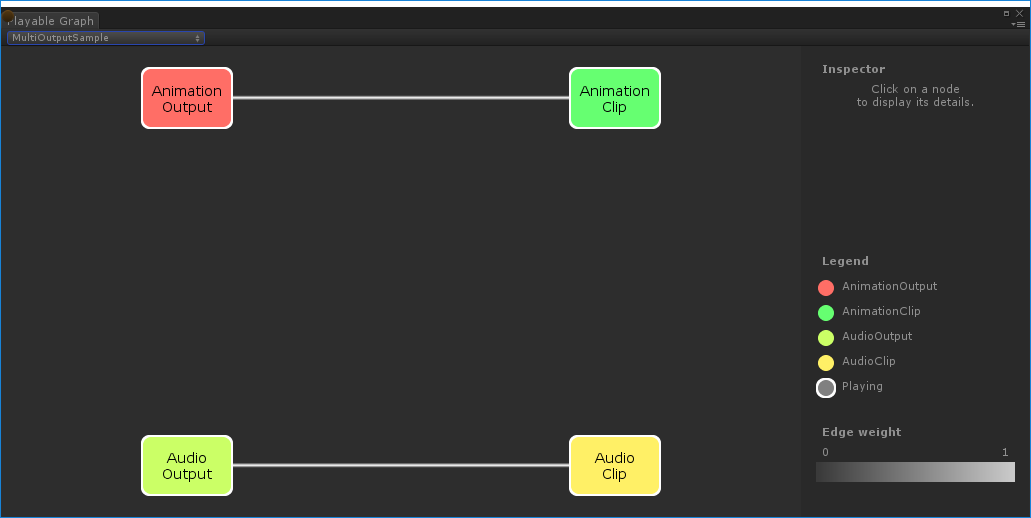
The PlayableGraph generated by `MultiOutputSample
Control the play state of the tree
This example demonstrates how to control the play state of nodes on the tree. The and methods control the play state of the entire tree, one of its branches, or a single node.
PlayableGraphPause()Play()When setting the play state of a node, the state propagates to all its children, regardless of their play states. For example, if a child node is explicitly paused, setting a parent node to playing also sets all its child nodes to playing.
In this example, the contains a mixer that blends two animation clips. An wraps each animation clip and the method explicitly pauses the second playable. The second is explicitly paused, so its internal time doesn't advance and outputs the same value. The exact value depends on the specific time when the was paused.
PlayableGraphAnimationClipPlayablePause()AnimationClipPlayableAnimationClipPlayableusing UnityEngine;using UnityEngine.Playables;using UnityEngine.Animations;[RequireComponent(typeof(Animator))]public class PauseSubGraphAnimationSample : MonoBehaviour{ public AnimationClip clip0; public AnimationClip clip1; PlayableGraph playableGraph; AnimationMixerPlayable mixerPlayable; void Start() { // Creates the graph, the mixer and binds them to the Animator. playableGraph = PlayableGraph.Create(); var playableOutput = AnimationPlayableOutput.Create(playableGraph, "Animation", GetComponent<Animator>()); mixerPlayable = AnimationMixerPlayable.Create(playableGraph, 2); playableOutput.SetSourcePlayable(mixerPlayable); // Creates AnimationClipPlayable and connects them to the mixer. var clipPlayable0 = AnimationClipPlayable.Create(playableGraph, clip0); var clipPlayable1 = AnimationClipPlayable.Create(playableGraph, clip1); playableGraph.Connect(clipPlayable0, 0, mixerPlayable, 0); playableGraph.Connect(clipPlayable1, 0, mixerPlayable, 1); mixerPlayable.SetInputWeight(0, 1.0f); mixerPlayable.SetInputWeight(1, 1.0f); clipPlayable1.Pause(); // Plays the Graph. playableGraph.Play(); } void OnDisable() { // Destroys all Playables and Outputs created by the graph. playableGraph.Destroy(); }}
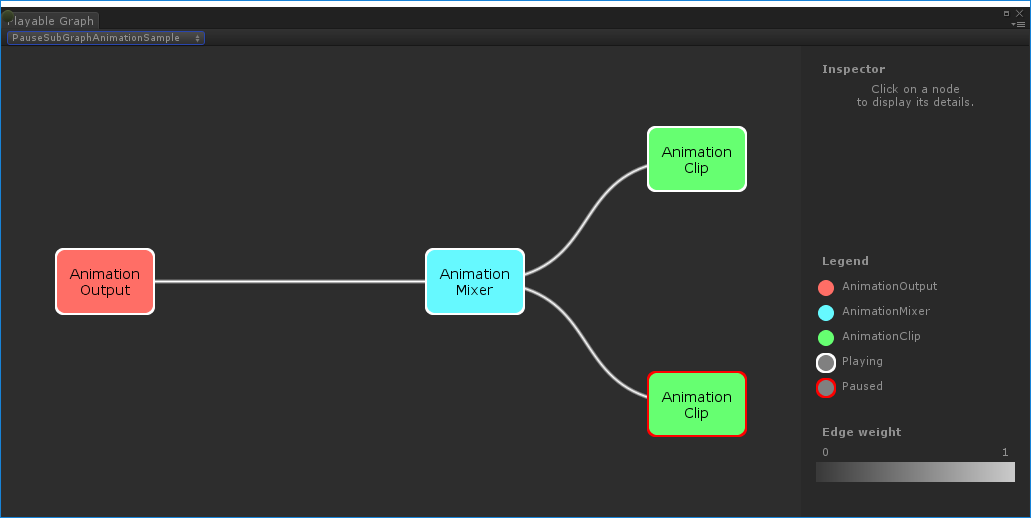
The PlayableGraph generated by PauseSubGraphAnimationSample. Notice that the second clip is paused (red edge).
Control the timing of the tree
This example demonstrates how to use the method to play a PlayableGraph, how to use the method to pause a playable, and how to use the method to manually set the local time of a playable with a variable.
Play()Pause()SetTime()using UnityEngine;using UnityEngine.Playables;using UnityEngine.Animations;[RequireComponent(typeof(Animator))]public class PlayWithTimeControlSample : MonoBehaviour{ public AnimationClip clip; public float time; PlayableGraph playableGraph; AnimationClipPlayable playableClip; void Start() { playableGraph = PlayableGraph.Create(); var playableOutput = AnimationPlayableOutput.Create(playableGraph, "Animation", GetComponent<Animator>()); // Wrap the clip in a playable. playableClip = AnimationClipPlayable.Create(playableGraph, clip); // Connect the Playable to an output. playableOutput.SetSourcePlayable(playableClip); // Plays the Graph. playableGraph.Play(); // Stops time from progressing automatically. playableClip.Pause(); } void Update () { // Control the time manually. playableClip.SetTime(time); } void OnDisable() { // Destroys all Playables and Outputs created by the graph. playableGraph.Destroy(); }}
Create PlayableBehaviour
This example demonstrates how to create custom playables with the public class. This example also demonstrate how to override the virtual method to control nodes on the . Custom playables can override any of the other virtual methods of the class.
PlayableBehaviourPrepareFrame()PlayableGraphPlayableBehaviourIn this example, the nodes being controlled are a series of animation clips (clipsToPlay). The modifies the blend weight of each animation clip, ensuring that only one clip plays at a time, and the method adjusts the local time so playback starts at the moment the animation clip is activated.
SetInputMethod()SetTime()using UnityEngine;using UnityEngine.Animations;using UnityEngine.Playables;public class PlayQueuePlayable : PlayableBehaviour{ private int m_CurrentClipIndex = -1; private float m_TimeToNextClip; private Playable mixer; public void Initialize(AnimationClip[] clipsToPlay, Playable owner, PlayableGraph graph) { owner.SetInputCount(1); mixer = AnimationMixerPlayable.Create(graph, clipsToPlay.Length); graph.Connect(mixer, 0, owner, 0); owner.SetInputWeight(0, 1); for (int clipIndex = 0 ; clipIndex < mixer.GetInputCount() ; ++clipIndex) { graph.Connect(AnimationClipPlayable.Create(graph, clipsToPlay[clipIndex]), 0, mixer, clipIndex); mixer.SetInputWeight(clipIndex, 1.0f); } } override public void PrepareFrame(Playable owner, FrameData info) { if (mixer.GetInputCount() == 0) return; // Advance to next clip if necessary. m_TimeToNextClip -= (float)info.deltaTime; if (m_TimeToNextClip <= 0.0f) { m_CurrentClipIndex++; if (m_CurrentClipIndex >= mixer.GetInputCount()) m_CurrentClipIndex = 0; var currentClip = (AnimationClipPlayable)mixer.GetInput(m_CurrentClipIndex); // Reset the time so that the next clip starts at the correct position. currentClip.SetTime(0); m_TimeToNextClip = currentClip.GetAnimationClip().length; } // Adjust the weight of the inputs. for (int clipIndex = 0 ; clipIndex < mixer.GetInputCount(); ++clipIndex) { if (clipIndex == m_CurrentClipIndex) mixer.SetInputWeight(clipIndex, 1.0f); else mixer.SetInputWeight(clipIndex, 0.0f); } }}[RequireComponent(typeof (Animator))]public class PlayQueueSample : MonoBehaviour{ public AnimationClip[] clipsToPlay; PlayableGraph playableGraph; void Start() { playableGraph = PlayableGraph.Create(); var playQueuePlayable = ScriptPlayable<PlayQueuePlayable>.Create(playableGraph); var playQueue = playQueuePlayable.GetBehaviour(); playQueue.Initialize(clipsToPlay, playQueuePlayable, playableGraph); var playableOutput = AnimationPlayableOutput.Create(playableGraph, "Animation", GetComponent<Animator>()); playableOutput.SetSourcePlayable(playQueuePlayable); playableOutput.SetSourceInputPort(0); playableGraph.Play(); } void OnDisable() { // Destroys all Playables and Outputs created by the graph. playableGraph.Destroy(); }}
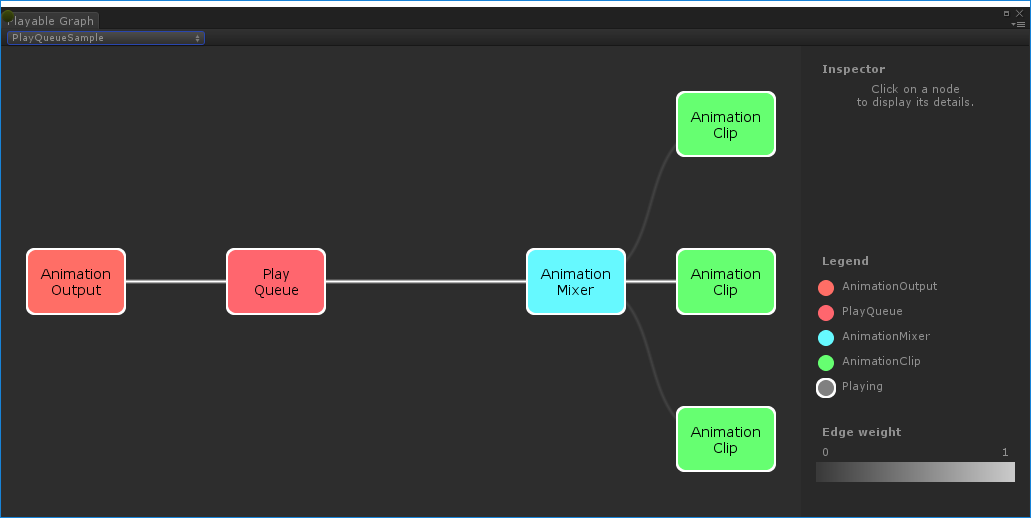
The PlayableGraph generated by PlayQueueSample