Introduction to the AI Screenshot Enhancement feature
Capture screenshots of your scene and enhance them with AI.
읽는 시간 2분최근 업데이트: 2달 전
The AI Screenshot Enhancement feature lets you capture a screenshot of your scene and generate high-quality, AI-enhanced images from a prompt.
Enhance screenshots of your scene with AI
Once you take a screenshot of your scene, you can use an AI prompt to add materials, lighting, and backgrounds to your screenshot. This way, you can create professional, industry-style images without the need for extra assets.
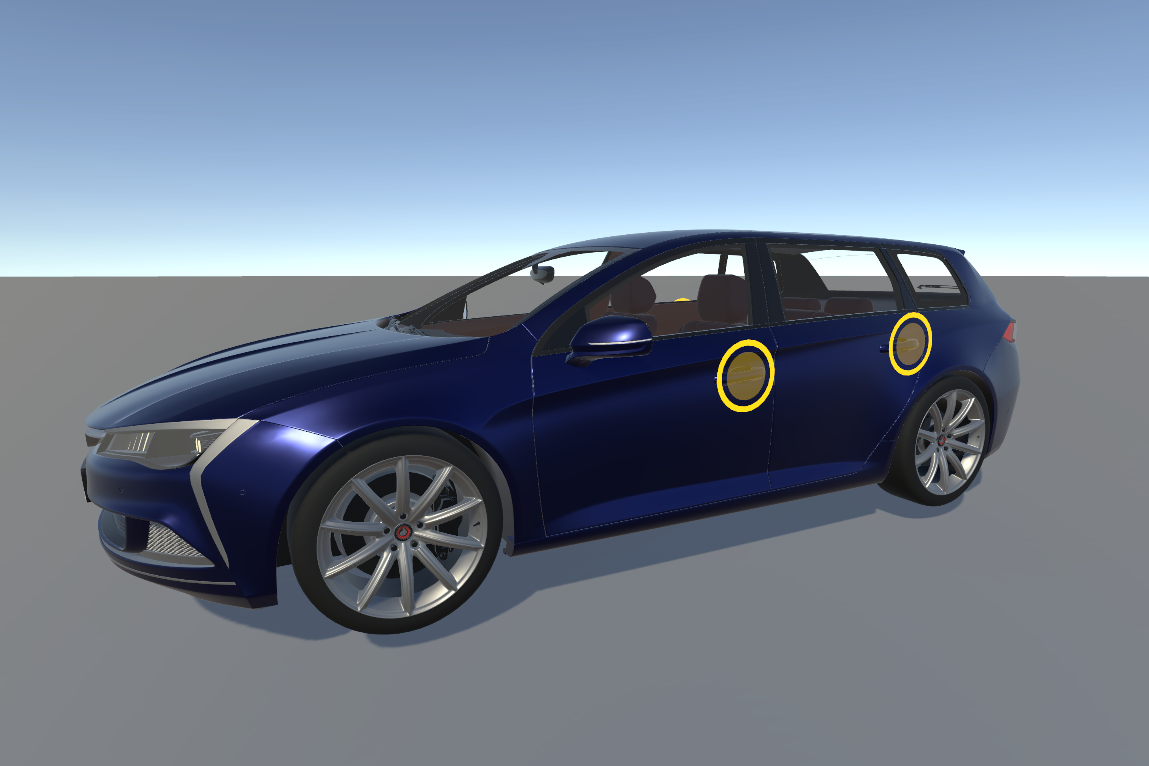
Car model scene without AI enhancements
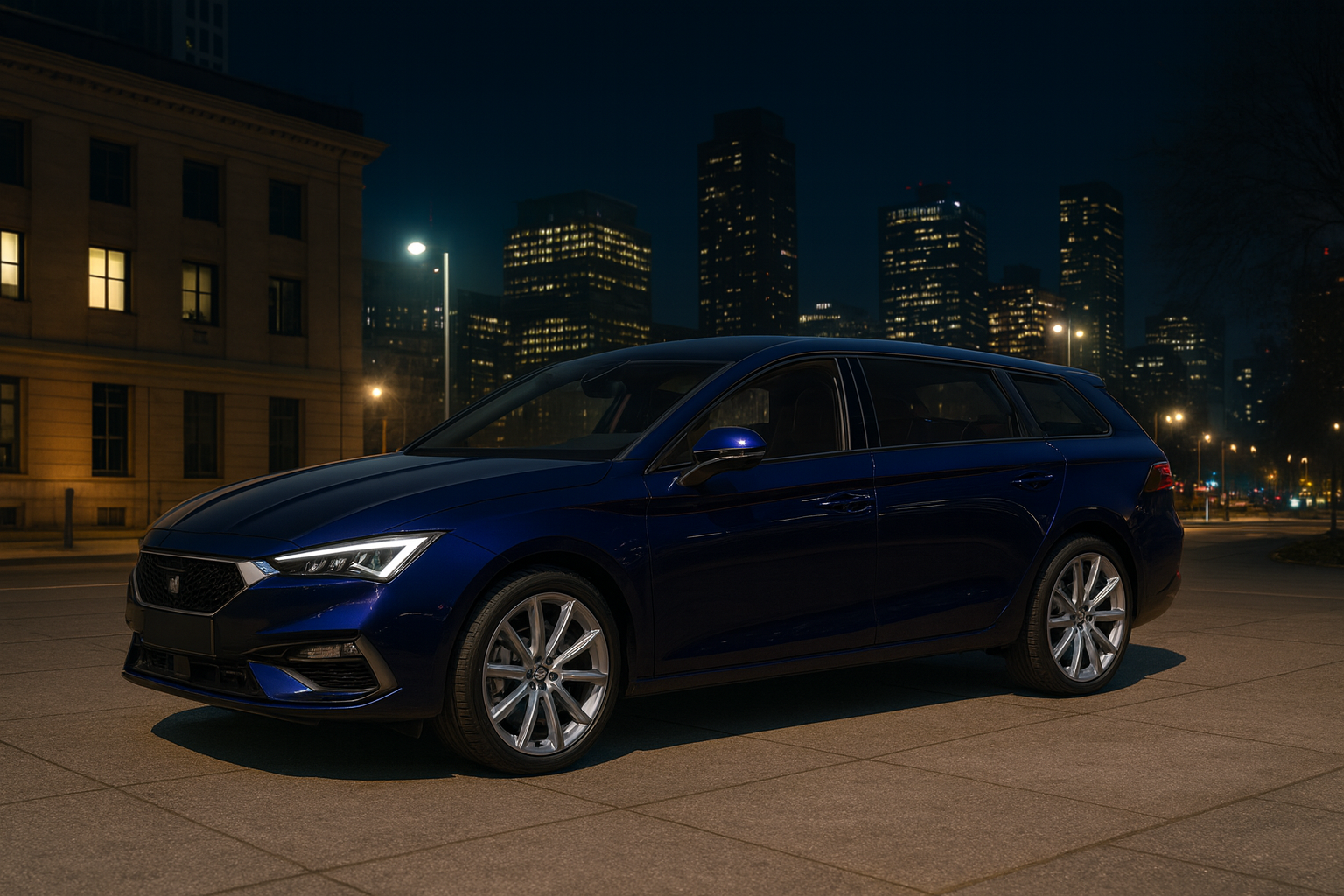
There's a daily limit to how many times you can generate an AI image. You can also download your enhanced screenshots and save them to your local machine.
For step-by-step instructions on how to use this feature, refer to Create an AI enhanced screenshot.
Example use cases
The following are a few examples of how you might use this feature:
- Create a scene with untextured assets and generate an enhanced screenshot with realistic-looking materials, professional lighting, and a real-world background.
- Create a basic scene with a low‑poly 3D object and generate an enhanced screenshot for marketing materials or internal reviews, without the need for a full render pipeline.
Data security
All data processing happens within a secure, enterprise‑grade cloud environment. Unity Studio sends data securely over HTTPS, and only authorized users can access the feature.
Save your results
Unity Studio doesn't store screenshots or outputs unless you choose to save them locally. Once the result returns in your browser, you need to download or discard it.
Confirmation requirements for AI Screenshot Enhancement
When you select Generate in the AI Screenshot Enhancement window to create an image, you confirm that:
- You own or have permission to use the uploaded image.
- You acknowledge that the tool uses AI to create your image.
- There's no personal identifying information in your prompts or image.
- You will not use the image in production.
Limitations
You might run into the following limitations when you use this feature:
- Enhanced results depend on the input screenshot and prompt. Extreme changes to scene content might not be consistent.
- Generated images aren't saved automatically. You must download them to preserve them.