게임 성장 Unity Ads UA 파트너 연동 AppsFlyer 연동 AppsFlyer와 Unity 연동 AppsFlyer 대시보드에서 Unity Ads 연동을 활성화하고, 전체 데이터 공유를 사용 가능하게 설정하며, 이벤트를 매핑하고, 파트너 권한을 설정합니다.
중요
다음 기술 자료는 Unity가 개발하거나, 소유하거나, 운영하지 않는 제품 또는 서비스('타사 제품')에 관한 내용입니다.
이 정보는 오래되었거나 불완전할 수 있으며 편의를 위해 제공됩니다.
타사 제품을 사용하는 경우 해당 제품의 약관이 적용됩니다.
Unity는 이러한 제품에 대해 어떠한 보증도 하지 않으며, 타사 제공자의 콘텐츠, 광고 또는 머티리얼과 관련된 문제를 포함하여 제품 사용으로 인한 손해나 손실에 대해서도 책임지지 않습니다.
AppsFlyer를 Unity Ads UA 캠페인의 MMP(모바일 측정 파트너)로 설정합니다. 연동에는 다음 설정 작업이 포함됩니다.
필수 조건
설정 전에 다음 요구 사항을 충족하는지 검토합니다.
Unity Ads와 AppsFlyer 연동
UA 캠페인에 AppsFlyer를 연동하려면 다음 단계를 완료합니다.
AppsFlyer 대시보드에서 Unity Ads 활성화
AppsFlyer 대시보드에서 Collaborate > Partner Marketplace 로 이동합니다.
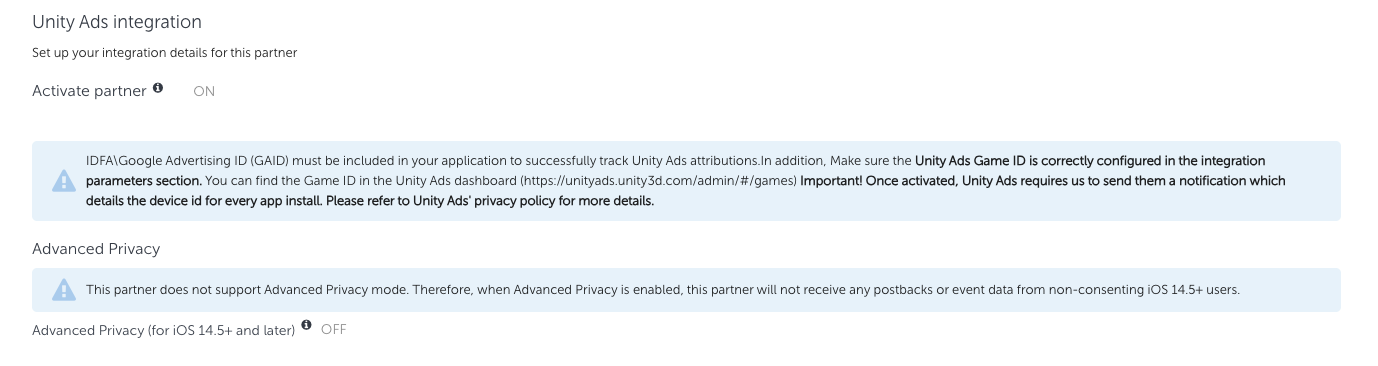
Unity Ads 를 검색한 후 Set up integration 을 선택하면 Integration 탭이 열립니다.Activate Partner 토글을 활성화합니다.일부 광고주의 경우 Advanced Privacy 토글이 Integration 탭에 있을 수 있습니다. 대시보드에 이 토글이 있으면 비활성화해야 합니다.
중요
연동 설정에서 Advanced Privacy 토글이 활성화되어 있으면 AppsFlyer는 캠페인에 이벤트 데이터를 공유할 수 없습니다.
Deactivate the Advanced Privacy toggle
Integration 탭에서 General settings 와 Install attribution 섹션 모두 다음과 같이 설정합니다.
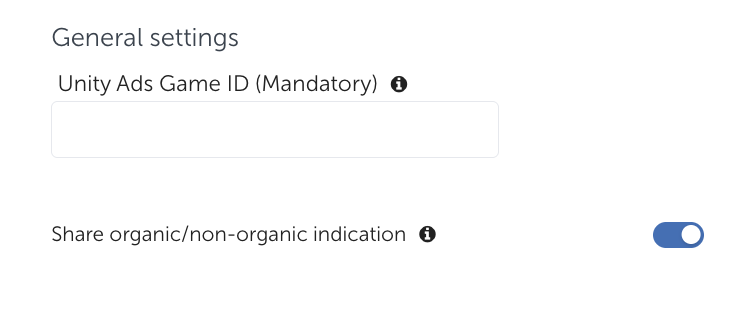
일반 설정 General settings 섹션을 다음과 같이 설정합니다.
Share organic/non-organic indication 토글을 활성화합니다. Share organic and non-organic
Unity Ads 게임 ID 를 입력합니다.
참고
UA 대시보드에 표시된 게임 ID를 정확하게 입력합니다. 게임 ID가 일치하지 않으면 Unity에서 이벤트를 올바르게 수신할 수 없습니다.
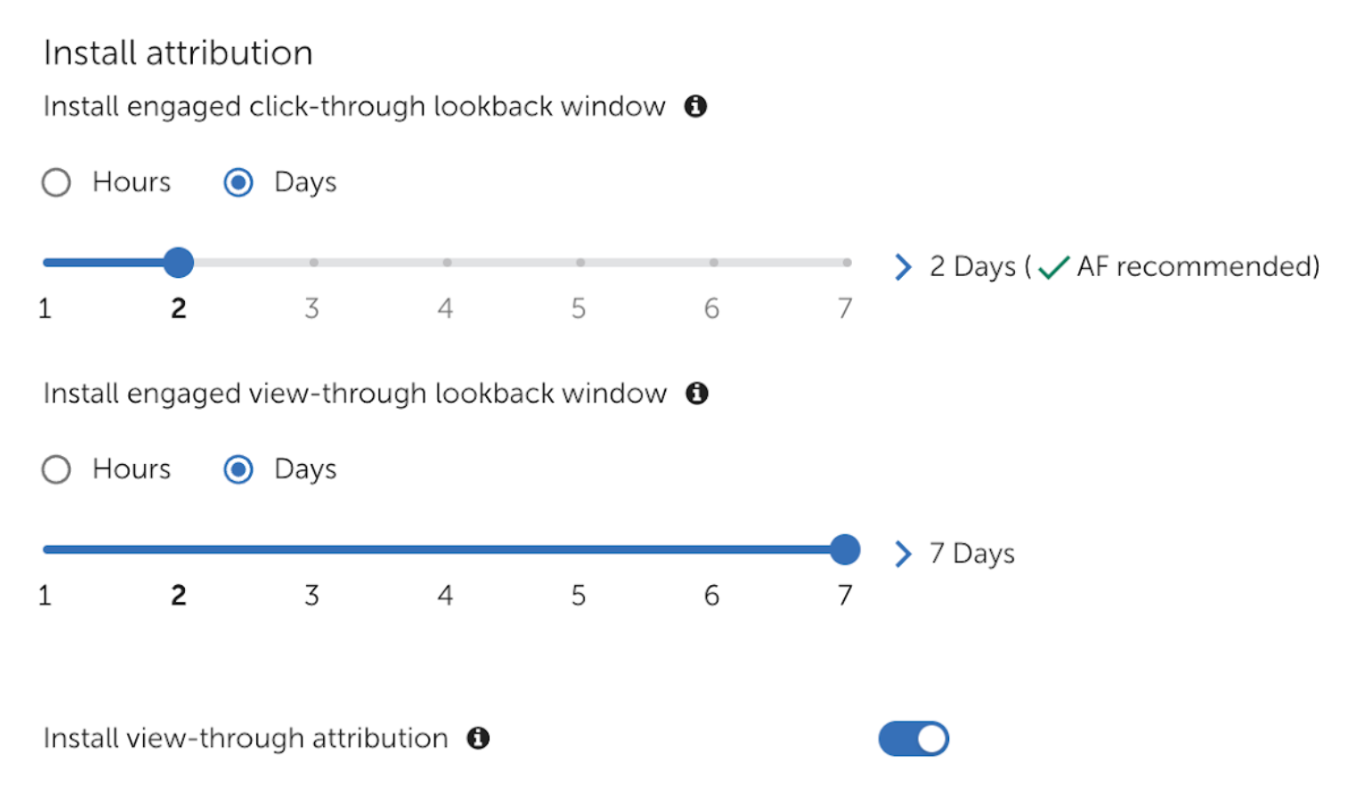
설치 어트리뷰션 Install attribution 섹션을 다음과 같이 설정합니다.
Install engaged click-through lookback window 를 Days 로 설정합니다.슬라이더를 사용하여 룩백 기간을 2 일로 설정합니다.
Install view-through attribution 토글을 활성화합니다.Install engaged view-through lookback window 간격을 Days 로 설정합니다.슬라이더를 사용하여 룩백 기간을 7 일로 설정합니다.
Set attribution lookback windows
Integration 탭에서 다음 데이터 공유 설정을 구성합니다.
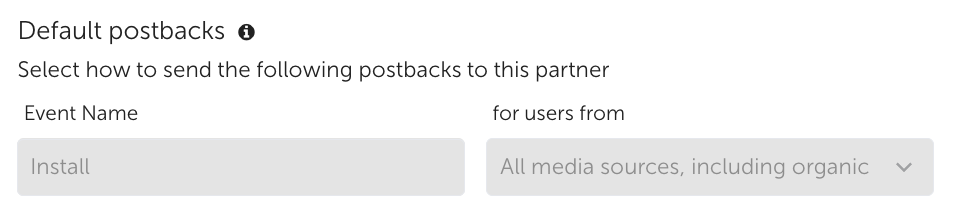
기본 포스트백 Default postbacks 섹션에서 for users from 드롭다운을 사용하여 All media sources, including organic 을 Install 이벤트로 선택합니다.
Share all sources, including organic
인앱 이벤트 설정 In-app event settings 섹션을 다음과 같이 설정합니다.
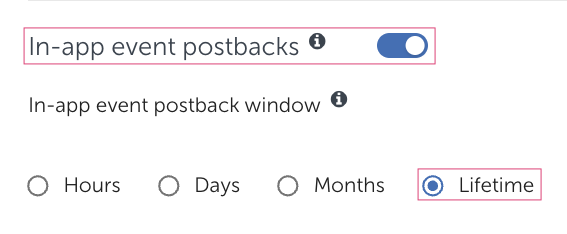
game_id 필드에 게임 ID 를 입력합니다.In-app event postbacks 토글을 활성화합니다.In-app event postback window 를 Lifetime 으로 설정합니다. Set a lifetime postback window
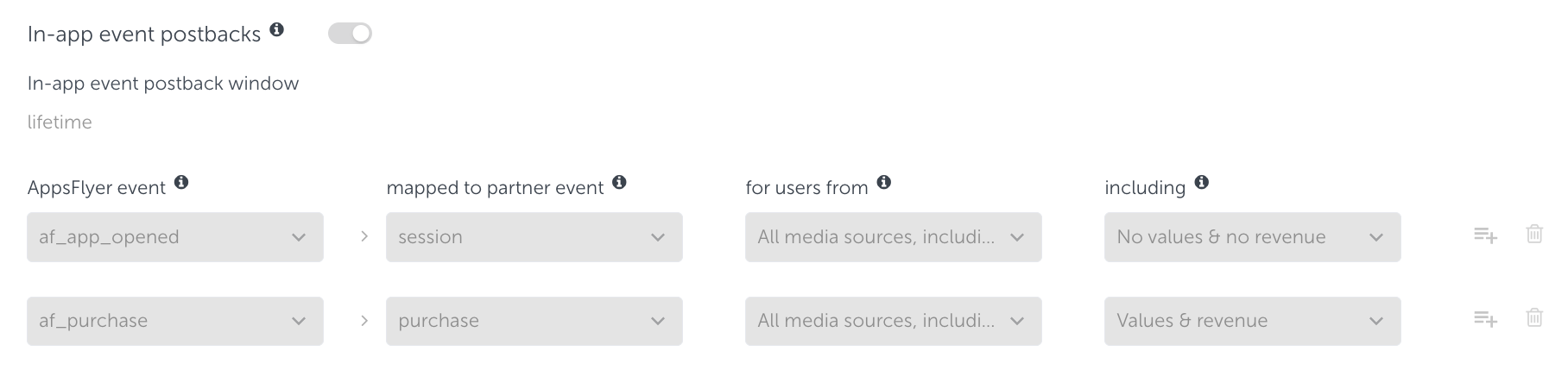
이벤트 매핑 Integration 탭 > In-app event postbacks 섹션에서 AppsFlyer 이벤트를 Unity Ads 이벤트에 매핑합니다.
AppsFlyer 대시보드에서 설정한 모든 인앱 이벤트를 매핑할 수 있습니다. AppsFlyer의
인앱 이벤트 기술 자료를 참고하여 AppsFlyer 이벤트 이름 목록을 확인합니다.
중요
AppsFlyer event 이름이 앱 코드의 이벤트 식별자와 정확히 일치해야 합니다. 이벤트를 잘못 매핑하면 캠페인에서 해당 데이터를 무시합니다.
올바른 이벤트 매핑 예시는 다음과 같습니다.
AppsFlyer event mapped to partner event for users from 포함 All media sources, including organic Values & revenue All media sources, including organic Values & revenue All media sources, including organic Values & no revenue
Map events to Unity event names
다음 선택 사항을 적용해야 합니다.
모든 이벤트의 for users from 드롭다운에서 All media sources, including organic 을 선택합니다.
Level Complete 및 Purchase 이벤트의 including 드롭다운에서 Values & revenue 를 선택합니다.Session events 의 including 드롭다운에서 Values & no revenue 를 선택합니다. 광고 수익 데이터 활성화 중요
AppsFlyer
Revenue Settings 메뉴에 액세스하고 Unity와 광고 수익 데이터를 공유하려면 AppsFlyer ROI360을 구독해야 합니다. 자세한 내용은 AppsFlyer 도움말 센터의
광고 수익 어트리뷰션 기술 자료를 참고하십시오.
광고 수익 이벤트 데이터를 캠페인과 공유하려면 다음 단계를 따릅니다.
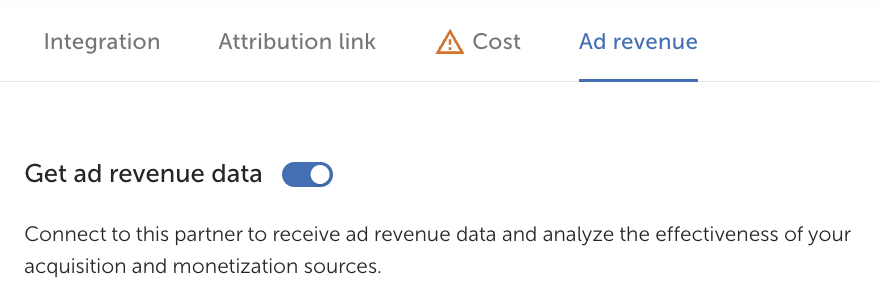
AppsFlyer 연동 설정의 Ad revenue 탭으로 이동합니다.
Get ad revenue data 토글을 활성화합니다. Enable Ad revenue
AppsFlyer 대시보드 사이드 메뉴에서 Settings > Revenue Settings 로 이동합니다.
Revenue settings 페이지의 Ad revenue 탭에서 New ad revenue integration 을 선택합니다.수익 파트너 목록에서 Unity Ads 를 선택합니다.
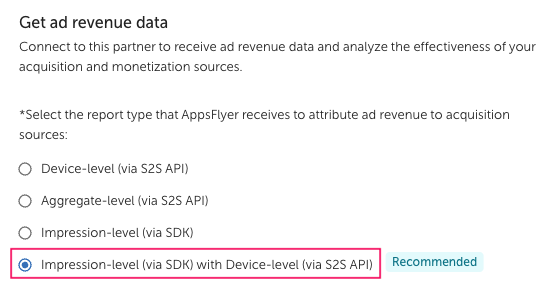
파트너 설정에서 리포트 유형으로 **Impression-level (via SDK) with Device-level (via S2S API)**을 선택합니다.
Send impression-level and device-level reports
API 자격 증명을 입력합니다.
App Key 필드에
게임 ID 를 입력합니다. Unity 대시보드에서
Secret key 를 검색하려면 다음 단계를 참고하십시오.
Retrieve your Secret key
Unity 대시보드에서 Secret key를 검색하려면 다음 단계를 따릅니다.
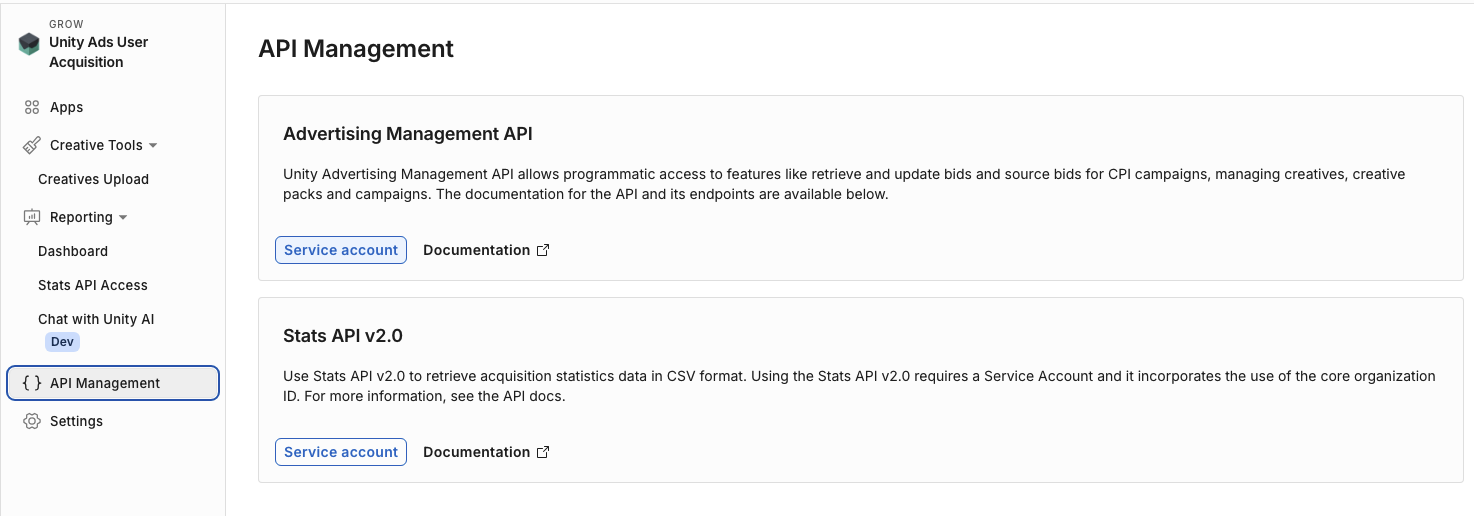
왼쪽 내비게이션 메뉴에서 API Management 로 이동합니다.
Advertising Management API > Service account 를 선택합니다. Retrieve secret keys from your Advertising Management Service account
서비스 계정이 없는 경우 + New 를 선택합니다. 서비스 계정이 있으면 표에서 해당 계정을 선택합니다.
서비스 계정 페이지에서 Keys 섹션으로 이동합니다.
+ Add key 를 선택해 새 키를 생성합니다.Secret key 뒤에 있는 복사 버튼을 선택하여 ID를 복사합니다.
AppsFlyer 대시보드의 Integration 탭으로 다시 이동합니다.
In-app event postbacks 섹션에서 광고 수익 이벤트를
에 매핑합니다. 올바른 광고 수익 매핑 예시는 다음과 같습니다.
AppsFlyer event mapped to partner event for users from 포함 All media sources, including organic Values & revenue
파트너 권한 설정
Permissions 탭에서 다음 권한 설정을 구성합니다.
Toggle Ad Network Permissions 를 활성화하여 다른 모든 토글을 사용 가능하게 합니다.다음 토글을 활성화합니다.
Configure integration Configure in-app event postbacks Access retention report Access aggregate conversions and in-app event data Access aggregate revenue data View validation rules Access Protect360 dashboard and raw data Access ad revenue raw data (UA signals)
각 권한에 대한 설명은 AppsFlyer 도움말 센터의
권한 탭 기술 자료를 참고하십시오.