Unity 開発者ツール
LevelPlay ネットワーク マネージャと開発者設定を使用して、SDK インテグレーションを合理化し、Unity 開発環境内で直接更新を管理します。
読み終わるまでの所要時間 9 分最終更新 1ヶ月前
LevelPlay ネットワーク マネージャと開発者設定は、アプリケーション構築時のインテグレーションを効率化するためのツールです。
LevelPlay SDK 7.1.0 以降をダウンロードして統合したら、Unity 開発プラットフォームから直接 LevelPlay SDK とアダプタの最新バージョンを更新できます。
前提条件
- サポートされているバージョンまたは LTS バージョンの Unity エディター。
- iOS の場合:Cocoapods の適用
LevelPlay ネットワークマネージャーと開発者設定をプロジェクトに追加する
SDK を最新バージョンに更新し、LevelPlay ネットワーク マネージャと開発者設定を追加する手順は、次のとおりです。
- オプション 1(推奨):Unity Package Manager で Ads Mediation パッケージをインストールします。
- オプション 2: Unity プラグインバージョン 9.5.0 をダウンロードし、プロジェクトにインポートします。
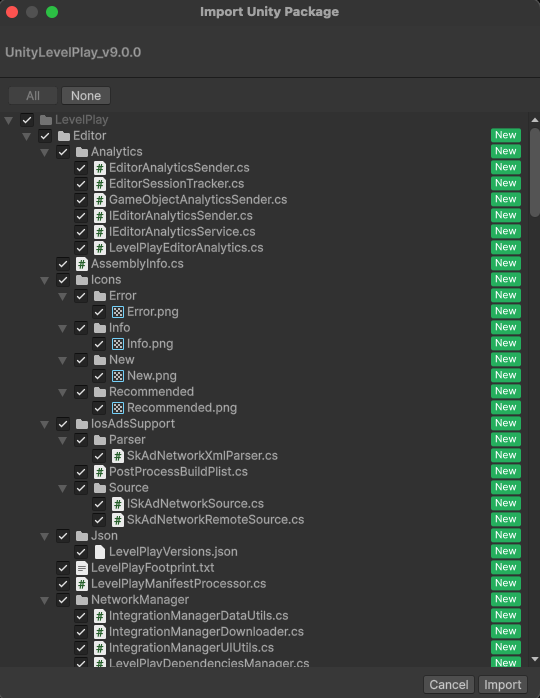
新しい SDK と LevelPlay ネットワーク マネージャの Unity パッケージを更新したら、Unity エディター メニューで Ads Mediation を選択します。
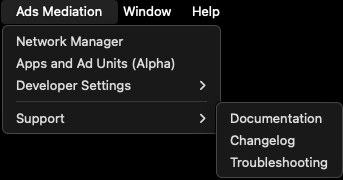
SDK とアダプターのバージョンの管理
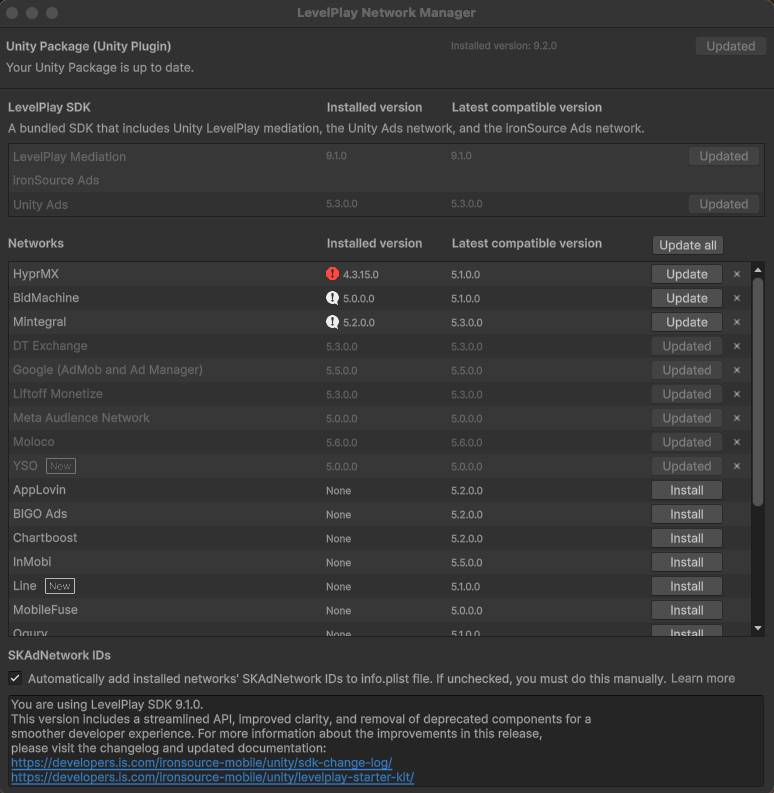
SDK またはアダプタのバージョンをアップグレードするには、以下の手順を実行します。
- Ads Mediation> Network Manager に移動します。
- Install (インストール) または Update (更新) を選択します。
LevelPlay SDK パッケージの更新後、新しいファイルが自動的に読み込まれます。つまり、API シグニチャの変更を含め、新しい SDK のすべての変更がこのアクションの後に適用されます。
Android
変更を適用するには、必ず「解決」プロセスを使用してください。これにより、選択内容に応じて関連するアーティファクトがすべてダウンロードされます。
このプロセスを有効にするには、以下の手順を実行します。
- 編集> プロジェクト設定> プレイヤー> Android> 公開設定 の順に移動します。
- カスタム Main Gradle テンプレートを有効にします。
- [Assets]> モバイル依存関係マネージャー (または外部依存関係マネージャー)> Android Resolver> [Settings] に移動します。
- を選択します。
Patch mainTemplate.gradle - OK を選択して変更を保存します。
手動解決
外部依存関係マネージャ (EDM4U) を使用している場合は、Assets > 外部依存関係マネージャ > Android> Resolve を選択します。
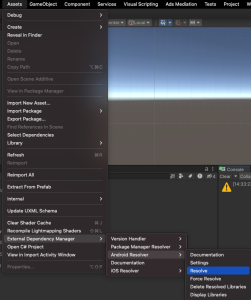
モバイル依存関係リゾルバを使用している場合は、「Assets」>「モバイル依存関係リゾルバ」>「Android」>「Resolve」を選択します。
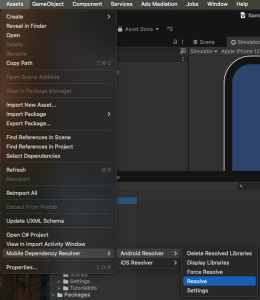
自動解決を使用している場合は、ネットワーク Manager ウィンドウを閉じるとすべての更新が実行されます。
iOS
Cocoapods がインストールされていることを確認します。
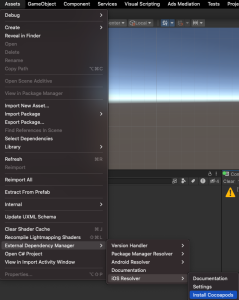
外部依存関係マネージャー (EDM4U) を使用している場合は、「Assets」>「外部依存関係マネージャー」>「iOS Resolver」>「**Install Cocoapods」**を選択します。
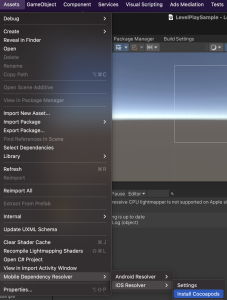
モバイル依存関係リゾルバを使用している場合は、「アセット」>「モバイル依存関係リゾルバ」>「iOS リゾルバ」>「Cocoapods をインストール」を選択します。
メディエーションの詳細設定
LevelPlay Mediation 設定
LevelPlay Mediation Settings を使用すると、以下のアクションを実行できます。
- RuntimeInitializeOnLoadMethod での LevelPlay SDK の初期化 (Android および iOS の場合)
- Android と iOS 用のアプリケーションアプリケーションを定義する
- アプリケーションの起動時に ironsource Init API を有効にします。これにより、Unity LevelPlay で定義されたすべての広告ユニットが有効になります。
- ironsource SKAdNetwork ID を info.plist ファイルに追加します(iOS の場合)。SKAdNetworks をすでに手動で定義している場合は、プロジェクトを再ビルドするときに "Append オプションを必ず使用してください。
- デバッグアダプタおよびインテグレーションヘルパーとしてプロジェクト機能を有効にします。推奨されるベストプラクティスは、アプリケーションのリリース時にこれらの機能を無効にすることです。
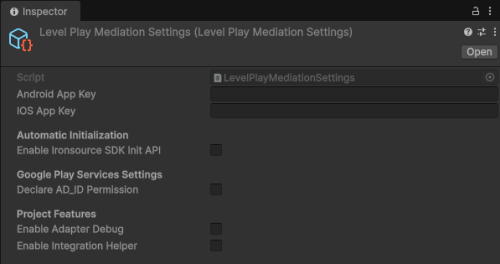
LevelPlay メディエーション ネットワーク設定
このペインを使用して AdMob インテグレーションを完了します。
Enable Admob フラグを有効にし、AdMob のプラットフォームで詳しく説明されているように、関連するアプリケーション ID を指定します。
アクションは、アプリケーションのマニフェスト xml ファイル (Android) と info.plist ファイル (iOS) にアプリケーション ID を追加します。