Documentation

​
​

Development

User Acquisition

Monetization

Industry

Unity Monetization Dashboard

Monetize Manage API

Open Monetization dashboard

Unity Monetization Dashboard

Monetization dashboard
​
​
Monetization finance
  • Introduction to monetization finances
Payment
  • Receiving payment
  • Earnings payouts
  • Payout profiles
    • Complete your payout profile
    • Set up Tipalti two-factor authentication
Revenue transfers
  • Transferring revenue
  • Introduction to User Acquisition Transfers
  • Make a One-time transfer
  • Set up Monthly automatic transfers
Tax information
  • Tax forms
  • Introduction to tax forms
  • Tax form W-8BEN reference
  • Tax form W-8BEN-E reference
  • Tax form W-9 reference
  • Reference for other tax forms
  1. Grow your game
  2. The Unity Monetization Dashboard
  3. Finance

Complete your payout profile

Complete your payout profile on the Unity Ads Monetization dashboard to configure payment details, submit tax forms, and enable ad revenue payouts with your payment provider Tipalti.
Read time 2 minutes
Last updated 2 months ago

Note
Tipalti is the payment service provider for Unity Ads effective January 22, 2024. To receive payouts in 2024 and later, you need to complete your payout profile and your tax form with Tipalti on the Unity Dashboard. For further assistance, or if you have questions about setting up your organization with Tipalti, refer to Tax information, contact the Unity Ads Support team, or contact your Unity Account Manager.
To create or update your payout profile, perform the following steps:
  1. Sign in to the Unity Dashboard.
  2. Go to the Unity Monetization Dashboard > Setup and select Finance.
  3. Select the Payout Profile tab.
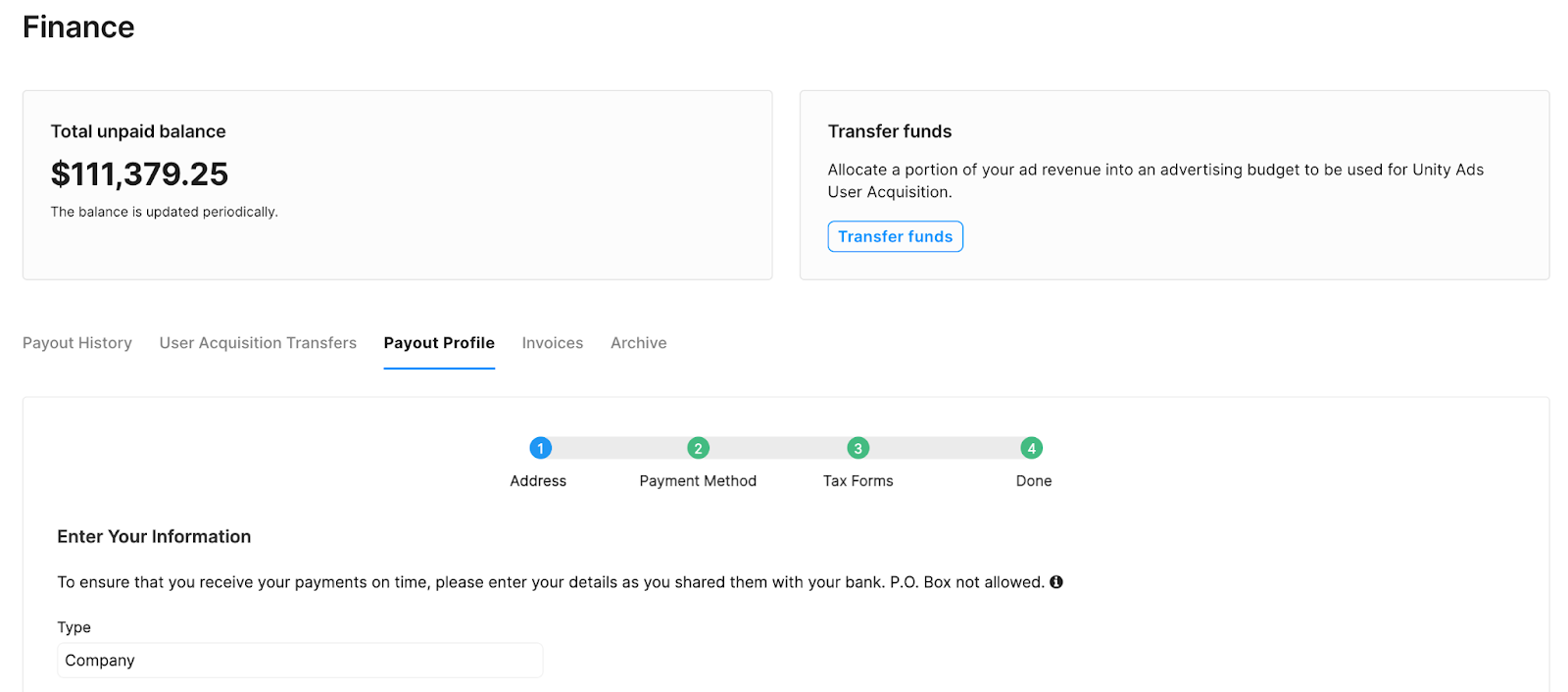
    The Payout Profile form on the Finance page.
Note
If the payout profile is not set up or is not payable for any reason, then this tab is automatically selected.
  1. On the Address page, enter your personal or company information. Some information, such as type, name, or country, is pre-populated from the information you entered when setting up your project. To continue, select Next.
  • US Publishers: Ensure that the individual or company name is an exact match of the name that you report to the IRS. Otherwise, your EIN/SSN validation might fail.
  • All Publishers: Ensure that you're using your company's official legal name for this tax form.
  1. On the Payment Method page, enter your payment details, and then select Next.
  2. On the Tax Forms page, select an applicable tax form, and then select Complete Form.
  • For more information on specific tax forms, refer to the Tax form details documentation.
  • If you're not sure which form to use, select Tax form questionnaire or contact your tax advisor.
Note
If you select Tax form questionnaire, the system provides questions that can help you select the tax form that's most appropriate for you. This questionnaire is only for convenience purposes and doesn't represent tax advice.

Copyright © 2026 Unity Technologies
LegalPrivacy PolicyCookiesDocumentation Terms of UseDo Not Sell or Share My Personal InformationYour Privacy Choices (Cookie Settings)

"Unity", Unity logos, and other Unity trademarks are trademarks or registered trademarks of Unity Technologies or its affiliates in the U.S and elsewhere (more info here). Other names or brands are trademarks of their respective owners.

Some pages are machine-translated for convenience, and may contain inaccuracies. In the event of conflicting information, the English version is authoritative.


    Report a problem with this page