Integrate Tenjin with Unity
Activate the Unity Ads integration in the Tenjin dashboard and enable full data-sharing.
Read time 2 minutesLast updated 21 days ago
Set up Tenjin as your Mobile Measurement Partner (MMP) for Unity User Acquisition campaigns. Integration includes the following setup tasks:
- Copy credentials from the Unity Dashboard.
- Activate Unity Ads in the Tenjin dashboard.
- Configure data-sharing settings.
For the most up-to-date Tenjin integration information, consult the Tenjin Help Center.
Prerequisites
Before setup, ensure you meet the following requirements:
- Add at least one app in the Unity User Acquisition dashboard.
- Enable Organization Owner or Organization Manager access in the Unity Dashboard. Refer to User types, roles and permissions for more information.
- Download the latest version of the Tenjin SDK.
Integrate Unity Ads with Tenjin
Complete the following steps to integrate Tenjin with your User Acquisition campaign:
Copy credentials from the Unity Dashboard
You need the following Unity account credentials to complete your Tenjin integration:
Game ID
To copy your Game ID from the User Acquisition Dashboard, follow these steps:
- Go to Apps from the left navigation menu of the dashboard. The provided table lists each of your organization's apps.
- Scroll or search to locate the desired app.
- Select Settings (
 ) at the end of the app row to open the app details page.
 - Go to the MMP settings section.
- Select copy (
 ) next to Game ID to copy the ID to your clipboard.
Activate Unity Ads in the Tenjin dashboard
To integrate Unity with Tenjin, follow these steps in the Tenjin dashboard:
- Go to the Configure tab and select Channels.
- Search for Unity Ads in the Marketing Channel Name field.
- In the New Marketing Channel setup for Unity Ads, enter the Unity account credentials you copied from the Unity dashboard and give your account a name.
- In the Tenjin navigation menu, go to the Campaigns tab and select Create Campaign.
- Select Unity Ads from the Marketing Account dropdown.
- Choose your app from the App dropdown and give your campaign a descriptive Name.
- When the system prompts you with a Callback to be created message, follow the provided link to continue and generate an attribution link.
Configure data-sharing settings
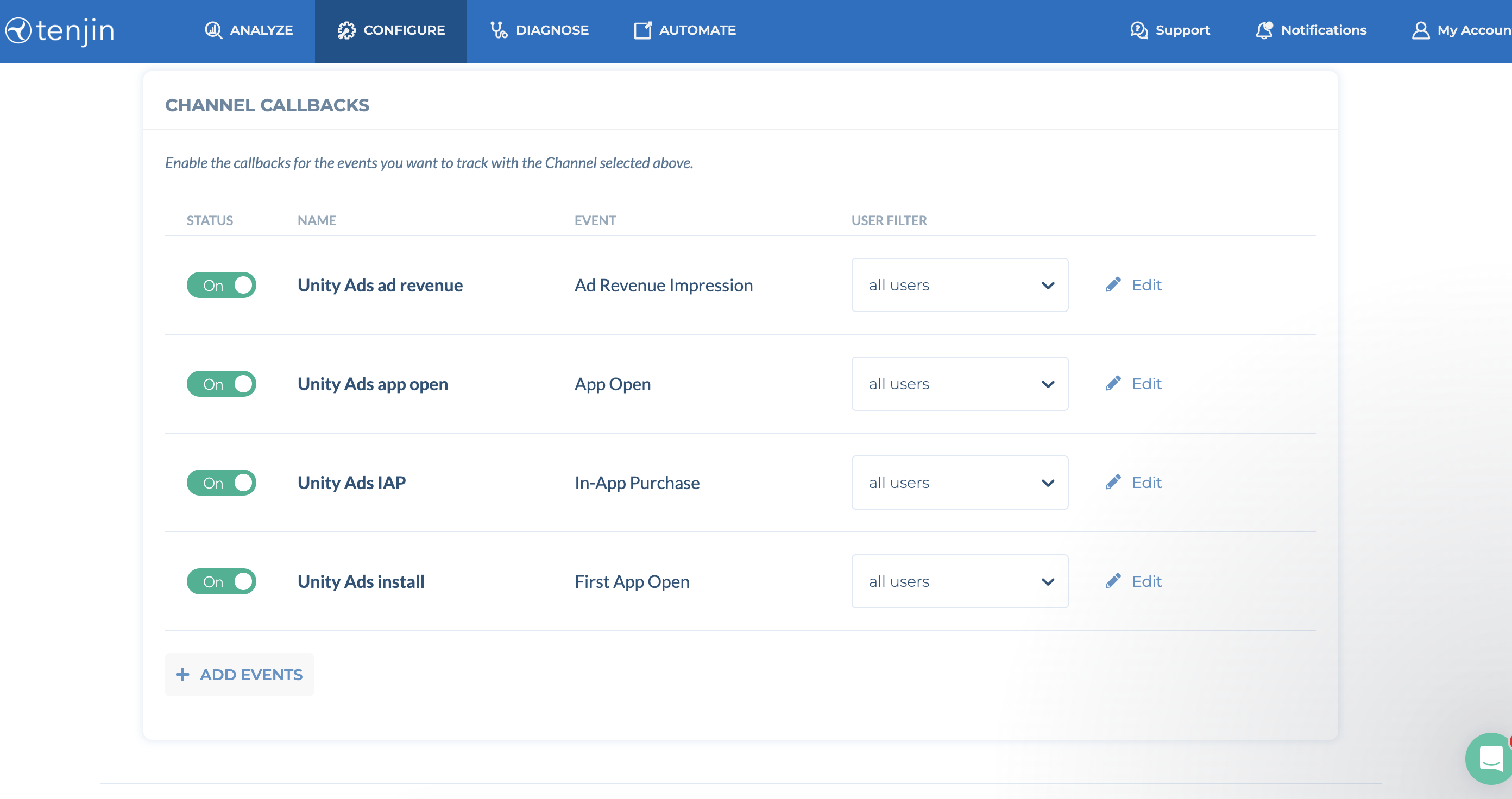
With Tenjin, configuring the data-sharing settings also maps your in-app events. To configure data-sharing settings and map events with Tenjin, do the following as you finish the activation workflow:
- After you follow the link in the Callback to be created message, select Unity Ads from the Channels and Partners dropdown.
- In the Channel callbacks section, activate the following toggles:
- Unity Ads ad revenue
- Unity Ads app open
- Unity Ads IAP
- Unity Ads install
- For each event callback, select all users from the User filter dropdown.