Locate advertiser credentials
Locate credentials used for MMP integration, campaign management, and reporting with Unity User Acquisition
Read time 6 minutesLast updated a day ago
Some User Acquisition tasks, such as Mobile Measurement Partner (MMP) integration, require advertiser credentials. For instructions on how to locate advertiser credentials, refer to the following sections:
Game ID
The advertiser Game ID is a unique numeric identifier generated when you add an app to the Unity User Acquisition dashboard. Advertisers use this ID for reporting, attribution, and MMP integration.
To copy your Game ID from the User Acquisition Dashboard, follow these steps:
- Go to Apps from the left navigation menu of the dashboard. The provided table lists each of your organization's apps.
- Scroll or search to locate the desired app.
- Select Settings (
 ) at the end of the app row to open the app details page.
 - Go to the MMP settings section.
- Select copy (
 ) next to Game ID to copy the ID to your clipboard.
Secret key and Key ID
To retrieve your Secret key and Key ID from the User Acquisition dashboard, follow these steps:
Create or open your service account
To generate API keys, you need a service account. To access your service account, follow these steps:
- Go to Settings > API management.
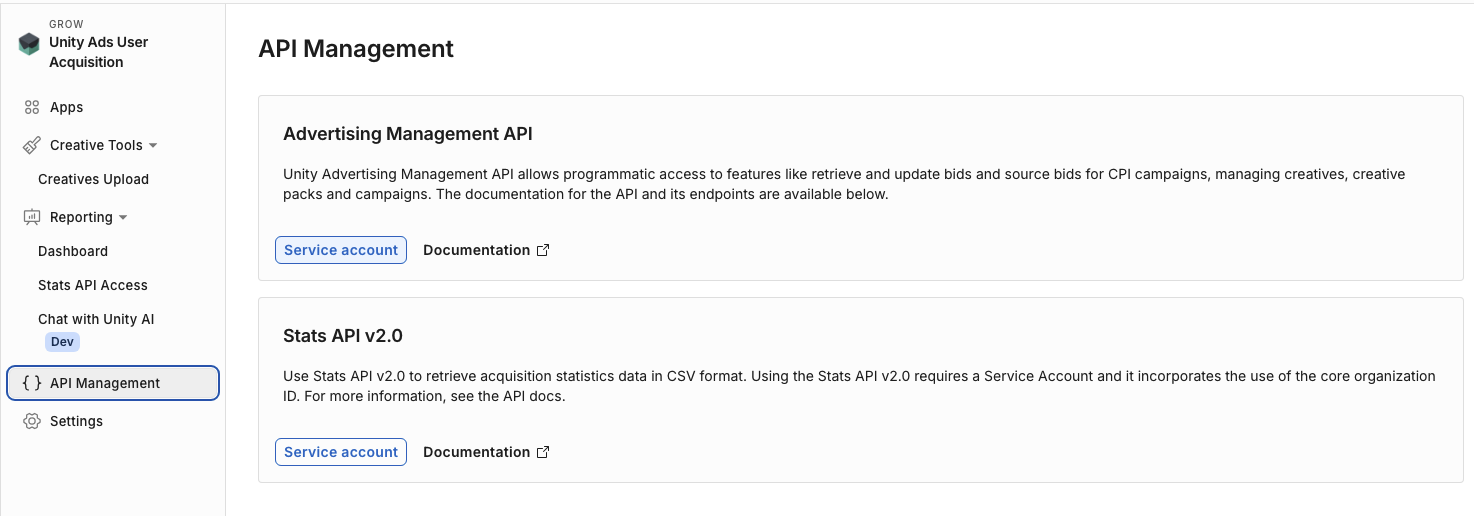
API management
- On the API management page, select Service account from either of the API cards. Both cards open the same Service accounts page.
The Organization role you assign to your service account determines which API endpoints it can call. For a description of the APIs and their reference information, refer to the following table:
API | Description | API reference |
|---|---|---|
| Advertiser Public API | Manage campaigns, creatives, creative packs, and bids programmatically. | |
| Stats API v2.0 | Retrieve acquisition statistics and integrate an MMP. This API is read-only. |
- On the Service accounts page, select your account from the table. If you don't have a service account, select + New to create one.
Generate keys
To generate a secret key and key ID, follow these steps:
-
From your service account page, go to the Keys section.
-
Select + Add key to generate a Key ID and Secret key. You can't view previously-generated keys.
-
Select the copy buttons following the Key ID and the Secret key to copy both credentials.
Assign an organization role
A service account with no role assigned can still authenticate, but every request it makes fails with a error and an Invalid Credentials message. You must assign a role to your service account before you use its credentials. Each role grants one permission.
403To assign a role, follow these steps from your service account:
-
In the Organization roles section, select + Manage organization roles.
-
Open the User Acquisition category and select the roles you need:
|
|
|
|---|---|---|
Advertise Stats API MMP Viewer | MMP integration | Assign this role to the service account you set up for your MMP. You enter that account's Key ID and Secret key in your MMP's dashboard. With this role, your MMP can call the |
Advertise Stats API Viewer | Reporting | Assign this role to query your own acquisition data. With this role, you can call the following Stats API endpoints:
|
Advertise API roles | Advertising management | Assign this role to manage your User Acquisition campaigns and resources. Select each Advertise API role for the resources you want to manage, such as the following:
|
- Select Save.
Organization core ID
To retrieve your Organization core ID from the Settings page of the User Acquisition dashboard, follow these steps:
- Go to the Settings > Organization page.
- On the Organization settings page, go to the Organization section.
- Select copy () next to Organization core ID to copy the ID to your clipboard.
Product page credentials
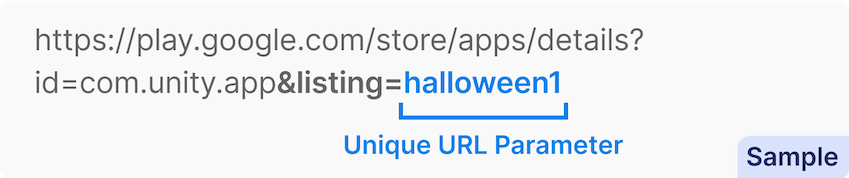
To add a custom product page to a creative pack, you need to locate your product page credentials. Refer to the following instructions to locate your product page ID (PPID) from the Apple App Store or your unique URL parameter from Google Play:
Product page ID
To copy your PPID from your app's Apple App Store listing, follow these steps:
- Open your Custom product page in a web browser.
- Locate the PPID at the end of the URL. The ID is the string of characters following in the URL.
?ppid=

Product page ID in the App Store URL
- Copy the product page ID. Refer to the following examples to verify you have copied the correct part of the URL:
Correct PPID | Incorrect PPID |
|---|---|
| |