Get started with Unity Ads in-app bidding in AppLovin MAX
Integrate Unity Ads in-app bidding with AppLovin MAX.
Read time 5 minutesLast updated 8 days ago
To get started using Unity in-app bidding with AppLovin MAX mediation, complete the following steps to connect the AppLovin MAX Dashboard and the Unity Ads Monetization dashboard:
- Create a new bidding placement for your app in the Monetization dashboard.
- Create ad units in the AppLovin MAX Dashboard.
- Map bidding placements from the Monetization dashboard to the AppLovin MAX Dashboard.
Prerequisites
To use AppLovin MAX as a bidding partner with Unity Ads, ensure you've completed the following prerequisites to get started:
- Include the latest version of the Unity Ads SDK in your build.
- Install the MAX Mediation SDK with the Unity Ads adapter.
- Set AppLovin MAX as the Mediation Partner for your project in the Monetization dashboard.
Minimum compatible SDK and adapter versions
The recommended best practice is to use the latest Unity Ads SDK for all publishers to ensure optimal performance.
The minimum compatible SDK and adapter versions required to use in-app bidding with MAX for all platform developers are the following:
- Unity Ads SDK version: 4.9.2+
- MAX Unity Ads adapter: 4.9.2.1+
- If using Interstitial and Rewarded ads: 4.6.0.0+
- If using Banner and MREC ads: 4.9.2.1+
Install the Unity Ads SDK
Your build must include the Unity Ads SDK in addition to the mediation adapter, because the adapter doesn't contain the network SDK. In most cases your mediation partner installs the SDK for you: the Unity Ads adapter pulls in the network SDK and its dependencies when you add the adapter to your project.
For AppLovin MAX, the Unity Ads adapter integrates the Unity Ads SDK and its dependencies for you. Refer to Install the MAX Mediation SDK with the Unity Ads adapter.
Install the MAX Mediation SDK with the Unity Ads adapter
To use MAX as a mediator for in-app bidding with the Unity Ads network, you'll need to download the MAX mediation SDK and integrate the Unity Ads adapter into your app. The method to do so depends on which developer platform you use for your app, and the level of customization and control you want over the integration process.
For more information, refer to the AppLovin preparing mediated networks development guides for Android, iOS, or Unity.
Set AppLovin MAX as your mediation partner in the Monetization dashboard
To enable MAX mediation in the Monetization dashboard for your project, set AppLovin MAX as your mediation partner by doing the following in the Monetization dashboard:
For current projects:
- Go to your project, then Settings.
- Edit the Mediation Partner section and select AppLovin MAX as your mediation partner.
- Select Save.
For new projects:
- Create a new project, then enter the required information to complete the setup and access the Monetization dashboard.
- Select Enable Ads from the navigation menu.
- Select I use mediation as your mediation solution, then AppLovin MAX as your mediation partner.
- Select Next and complete the configurations for your project information, placement set up, and Store ID, then select Add Project.
Create a new bidding placement in the Monetization dashboard
The first step to use in-app bidding with MAX mediation in the Unity Ads SDK requires you to create a new bidding placement in the Monetization dashboard. You'll use this new bidding placement from the Monetization dashboard to create your mapped bidding placements on the AppLovin MAX dashboard.
Follow the bidding setup steps to create and manage a new bidding placement in the Monetization dashboard.
Create new ad units in the AppLovin MAX dashboard
The next step to use in-app bidding with MAX mediation in Unity Ads requires you to set up new ad units that you'll then map to your bidding placement in the Monetization dashboard.
For instructions on how to create new ad units in the AppLovin MAX Dashboard, refer to the Create an ad unit article in the AppLovin documentation.
Map bidding placements from the Monetization dashboard to the AppLovin MAX Dashboard
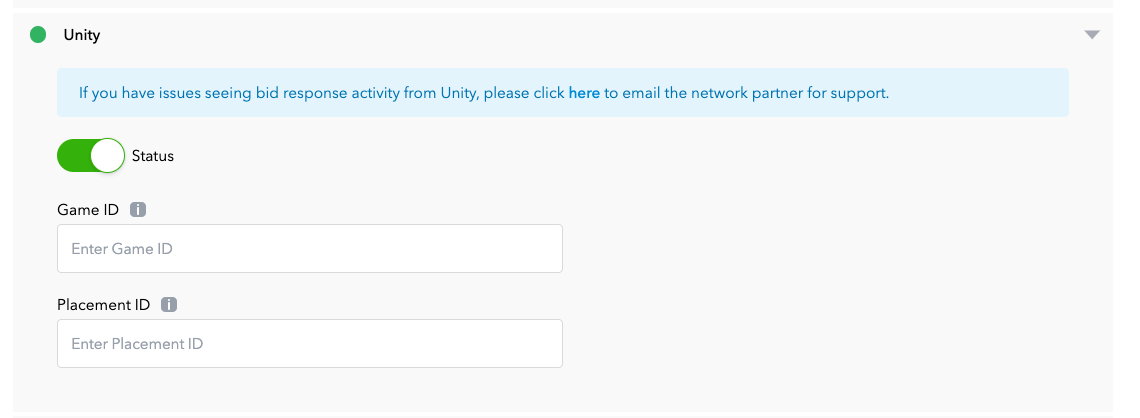
The last step to get started using Unity Ads in-app bidding with AppLovin is to map your bidding placements between the MAX Dashboard and the Monetization dashboard. You will need your bidding Placement ID from the Monetization dashboard to complete this final step.
For instructions on how to map bidding placements from the Monetization dashboard to the MAX dashboard, refer to the SDK bidder network guides in the AppLovin documentation.
Best practices for mapping ad units
When you map your ad units, consider the following:
-
To connect your placements, you must enter a bidding Placement ID from the Monetization dashboard in the bidding Placement ID field in the MAX dashboard. Ensure you're entering a bidding Placement ID from Unity, not a waterfall Placement ID, or your setup fails.
-
If Unity receives a request that isn't mapped correctly, Unity fills it as an automatic placement, using the ad format signals that AppLovin provides in the bid request. You receive fill and payment instead of a silent no-bid. Unity reports these requests as,
Automatic_Interstitial, orAutomatic_Rewarded. If you see them in your reports, find and correct the mapping errors in the MAX dashboard.Automatic_Banner -
Unity doesn't support hybrid auctions that use both bidding and waterfall in the same user session. To run an A/B test, split user sessions into 100% waterfall or 100% bidding, or adopt 100% bidding from the start.