Documentation

​
​

Development

User Acquisition

Monetization

Industry

Grow

Unity Ads Android SDK

Unity Ads iOS SDK

LevelPlay SDK

Open Unity Dashboard

Grow

Monetization
​
​
Ad Quality
  • Overview
  • Glossary
  • Additional configuration
  • Ad Quality best practices
  • Ad Quality Raw Data API
  • Unity Ad Quality plugin
  • Analysis
  • Creatives
  • User journey
  • Report ads
  • Rules and notifications
  • UX patterns
  • Supported ad sources
  • SDK changelog
  • Test Ad Quality SDK
  1. Grow your game
  2. Ad Quality

Ad Quality Unity plugin

Integrate the Ad Quality Plugin to monitor and control the ad content your users see, ensuring it aligns with your app’s goals and enhances user experience.
Read time 1 minute
Last updated 7 months ago

Ad Quality helps you monitor and control the ad content your users see, so you can ensure it aligns with your app’s goals and enhances user experience. Maximize your revenue potential while serving relevant ads that engage your audience.

Prerequisites

Follow our step-by-step guide and configure your application in the LevelPlay platform
Note
If you’re already using LevelPlay mediation, follow this guide instead.

Step 1: Import the Ad Quality Plugin

  1. Download the Ad Quality Unity Plugin
  2. Make sure your Unity project is opened.
  3. Select the extracted file and import it into your Unity project.
Important
For an Android integration, make sure you use the "Resolve" process after importing the Ad Quality plugin.
Go to Assets > Mobile Dependency Manager > Android Resolver > Resolve
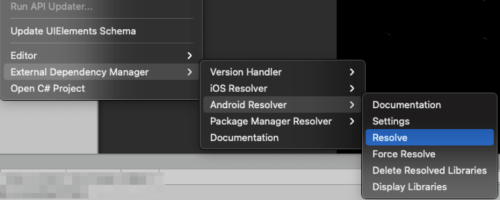
The Android Resolver dialog in the ad quality Unity plugin.

Step 2: Initialize the SDK

Initialize the Ad Quality using the app key which can be found in your LevelPlay account.
Add the following code to the Awake method of your first scene:
void Awake (){ // Initialize IronSourceAdQuality.Initialize(appKey);}
After your app reaches our ad threshold, you'll be able to observe the data on the LevelPlay platform.

(Optional) Step 3: Set your user ID

Passing your user IDs to Ad Quality will give you greater visibility on your users’ ad journey.
Follow the integration guide in the additional configuration section.

Copyright © 2026 Unity Technologies
LegalPrivacy PolicyCookiesDocumentation Terms of UseDo Not Sell or Share My Personal InformationYour Privacy Choices (Cookie Settings)

"Unity", Unity logos, and other Unity trademarks are trademarks or registered trademarks of Unity Technologies or its affiliates in the U.S and elsewhere (more info here). Other names or brands are trademarks of their respective owners.

Some pages are machine-translated for convenience, and may contain inaccuracies. In the event of conflicting information, the English version is authoritative.

  • On this page
    • Prerequisites

    • Step 1: Import the Ad Quality Plugin

    • Step 2: Initialize the SDK

    • (Optional) Step 3: Set your user ID


Report a problem with this page