Integrate AppsFlyer with Unity
Activate the Unity Ads integration in the AppsFlyer dashboard, enable full data-sharing, map events, and set partner permissions.
Read time 6 minutesLast updated a month ago
Set up AppsFlyer as your Mobile Measurement Partner (MMP) for Unity Ads User Acquisition campaigns. Integration includes the following setup tasks:
- Activate the integration in the AppsFlyer dashboard.
- Configure general integration settings.
- Configure attribution settings.
- Configure post-install event settings.
- Set partner permissions.
For the most up-to-date AppsFlyer integration information, consult the AppsFlyer Help Center.
Prerequisites
Before setup, ensure you meet the following requirements:
- Add at least one app in the Unity Ads User Acquisition dashboard.
- Retrieve your Game ID from the User Acquisition dashboard.
- Download the latest version of the AppsFlyer SDK.
Integrate Unity Ads with AppsFlyer
Complete the following steps to integrate AppsFlyer with your User Acquisition campaign:
Activate the Unity Ads integration
To activate Unity Ads in the AppsFlyer dashboard, follow these steps:
- In the AppsFlyer dashboard, go to Collaborate > Partner Marketplace.
- Search for Unity Ads and select Set up integration to open in the Integration tab.
- Activate the Activate Partner toggle.
- Some advertisers might have an Advanced Privacy toggle in the Integration tab. If your dashboard contains this toggle, ensure that you deactivate it.
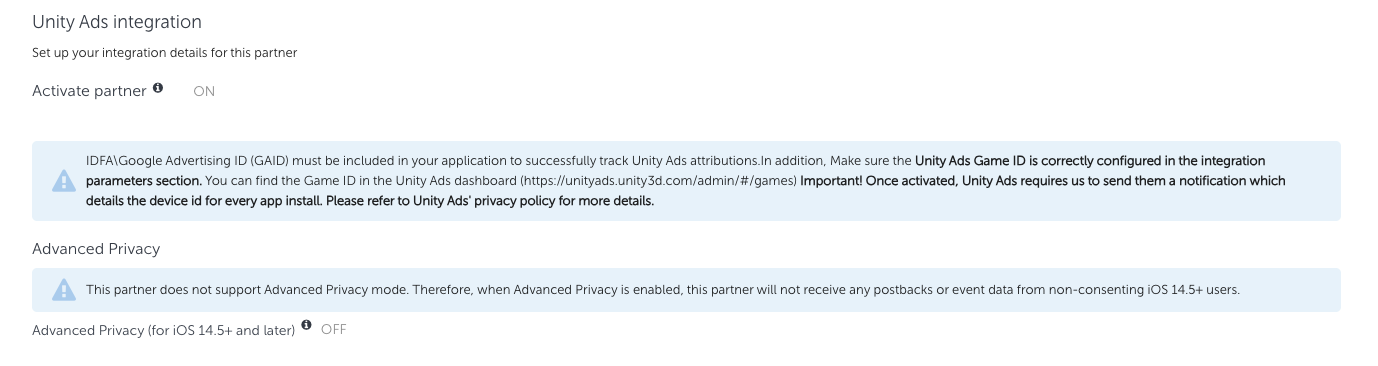
Deactivate Advanced Privacy
Configure general integration settings
To configure your general integration settings, follow these steps in the Integration tab > General settings section:
- Activate the Share organic/non-organic indication toggle.
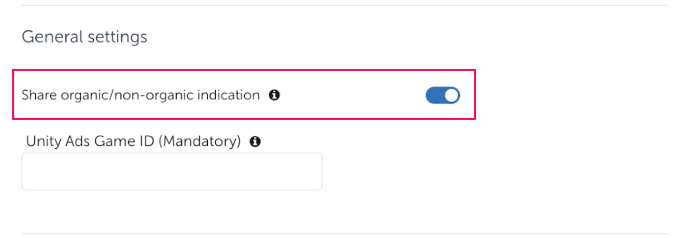
Share organic and non organic
- Enter your Unity Game ID in the Unity Ads Game ID field. To copy your Game ID from the Unity Dashboard, refer to the following steps:
To retrieve your Game ID from the Apps page of the Unity Dashboard, follow these steps:
- Go to Apps from the left navigation menu. The provided table lists each of your organization's apps. Following each app name, the dashboard displays the app platform and Game ID.
- Select Copy (
 ) next to the ID to copy it to your clipboard.
Configure attribution settings
To set up attribution for your integration, follow these steps in the Integration tab of your AppsFlyer integration:
Set the click-through lookback window
Set the click-through lookback window to 2 Days.
To set the window, follow these steps in the Install attribution section:
- Set the Install engaged click-through lookback window to Days.
- Using the slider, set the window to 2 Days.
Enable view-through attribution
To enable view-through attribution, activate the Install view-through attribution toggle.
Set the view-through lookback window
Set the view-through lookback window to 7 Days.
To set the window, follow these steps in the Install attribution section:
- Set the Install engaged view-through lookback window to Days.
- Using the slider, set the window to 7 Days.
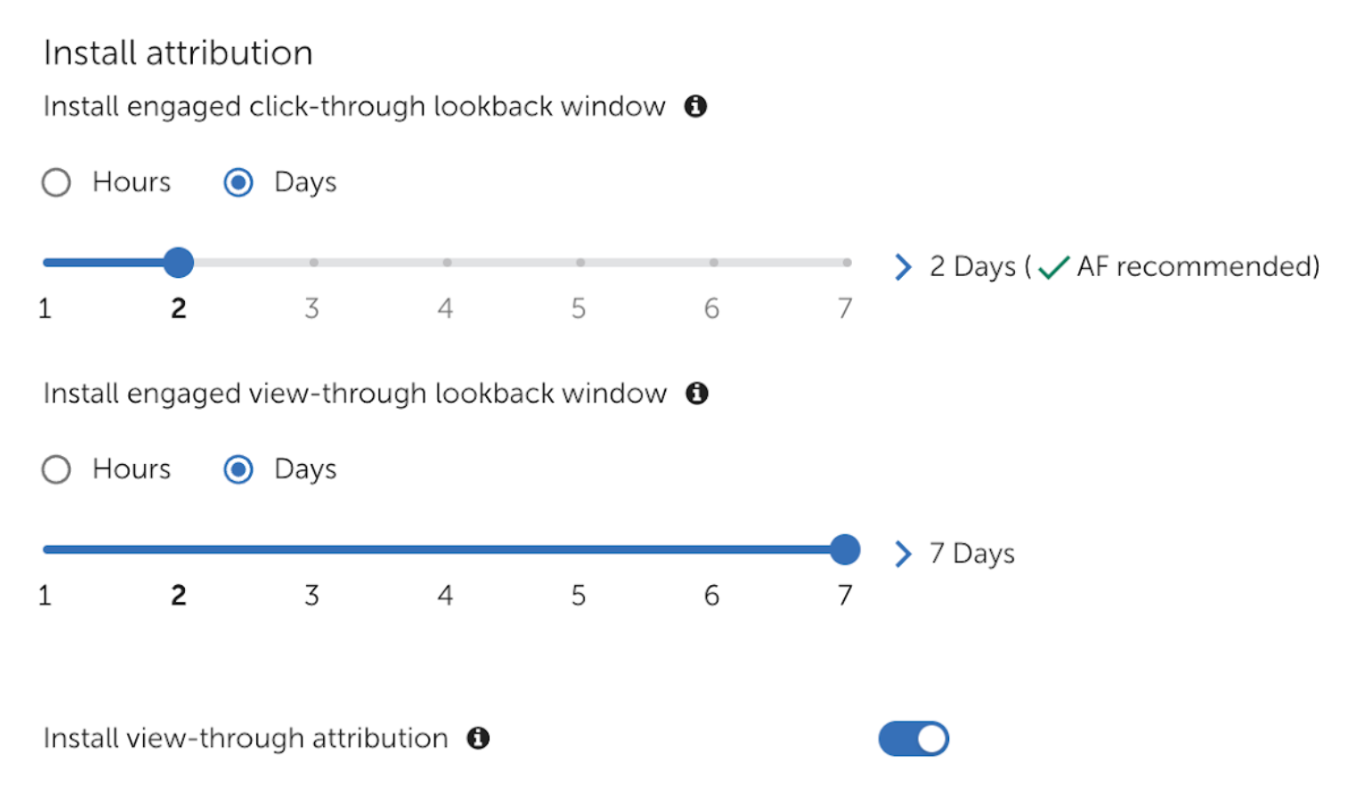
Lookback windows
Share default install postbacks with all sources
Include all of your users in install postbacks.
To set the users for Install events, go to the Default postbacks section and select for users from > All media sources, including organic
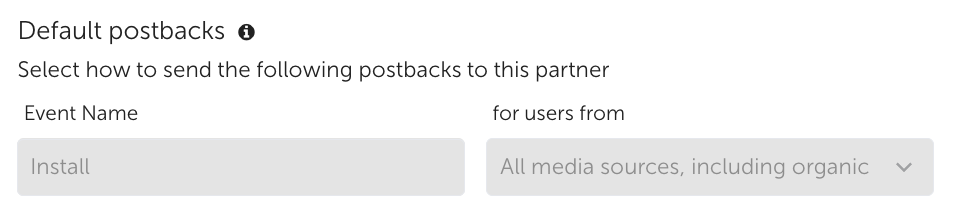
All media sources, including organic
Configure data-sharing settings
To set up secondary postbacks for post-install events, follow these steps:
Enter your Game ID
Enter your Game ID in the game_id field.
To copy your Game ID from the Unity Dashboard, refer to the following steps:
To retrieve your Game ID from the Apps page of the Unity Dashboard, follow these steps:
- Go to Apps from the left navigation menu. The provided table lists each of your organization's apps. Following each app name, the dashboard displays the app platform and Game ID.
- Select Copy () next to the ID to copy it to your clipboard.
Enable post-install event postbacks
Enable post-install event postbacks and set the postback window to Lifetime.
To enable the postbacks and set the window, follow these steps in the Integration tab > In-app event settings section:
- Activate the In-app event postbacks toggle.
- Set the In-app event postback window to Lifetime.
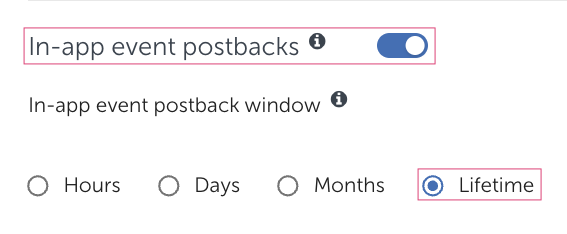
Lifetime in-app event postbacks
Map events
Map AppsFlyer post-install events to the correct Unity Ads event name.
You can map any in-app event you set up in the AppsFlyer dashboard. Refer to AppsFlyer's In-app events documentation for a list of AppsFlyer event names.
To map your AppsFlyer events to Unity Ads events, follow these steps in the Integration tab > In-app event postbacks section:
- Go to Collaborate > Partner Marketplace and search for to open your Unity Ads integration.
Unity Ads - In the Integration tab, go to the In-app event postbacks section.
- Activate the In-app event postbacks toggle.
- Map your post-install events to Unity Ads events in the mapped to partner event column as follows:
- Session events to
session - Level Complete events to
level_complete - Ad Revenue events to
ad_revenue - In-app Purchase events to
purchase
Refer to the following table for suggested AppsFlyer event names and required Unity Ads event names:
|
|
|
|
|---|---|---|---|
Session | | | - |
Ad revenue | | | If your AppsFlyer account supports ad revenue data-sharing, enable ad revenue sharing with the Get ad revenue data toggle in the Ad revenue tab. Otherwise, don't send ad revenue events. Mapping ad revenue events as other event types can cause campaign optimization to stop working. Refer to the AppsFlyer Ad revenue attribution documentation for details and instructions. |
In-app purchase | | | Don't map revenue events to purchase events. |
Milestone completion |
| | You must enter |
You must enter the required Unity Ads event name in the mapped to partner event field. You can enter custom SDK event names in the AppsFlyer event field. However, the recommended best practice is to use the Suggested AppsFlyer event names provided here.
Enable ad revenue data-sharing
If you want to send ad revenue data for Return on Ad Spend (ROAS) Ad revenue or Hybrid campaigns, you must enable ad revenue data-sharing in your integration.
To share ad revenue event data with your campaign, follow these steps:
Activate ad revenue sharing
To activate ad revenue data-sharing, follow these steps in the AppsFlyer dashboard:
- Go to Collaborate > Partner Marketplace and search for to open your Unity Ads integration.
Unity Ads - In the Ad revenue tab, activate the Get ad revenue data toggle.
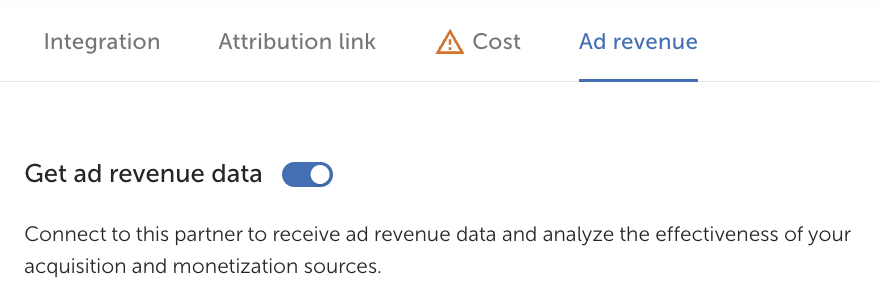
Get ad revenue toggle
Configure ad revenue data-sharing
To configure your ad revenue data-sharing settings, follow these steps in the AppsFlyer dashboard:
- From the AppsFlyer dashboard side menu, go to Settings > Revenue Settings.
-
In the Revenue settings > Ad revenue tab, select New ad revenue integration.
-
Select Unity Ads from the list of revenue partners.
-
In the partner configuration, select Impression-level (via SDK) with Device-level (via S2S API) as the report type.
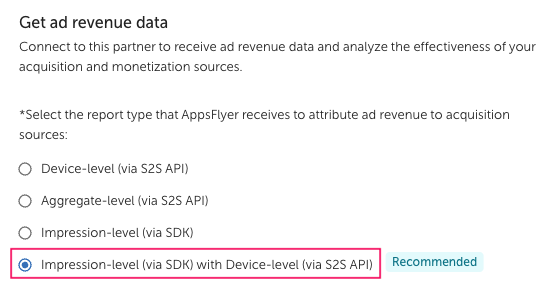
AppsFlyer Revenue settings configuration
Enter your API credentials
To finish your ad revenue data-sharing setup, follow these steps in the AppsFlyer dashboard Revenue Settings:
- Enter your Unity Game ID in the App key field. To retrieve your Game ID from the Unity Dashboard, refer to the following steps:
To retrieve your Game ID from the Apps page of the Unity Dashboard, follow these steps:
- Go to Apps from the left navigation menu. The provided table lists each of your organization's apps. Following each app name, the dashboard displays the app platform and Game ID.
- Select Copy () next to the ID to copy it to your clipboard.
- Enter your Unity API Service account secret key in the Secret key field. To retrieve your secret key from the Unity Dashboard, refer to the following steps:
To retrieve your API service account secret key from the Unity Dashboard, follow these steps:
-
From the left navigation menu, go to API Management.
-
Select Advertising Public API > Service account.
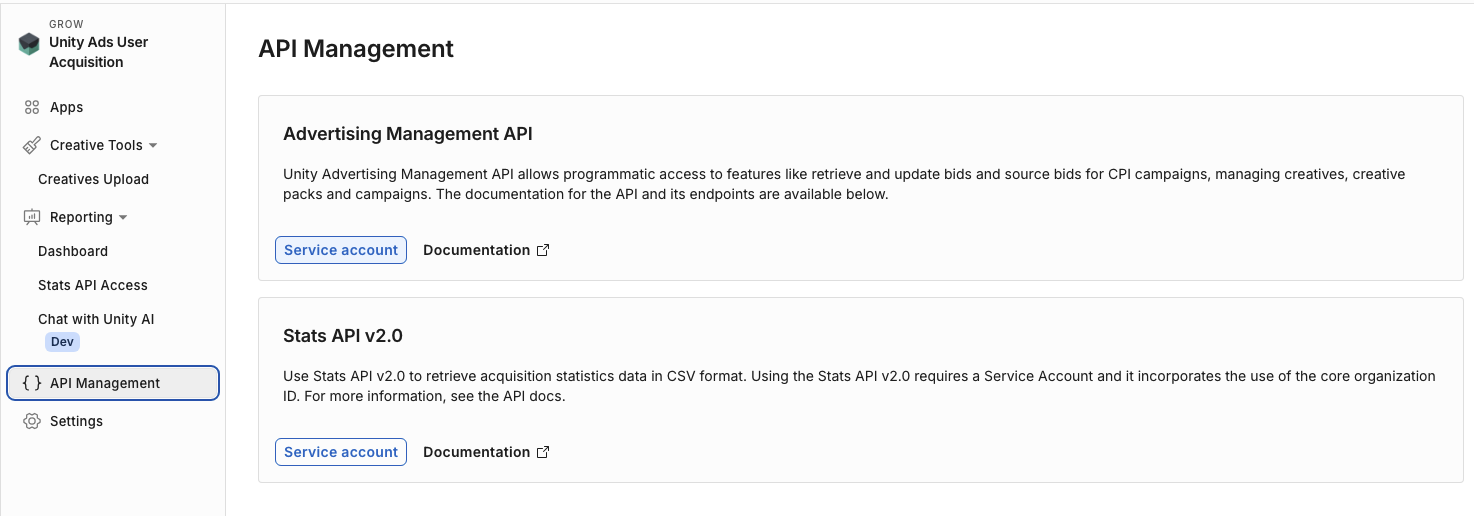
Advertising Public API Service account
-
If you don't have a service account, select + New. If you have a service account already, select it from the table.
-
In the service account page, go to the Keys section.
-
Select + Add key to generate a new key.
-
Select the copy buttons following the Secret key to copy the ID.
Set partner permissions
In the Permissions tab, configure the following permissions settings:
- Activate the Toggle Ad Network Permissions toggle to enable all other toggles.
- Activate the following toggles:
- Configure integration
- Configure in-app event postbacks
- Access retention report
- Access aggregate conversions and in-app event data
- Access aggregate revenue data
- View validation rules
- Access Protect360 dashboard and raw data
- Access ad revenue raw data (UA signals)
For descriptions of each permission, refer to the Permissions tab documentation in the AppsFlyer Help Center.