DisplayDecisionDialogWithOptOut(string, string, string, string, DialogOptOutDecisionType, string, DialogIconType)
Displays a decision dialog box with a title, icon, message, two buttons, and an opt-out checkbox.
Read time 2 minutesLast updated a month ago
Definition
- Type: Method
- Namespace: UnityEditor
- Assembly: UnityEditor.CoreModule
public static bool DisplayDecisionDialogWithOptOut(string titleText, string messageText, string yesButtonText, string noButtonText, DialogOptOutDecisionType optOutDecisionType, string optOutKey, DialogIconType iconType = DialogIconType.Warning)
Parameters
The title of the dialog box. If left null, defaults to "Unity".
The message to display in the dialog box.
The text to display on the Yes button. If left null, it defaults to "Yes".
The text to display on the No button. If left null, it defaults to "No".
Where the result is stored if the user opts out of the dialog, which they can do if they enable Don't ask again in the dialog box.
The key to use to store the opt-out decision.
The icon to display in the dialog box. Defaults to DialogIconType.Warning.
Returns
Type | Description |
|---|---|
| bool | Returns |
Remarks
If is null or whitespace, an is thrown. If is longer than 512 characters, it is truncated and the full message is logged to the console in markdown format.
messageTextArgumentNullExceptionmessageTextIf any button's text is longer than 64 characters, an is thrown.
ArgumentExceptionThe default button is the Yes button. If the user presses the enter key (return key on macOS), the Yes button is clicked. The other button is the No button. If the user presses the escape key or closes the dialog, the No button is clicked. On macOS, the orientation of the buttons might be horizontal or vertical depending on the length of the message.
If is not a valid XML tag, or more than 127 characters long, an is thrown. Care should be taken to ensure that the key is unique to the dialog box being displayed to prevent conflicts. The API takes care of the stored decision, so you do not need to check the value of the key before displaying the dialog box. Users can reset the decision in Editor Preferences. The decision is only stored if the user checks the opt-out checkbox and clicks the Yes button.
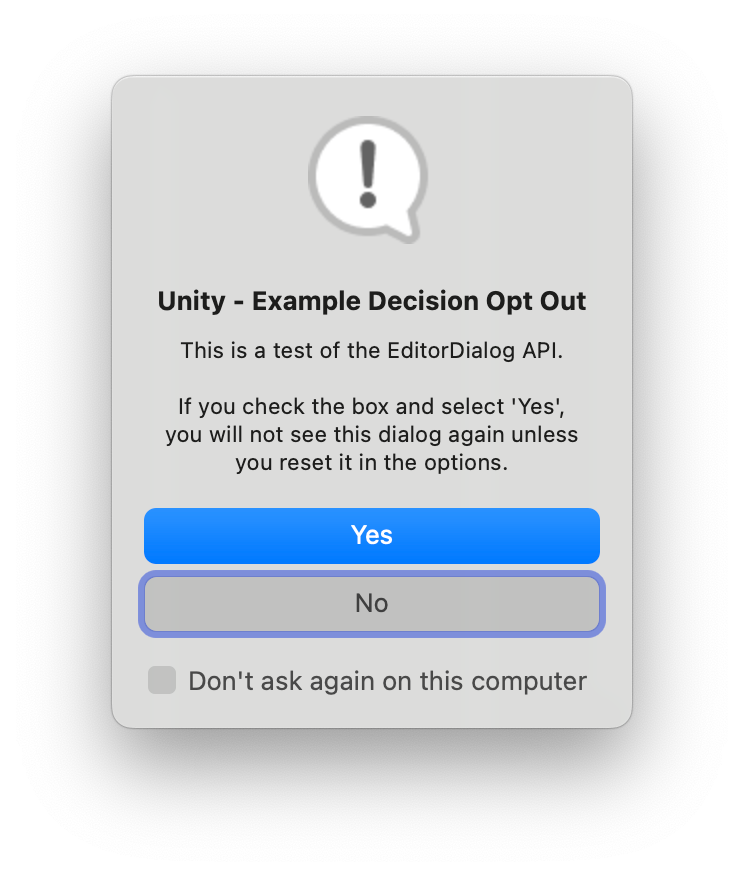
optOutKeyArgumentExceptionThe following example demonstrates how to display a decision dialog box with a warning icon, a title, a message, Yes and No buttons, and an opt-out checkbox.
using UnityEditor;using UnityEngine;namespace Examples{ public class DisplayDecisionDialogWithOptOutExample : MonoBehaviour { [MenuItem("Window/EditorDialog Example/DisplayDecisionDialogWithOptOut")] public static void DisplayDecisionDialogExample() { bool userResponse = EditorDialog.DisplayDecisionDialogWithOptOut( "Unity - Example Decision Opt Out", @"This is a test of the EditorDialog API.If you check the box and select 'Yes', you will not see this dialog again unless you reset it in the options.", null, null, DialogOptOutDecisionType.ForThisUser, "ExampleDecisionOptOut"); Debug.Log(userResponse); } }}
Produces the following dialog box on macOS: