Inspecting scripts
View and edit the fields of your C# scripts in the Inspector window.
Read time 6 minutesLast updated 2 months ago
When you select a script asset in the Project window, the Inspector displays some basic information about it, including the name of the assembly it belongs to, and a preview of the contents.
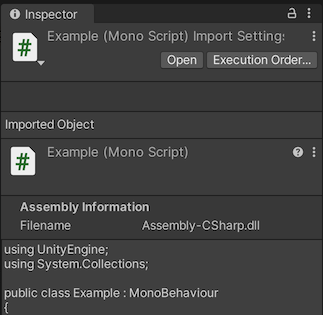
The script Inspector displaying an example script.
The script Inspector also displays two buttons, Open and Execution Order.
Open performs the same function as double-clicking the script in the Project window, opening the script in the currently configured External Script Editor. You can configure which external editor Unity uses to open your scripts in the External Tools section of the Preferences window.
The Execution Order button opens the Script Execution Order section of the Project Settings window where you can configure the order in which Unity executes your scripts.
Script components in the Inspector window
Any MonoBehaviour script can be used as a component, which means:
- You can attach the script to GameObjects
- You can edit the script's properties and values in the Inspector window
The example code below declares a public field called . When you add this script to a GameObject in your scene, the field becomes visible in the window as a field labelled My Name. The default value of declared in the script becomes the default value in the Inspector window, which you can then change by typing into the field.
myNameInspector
?
noneusing UnityEngine;using System.Collections;public class MainPlayer : MonoBehaviour { public string myName = "none"; // Use this for initialization void Start () { Debug.Log("I am alive and my name is " + myName); }}
Each GameObject you attach your script component to can have its own unique value for the field.

A public string field editable in the Inspector window.
Field names are converted to Inspector window labels according to the rules described in Field name to label conversion. However, these changes are purely for display purposes. You should always use the field name in your code.
In the Inspector window, if you edit the My Name value and press Play, the console message should now include the text that you entered.
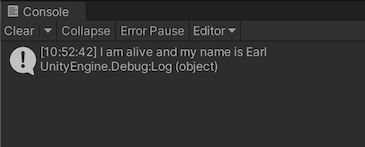
A debug message appears in the Unity console, which reads "I am alive and my name is Earl".
Public and private fields
All fields are editable in the Inspector window by default. To prevent a public variable from being displayed in the Inspector window, add the HideInInspector attribute to it. To make a field editable in the Inspector window, add the SerializeField attribute to it.
publicprivateObject reference fields
As well as simple built-in C# types such as , , and , you can also make any field whose type inherits from editable in the Inspector window. This includes all built-in component types (such as Transform, AudioSource, Camera, Light), your own MonoBehaviour script types, and many asset types.
boolstringintUnityEngine.ObjectThis allows you to make use of the Unity Editor's drag-and-drop system in your own scripted components. For example, if you create a public field in your script and add it to one GameObject, you can then drag another GameObject into that field in the Inspector window to set up a reference to that GameObject's Transform component, which you can then access at runtime in your script.
TransformFor example, this script makes one GameObject follow another:
Followusing UnityEngine;public class Follow : MonoBehaviour{ public Transform objectToFollow; public float followSpeed = 1; void Update() { // calculate the distance between this object and the target object // and move a small portion of that distance each frame: var delta = objectToFollow.position - transform.position; transform.position += delta * Time.deltaTime * followSpeed; }}
The script has a public field of type which appears in the Editor as an assignable field. You can drag and drop a different GameObject from your Hierarchy window into this field, and the Editor assigns a reference to the Transform component attached to that dropped GameObject.
TransformIn the screenshot below, the script is placed on the Sphere GameObject, and the Cube has been dragged and dropped from the Hierarchy into the Object To Follow field.
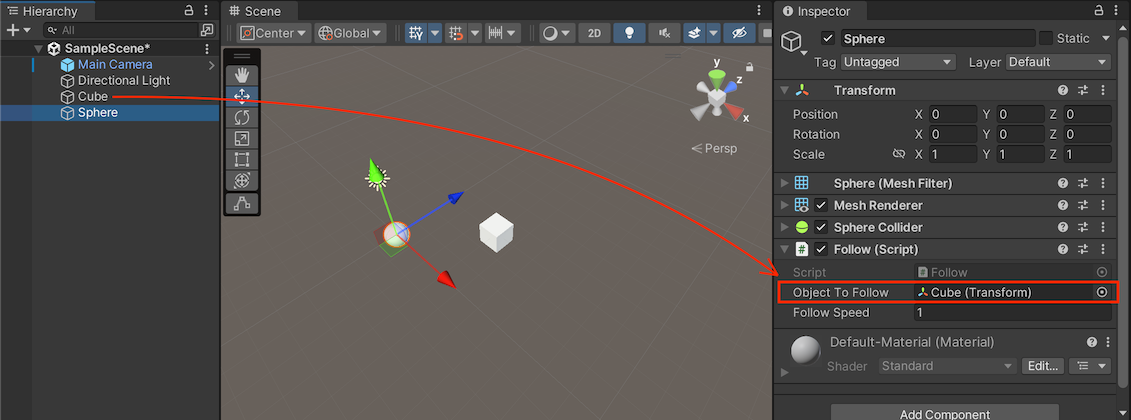
A public Transform field with a GameObject assigned. Here the script is on the Sphere (currently selected), and the Cube was dragged and dropped from the Hierarchy into the Sphere's Object To Follow field
Default object references
If you define public Object fields that can be assigned in the Editor in your MonoBehaviour script, you can set up default references for these fields. The default reference fields are visible in the inspector when you select the script asset in the Project window.

A MonoBehaviour script with three AudioClip fields. The default references for these fields are shown unset.
In the example above, there are three public audio clip fields, without default references assigned. You could assign audio clips to each of the AudioClip default reference fields.
If you assign default references, they're applied when you add your MonoBehaviour as a component to a GameObject, or when you reset an existing instance of your MonoBehaviour on a GameObject to its default values.
Other types of inspector-editable fields that don't inherit from (for example, public string or int fields) don't have default fields in the Inspector. Instead, they take their default values from the script itself.
UnityEngine.ObjectNull reference exceptions
Unity throws a if you forget to initialize a variable that needs to be initialized in the Inspector window. You can handle this with / blocks as shown in the following example:
NullReferenceExceptiontrycatchusing UnityEngine;using System;using System.Collections;public class Example2 : MonoBehaviour { public Light myLight; // set in the inspector void Start () { try { myLight.color = Color.yellow; } catch (NullReferenceException ex) { Debug.Log("myLight was not set in the inspector"); } } }
In this code example, the variable called is a which you need to set in the Inspector window. If this variable is not set, then it defaults to .
myLightLightnullAttempting to change the color of the light in the block causes a . If this happens, the block code displays a message reminding you to set the Light in the Inspector.
tryNullReferenceExceptioncatchField name to label conversion
Unity converts C# field names to labels in the Inspector window according to a set of rules. For example, the variable names in the examples above have been converted from to My Name, and from to Object To Follow. The rules are as follows:
myNameobjectToFollow- Capitalize the first letter
- Add a space between lowercase and uppercase characters
- Add a space between an acronym and an uppercase character at the beginning of the next word
- Remove anyprefix
m_ - Remove any prefix
k - Remove any prefix
_
There are some special cases, such as or , where these rules are not applied.
iPadx64