Configuring how Unity enters Play mode
Configure the Unity Editor to enter Play mode more quickly and improve your development iteration times.
Read time 2 minutesLast updated 2 months ago
The ability to test your application by switching from Edit mode to Play mode is one of Unity's core features. You can use Play mode to run your project directly inside the Editor, through the Play button in the Toolbar.
Play mode is intended to provide a realistic preview of how your application is likely to behave for users. By default Unity performs two significant actions on entering Play mode to ensure your project starts and runs as it would in a build:
- It reloads the scripting domain to reset the application state. For more information on the implications of turning domain reload off and how to compensate for it in your code, refer to Enter Play mode without domain reload.
- It reloads the scene. For more information on the implications of turning scene reload off and how to compensate for it in your code, refer to Enter Play mode without scene reload.
These two actions take time to perform, and the amount of time increases as your scripts and scenes become more complex. When you frequently make and preview changes, the cumulative time spent waiting to enter Play mode can significantly slow down your development process.
To prioritize faster development iteration times over accuracy of the Play mode simulation, Unity offers the ability to turn off domain reload and scene reload on entering Play mode.
The following diagram provides a high-level overview of the effects of turning off domain reload and scene reload:
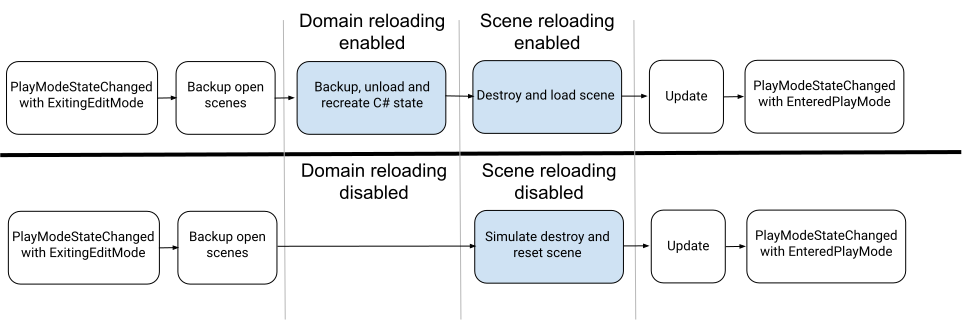
The effects of turning off domain reload and scene reload settings
For more detailed information on the effects of turning off domain and scene reload, refer to Domain and scene reload execution order reference.
Configure Play mode settings
You can configure what processes start when you enter Play mode in Enter Play Mode Settings in the Editor section of the Project Settings window. To turn off domain reload and/or scene reload on enter Play mode:
-
Open the Project Settings window (Edit >).Project Settings
?
-
Click on the Editor tab.
-
In the Enter Play Mode Settings section, in the When entering Play Mode dropdown menu, do one of the following:
- To turn domain reload off but leave scene reload on, select Reload Scene only.
- To turn scene reload off but leave domain reload on, select Reload Domain only.
- To turn both domain reloading and scene reloading off, select Do not reload Domain or Scene.