DisplayComplexDecisionDialog(string, string, string, string, string, DialogIconType)
Displays a complex decision dialog box with a title, icon, message, and three buttons.
Read time 2 minutesLast updated a month ago
Definition
- Type: Method
- Namespace: UnityEditor
- Assembly: UnityEditor
public static DialogResult DisplayComplexDecisionDialog(string titleText, string messageText, string defaultButtonText, string altButtonText, string cancelButtonText, DialogIconType iconType = DialogIconType.Warning)
Parameters
The title of the dialog box. If left null, defaults to "Unity".
The message to display in the dialog box.
The text to display on the default button. If left null, it defaults to "Yes".
The text to display on the alternate button. If left null, it defaults to "No".
The text to display on the cancel button. If left null, it defaults to "Cancel".
The icon to display in the dialog box. Defaults to DialogIconType.Warning.
Returns
Type | Description |
|---|---|
| DialogResult | The result of the dialog box. Returns DialogResult.Cancel if the user clicked the cancel button, DialogResult.DefaultAction; if the user clicked the default button, or DialogResult.AlternateAction if the user clicked the alternate button. |
Remarks
If is null or whitespace, an is thrown. If is longer than 512 characters, it is truncated and the full message is logged to the console in markdown format.
messageTextArgumentNullExceptionmessageTextIf any button's text is longer than 64 characters, an is thrown.
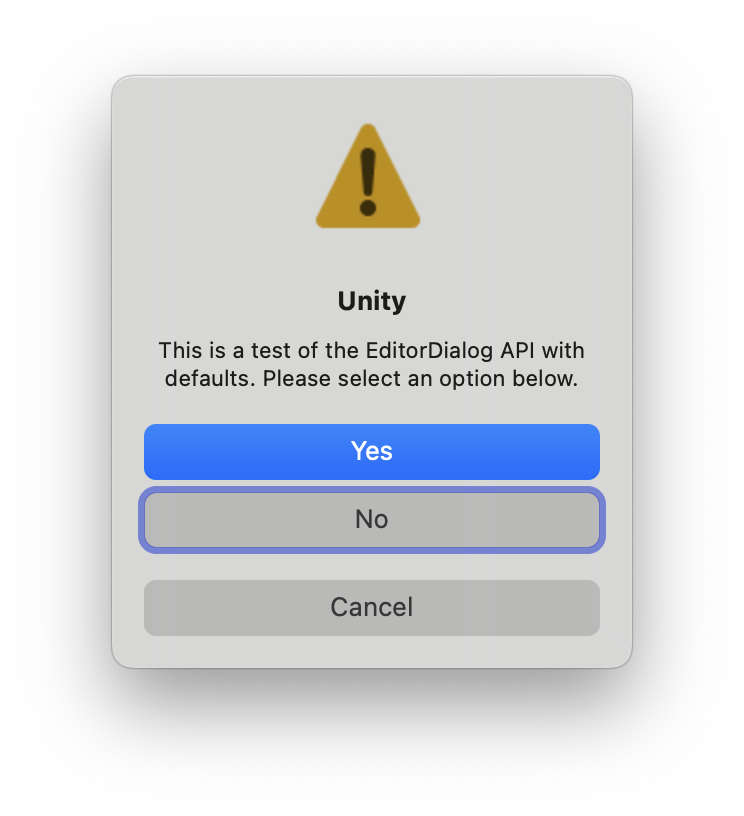
ArgumentExceptionIf the user presses the enter key (return key on macOS), the default button is clicked. The alternate button is for additional actions, or to provide a different choice than the default button. The cancel button closes the dialog box without taking any further actions. If the user presses the escape key or closes the dialog, the cancel button is clicked. On macOS, the orientation of the buttons might be horizontal or vertical depending on the length of the message. Additionally, if the layout is horizontal, the button layout is different from Windows or Linux, with the default button on the right and the alternate button on the far left.
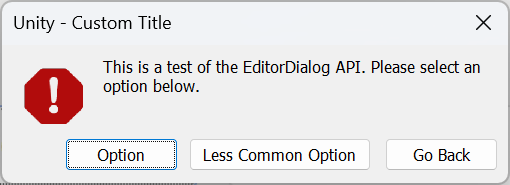
The following example demonstrates how to display a complex decision dialog box with a warning icon, a title, a message, and Yes, No, and Cancel buttons:
using UnityEditor;using UnityEngine;namespace Examples{ public class DisplayComplexDecisionDialogExamples : MonoBehaviour { [MenuItem("Window/EditorDialog Example/DisplayComplexDecisionDialog with all parameters specified")] public static void DisplayComplexDecisionDialogExample() { DialogResult userResponse = EditorDialog.DisplayComplexDecisionDialog( "Unity - Custom Title", "This is a test of the EditorDialog API. Please select an option below.", "Option", "Less Common Option", "Go Back", DialogIconType.Error); Debug.Log(userResponse); } [MenuItem("Window/EditorDialog Example/DisplayComplexDecisionDialog with defaults")] public static void DisplayComplexDecisionDialogSimpleExample() { DialogResult userResponse = EditorDialog.DisplayComplexDecisionDialog(null, "This is a test of the EditorDialog API with defaults. Please select an option below.", null, null, null); Debug.Log(userResponse); } }}
Produces the following dialog boxes on Windows 11 and macOS: