文档

​
​

Development

User Acquisition

Monetization

工业

Vivox Core SDK

Vivox Core SDK

此页面不支持所选语言。
Vivox
​
​
Vivox Core SDK
  • Overview
  • Before you begin
  • Get started
  • Release notes
  • Developer Guide
    • Client SDK basics
    • Channels
      • Channel name criteria
      • Channel types
      • Echo channels
      • Positional channels
      • Volume differences
      • Channel identifiers for large scale games
      • Participant events
      • Channel webhooks
      • Join a channel
      • Leave a channel
      • Kick a user from a channel
      • Manage session groups
      • Audio injection
      • Methods for setting audio levels
      • Derumbler
      • Automatic connection recovery
    • Presence management
    • Messaging
    • Manage audio
    • Couch co-op
    • Android app development
    • iOS app development
    • macOS app development
    • Windows app development
    • Real-time recording
    • Speech-to-text audio transcription
    • Text-to-speech
    • Troubleshooting
  • Reference
  • Privacy overview
  1. Vivox Core SDK documentation

Volume differences

Learn about voice channels in Vivox Core.
阅读时间2 分钟
最后更新于 8 个月前

Positional channels have lower default volume settings than 2D channels. 3D channels are a third quieter than 2D channels.
This difference is by design. Positional channels need more headroom for sound to be stereo panned, so they initialize with a lower level.
Positional channels are set to -6dB. This allows positional channels to adjust when panned hard left or right while maintaining volume dynamically.
For context on decibel levels, -10dB is what most listeners perceive as “half as loud”.
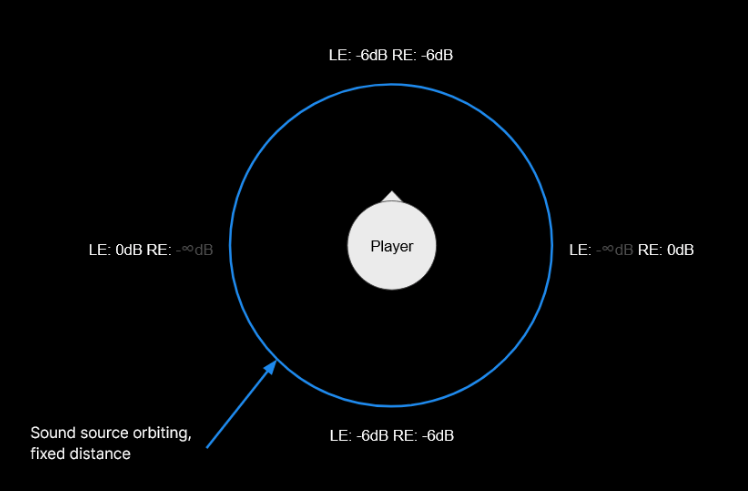
An image with a player circle in the middle of a larger circle labled Sound source, which orbits the player.

Equalizing channels

It’s possible to match channel loudness by lowering the loudness in 2D channels to the base level of 3D channels. It’s important to note that each 2D channel needs to be lowered individually every time they’re joined or re-joined. There isn’t a universal setting to manage all 2D channels at once.
Another approach is to raise the audio in the 3D channel by 6dB to match the volume of 2D channels.
If you choose to equalize the volumes between channel types, the main thing to keep in mind with these volume changes is that you need to manage individual volume boosting as the changes made are increasing the channel-wide volumes already. It’s best to not allow users to increase the volume to a level that could be harmful.
To set the volume level of an entire individual channel, use
vx_req_session_set_local_render_volume
. If you choose to raise the level of 3D channels set them to 56. If you choose to lower 2D channels to match the default 3D channel volume instead, set 2D channels to 44.
注意
If you boost the 3D channel default volume to match the 2D channel, test the max user volume levels. If users have control over local capture or render volume settings, test against the upper guidelines and consider lowering the maximum to which they can raise their volume. If users have control over other participants' volume levels, remember to test those as well.
For more information on managing local volume settings, refer to In-game control of audio levels.

Copyright © 2026 Unity Technologies
法律信息隐私政策CookiesDocumentation Terms of Use请勿出售或分享我的个人信息您的隐私选择(Cookie 设置)

“Unity”、Unity 徽标及其他 Unity 商标是 Unity Technologies 或其附属公司在美国和其他地方的商标或注册商标(此处查看更多信息)。其他名称或品牌是其各自所有者的商标。

为方便起见,一些页面是机器翻译的,可能包含不准确的内容。如有信息不一致的情况,以英文版本为准。

  • 在本页上
    • Equalizing channels


报告此页面的问题