Report generator
Use the report generator feature to analyze granular data and make decisions about your campaign performance.
Thời gian đọc 1 phútCập nhật lần cuối 8 ngày trước
The report generator provides granular data to help you make decisions about your campaign performance. Add multiple breakdowns, metrics, and filters for your chosen timeframe to get the desired results.
Step 1. Navigate to user acquisition reports
To view the report generator, go to User Acquisition > Reports > Report generator.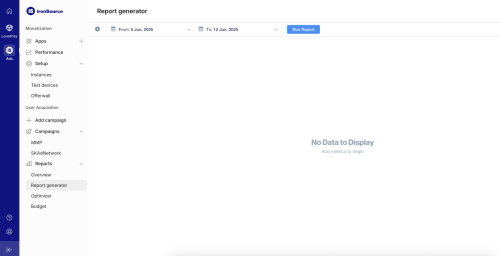

Step 2. Select the breakdowns
Select your required date granularity and other relevant data breakdowns.Step 3: Select your metrics
Select the relevant metrics to perform detailed analysis of the campaigns. The available metrics are described in the user acquisition glossary. After you have selected a date range and determined the metrics, select Run Report. The report will be generated and presented on the screen.Step 4: Export your data
After the report is generated, click on Export Report if you'd like to save it or perform further analysis with the data.