ROAS optimizer CSV manager
Update and control your ROAS optimizer settings in bulk using the CSV Manager for streamlined campaign management.
Thời gian đọc 1 phútCập nhật lần cuối 8 ngày trước
Download the ROAS performance data of your optimized campaigns as a CSV file, and upload custom CSV files to edit your goal configuration in bulk.
Download performance data and current goal configuration
To download a CSV, follow these steps:-
Select a date range
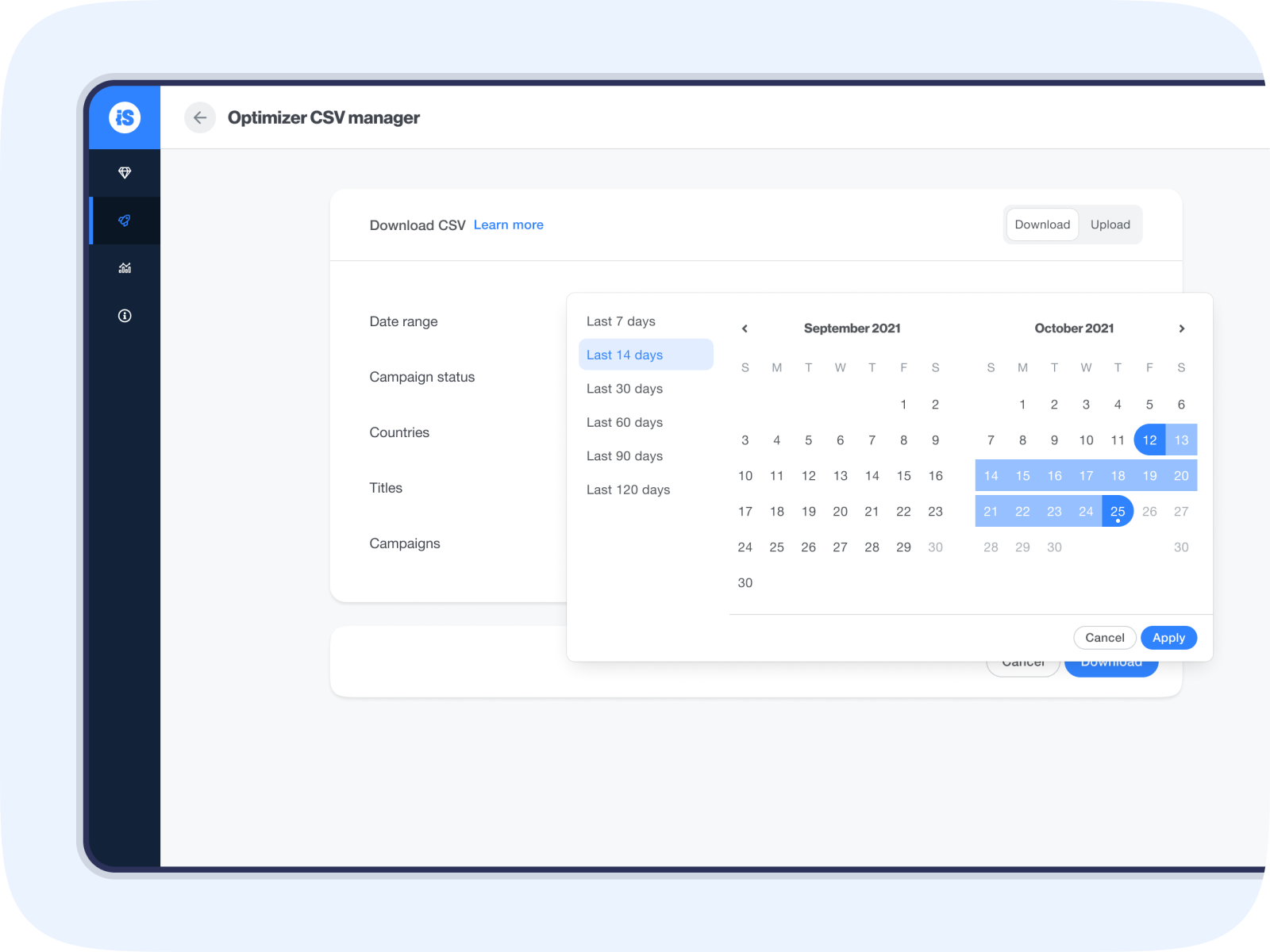
-
Choose the campaign status.
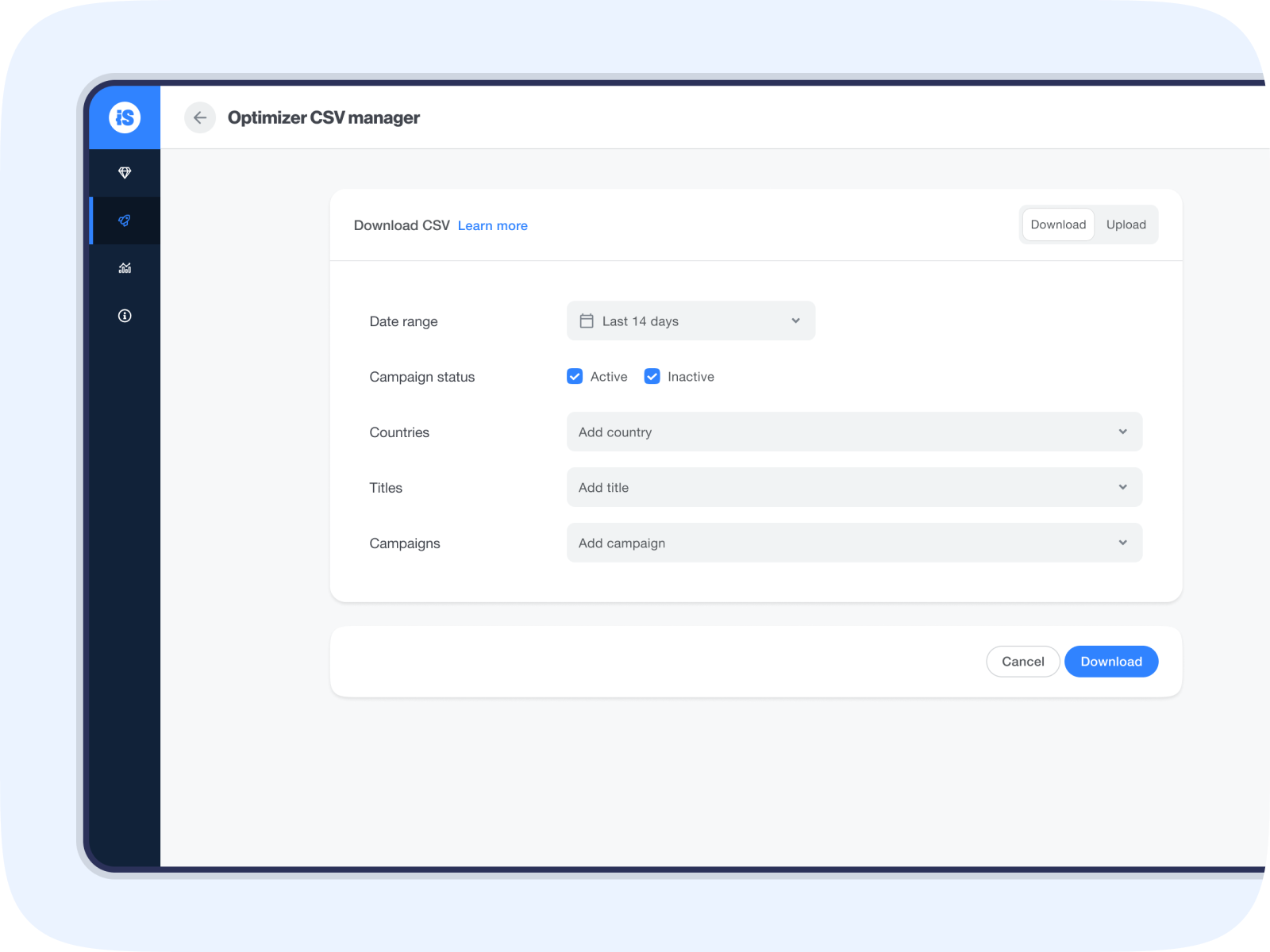
-
Select the geos you want to be included in the report.
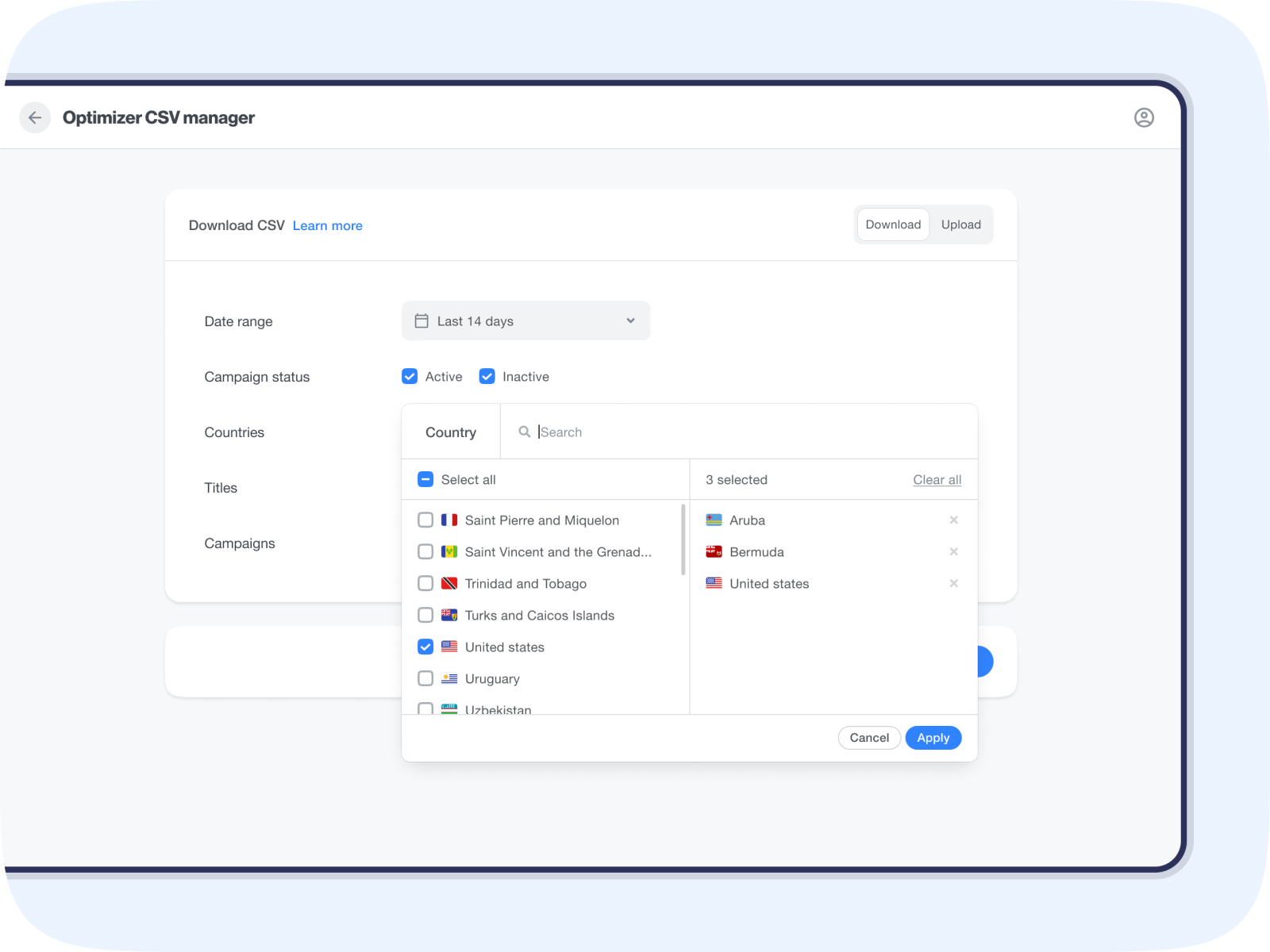
-
Select the titles and campaigns you want to see data from.
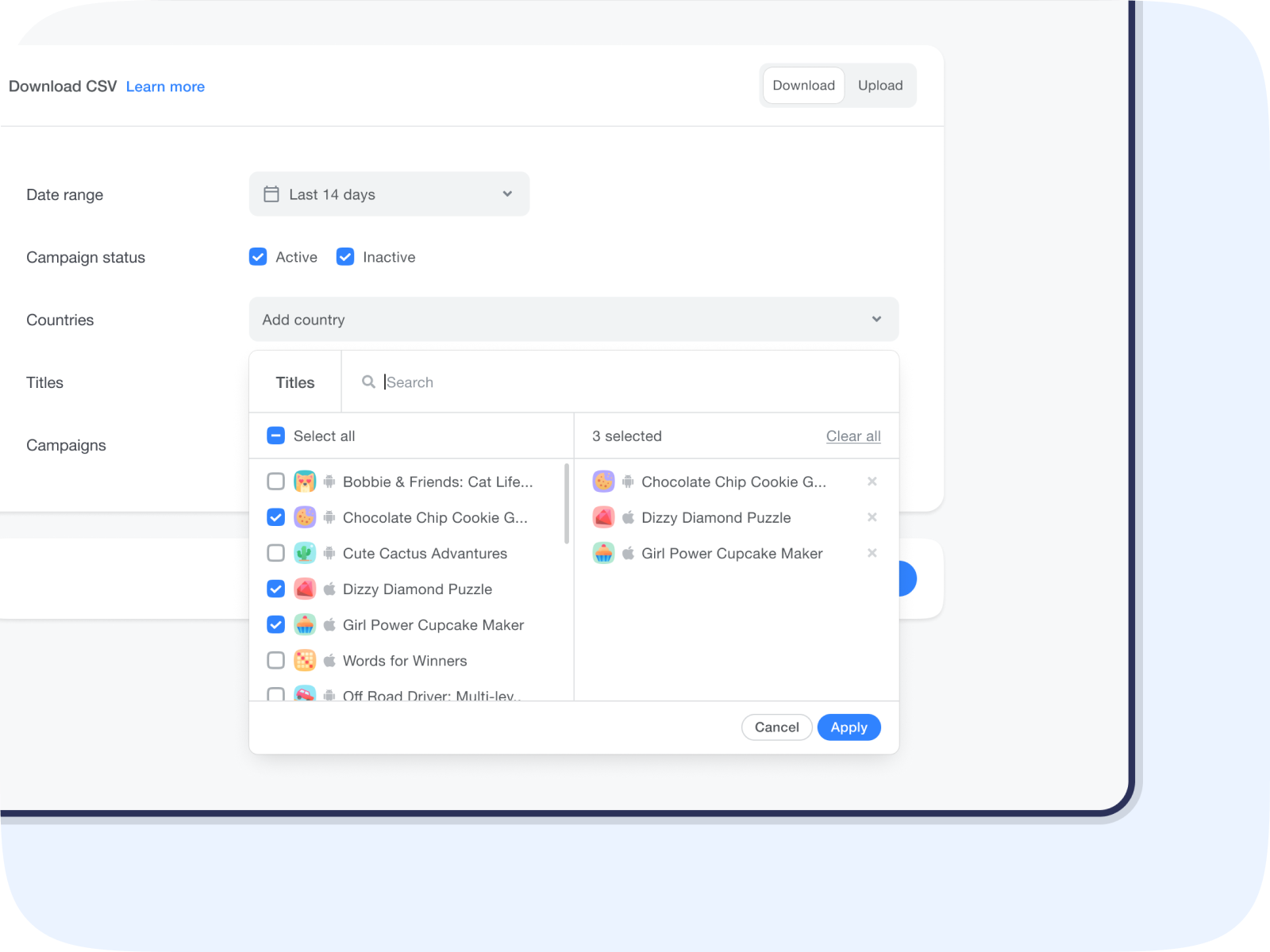
- Click Download to get the CSV report
- Campaign
- Age (D1, D3, D7)
- Country
- ROAS Goal
- ROAS D1*
- ROAS D3*
- ROAS D7*
- ROAS D14*
- ROAS D30*
- Effective goal – weighted average of the ROAS Goals delivered during the selected date range
Edit your goal configuration
Upload a CSV file containing adjustments to your ROAS Goals to make bulk changes.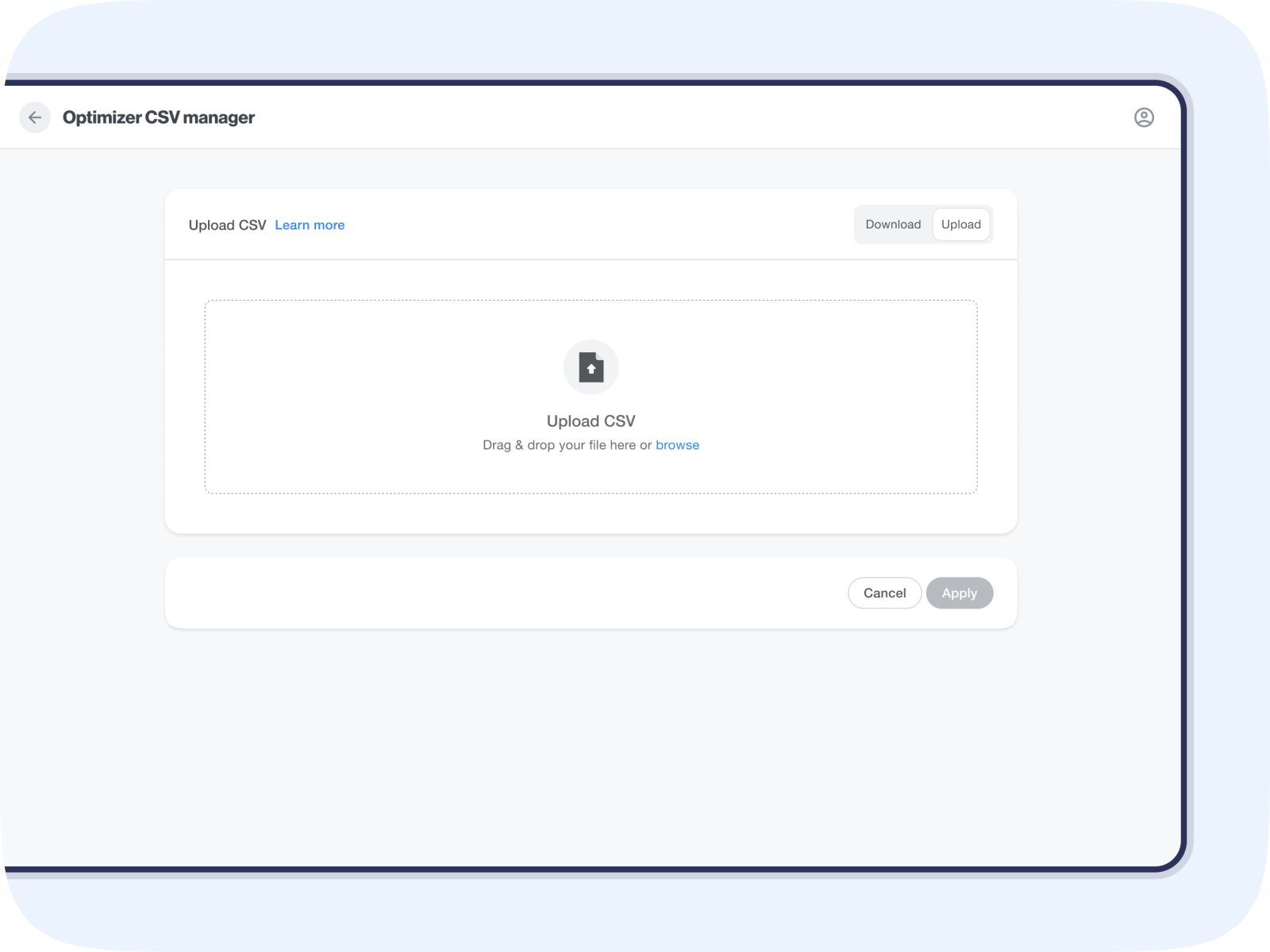
- Campaign ID
- Country
- To change the campaign’s default goal, input All as the country code
- ROAS Goal
- To return to the campaign’s default goal, input Default
- Set your goal with up to 1 decimal place.
Example
Campaign ID | Country | ROAS goal |
|---|---|---|
| 123 | All | 30 |
| 123 | US | Default |
| 123 | GB | 33.5 |
| 123 | CA | 35 |