3D preview tab reference
Explore the properties and settings available in the 3D preview to inspect assets, control camera behavior, customize grid and wireframe displays, and manage viewing tools.
読み終わるまでの所要時間 5 分最終更新 2ヶ月前
In the Project Assets interface, select an asset to preview it. By default, it opens in the Thumbnail tab, which is a 2D viewer. Select the 3D preview tab to inspect your asset in a 3D viewer.
3D preview toolbar
Explore the properties in the 3D preview tab, starting at the upper-left corner and moving clockwise.
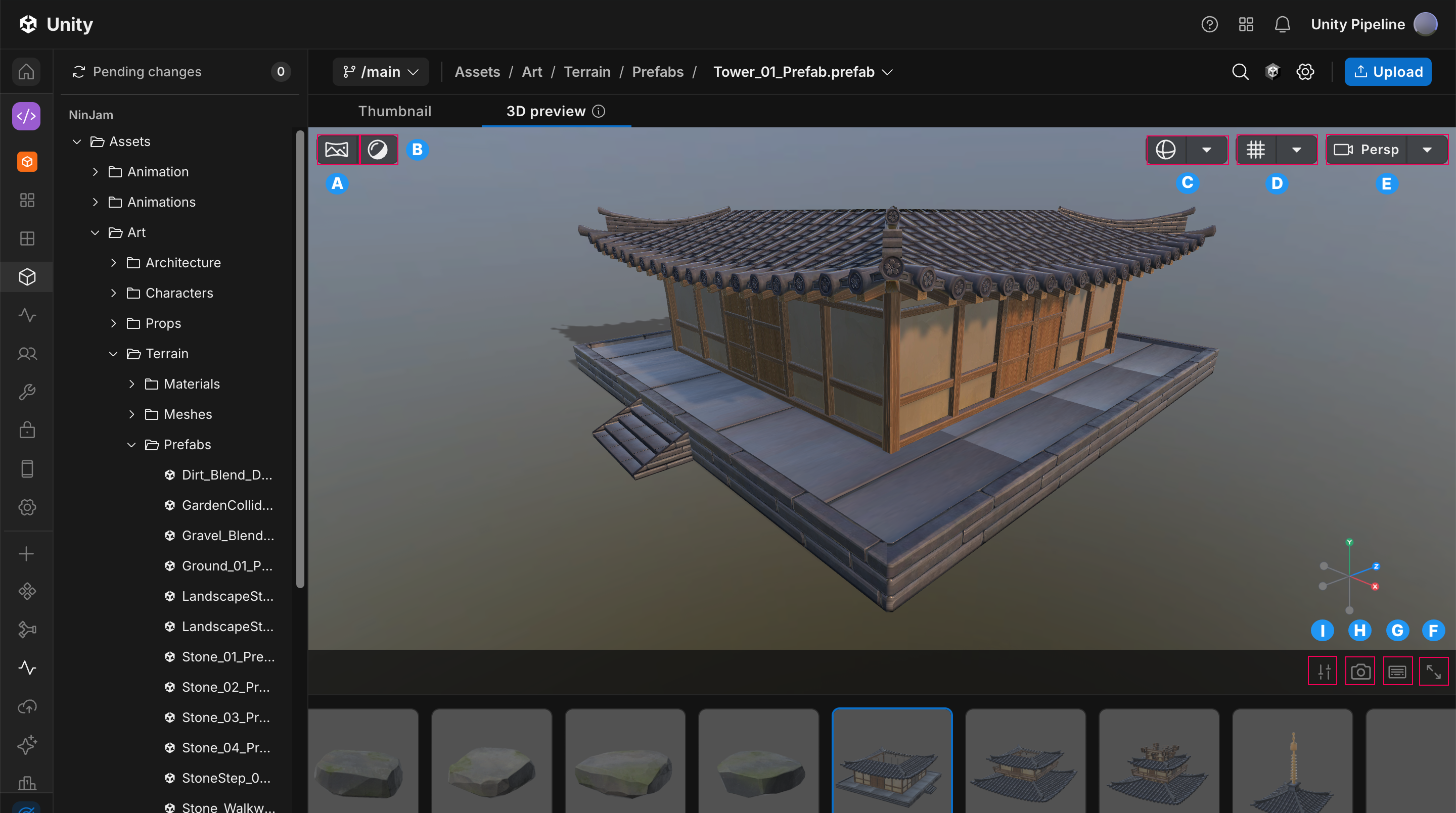
The properties available in the **3D preview** tab
Label | Property | Description |
|---|---|---|
| A | Environment, Lighting, Background | Configures the Environment, Lighting, and Background settings in the 3D preview tab to control how assets appear. |
| B | Material channels | Shows the material channels assigned to a 3D asset. |
| C | Wireframe settings | Shows or hides the wireframe and select a wireframe color. |
| D | Grid settings | Shows or hides the grid and customize the grid. |
| E | Camera settings | Controls the camera view mode and alignment. |
| F | Enter full screen | Expands the 3D preview tab to full screen mode. |
| G | Keyboard shortcuts | Shows keyboard shortcuts for navigation and scene selection. |
| H | Snapshot viewer | Downloads a snapshot of the current view. |
| I | Viewer settings | Configures camera movement, speed, and clipping behavior. |
Environment settings
Explore the properties in the Environment settings in the upper-left corner of the 3D preview tab.
Property | Description |
|---|---|
| Pure diffuse | Uses unlit, diffuse shading to show base colors and materials without environmental influence. |
| Studio | Uses a controlled studio setup to simulate balanced ambient lighting and soft reflections. |
| Morning | Uses a sky-based lighting environment with soft, warm tones to simulate magic hour lighting. |
| Sunny | Uses strong overhead direct lighting to simulate bright highlights and defined shadows. |
| Cloudy | Uses diffused sky lighting to simulate overcast conditions. |
| Night | Uses low, desaturated lighting with a night sky to simulate nighttime conditions. |
| City Night | Uses an urban night environment to simulate artificial lighting and complex reflections. |
| Unity Default | Uses the default environment from the Unity Editor. |
Lighting settings
Explore the properties in the Lighting settings in the upper-left corner of the 3D preview tab.
Property | Description |
|---|---|
| Directional light toggle | Enables or disables the directional light in the scene. |
| HDRI Rotation slider | Adjusts the rotation of the HDR environment to change lighting direction and reflections. |
Background settings
Explore the properties in the Background settings in the upper-left corner of the 3D preview tab.
Property | Description |
|---|---|
| Background color | Sets a solid color as the background for the viewer. |
| HDR Background toggle | Enables or disables the HDR environment as the background. |
| Blur Background toggle | Enables or disables background blur to reduce visual detail and improve focus on the asset. |
Material channels
Use material channels to inspect a 3D asset without changing the original asset’s materials. Material channels are baked into the model as a single texture. This enables efficient rendering and ensures a consistent appearance across environments.
You can inspect the following material channels:
Material channel | Description |
|---|---|
| Albedo | Defines the base color of the surface. |
| Emission | Controls light that the material emits. |
| Metalness | Determines how metallic the surface appears. |
| Normal map | Adds surface detail without increasing geometry. |
| Occlusion map | Simulates shadowed areas to enhance depth. |
| Opacity | Adjusts the transparency of the surface. |
| Roughness | Controls how shiny or matte the material appears. |
| UV checkerboard | Displays the UV layout to debug textures. |
Wireframe settings
Explore the properties in the Wireframe settings in the upper-right corner of the 3D preview tab.
Property | Description |
|---|---|
| Off | Hides the wireframe on the 3D asset. |
| Wireframe on shaded | Shows the wireframe on the 3D asset. |
| Show bounding box | Displays the bounding box around the selected asset. |
| Color | Selects a color for the wireframe. |
Grid settings
Explore the properties in the Grid settings in the upper-right corner of the 3D preview tab.
Property | Description |
|---|---|
| Grid | Shows or hides the grid in the viewer. |
| Axes enabled | Shows or hides the grid axes. |
| Snap to Model Ground Plane | Turns alignment to the ground plane on or off to position the asset accurately. |
| Scale | Sets the spacing between grid lines. |
| Size | Sets the overall dimensions of the grid. |
| Opacity | Adjusts the transparency of the grid. |
| Plane | Selects the plane on which the grid is displayed. |
Camera settings
Explore the properties in the camera settings in the upper-right corner of the 3D preview tab.
Property | Description |
|---|---|
| Orthographic | Sets the camera to an orthographic view to remove perspective distortion. |
| Perspective | Sets the camera to a perspective view to display depth and distance. |
| Align | Aligns the camera to a predefined viewpoint. |
Viewer settings
Explore the properties in the Viewer settings in the lower-right corner of the 3D preview tab, for camera movement and clipping.
Property | Description |
|---|---|
| Camera easing | Enables smooth camera movement when starting or stopping. |
| Camera acceleration | Enables gradual increases in camera movement speed. |
| Camera speed | Sets the base movement speed of the camera. |
| Max speed | Sets the maximum movement speed the camera can reach. |
| Custom clipping | Enables custom near and far clipping values. |
| Near clip | Sets the minimum distance from the camera at which objects are visible. |
| Far clip | Sets the maximum distance from the camera at which objects are visible. |