Skybox
Learn about the skybox in Unity Studio, which is the background that surrounds the objects in your scene.
Read time 2 minutesLast updated 7 months ago
A skybox is the panoramic background mapped onto a massive cube or sphere that surrounds your entire scene in Unity Studio. A skybox simulates distant environments (for example, skies, mountains, cityscapes, or space), and can help you establish the setting and mood for your scene.
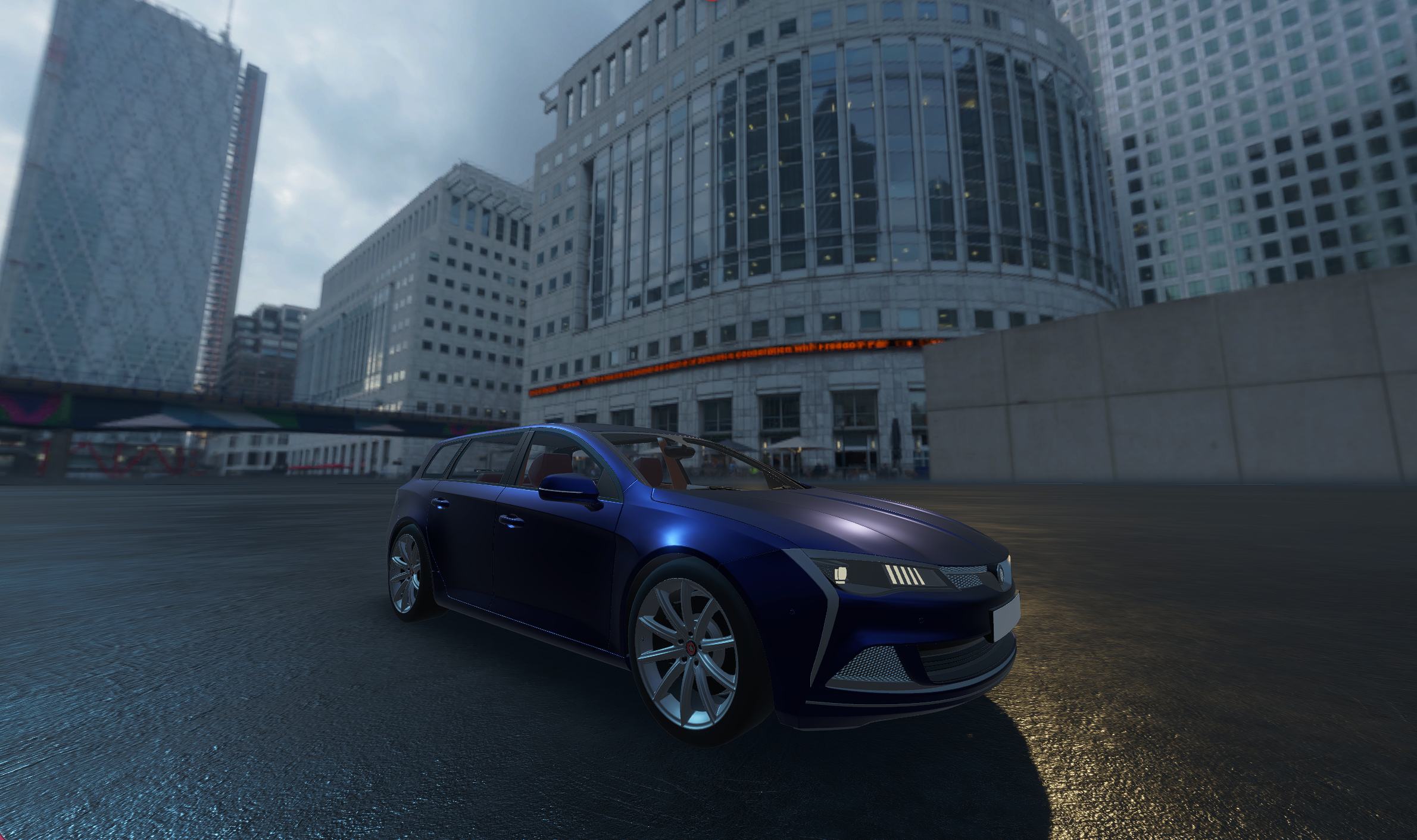
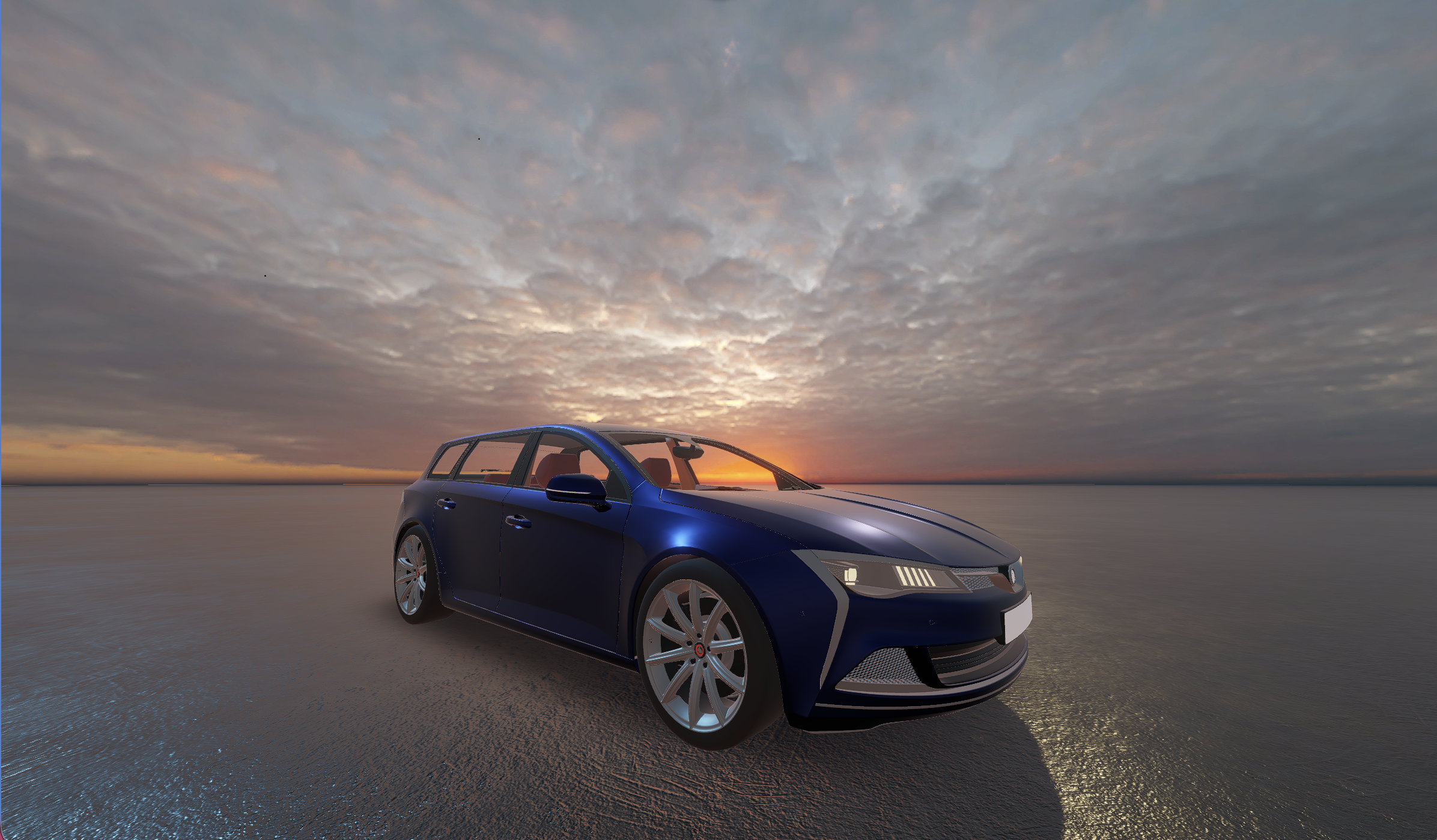
Two screenshots of the same car model and ground plane, each with a different skybox: city (refer to footnote 1) and sunset.
The skybox appears behind all objects in your scene.
Skybox textures
Unity Studio includes a library of skybox textures you can use in your own scenes. These textures include:
Texture name | Description |
|---|---|
| City Center | A modern city-center plaza surrounded by tall glass office buildings. 1 |
| Day Cloudy Field | A grassy field with a dirt road under a gray, overcast sky.2 |
| Day Cloudy | A bright sky with abundant white clouds. |
| Day | A clear blue sky. |
| Night Grasslands | Open grasslands with trees, distant lights, and a star-filled night sky. 3 |
| Night | A clear, dark sky. |
| Solid | A flat, uniform color. Adjust Skybox Tint to change the color. |
| Sunset | A sky with the sun setting. |
| Sunset Grasslands | A sunset over grassy fields with trees and a distant building. 4 |
Choose a texture that matches the environment or mood you want to convey. For instructions, refer to Change the appearance of the skybox.
Control the lighting and tint of your skybox
A skybox also contributes light and reflections to your scene. Adjust its settings to change the overall atmosphere.
You can shift the sky’s color to match weather or time of day, and alter the exposure and light intensity to affect the scene's overall brightness.
For example, with a cloudy sky texture, you might lower the exposure and add a cooler, gray tint to the light.
Change the appearance of the skybox
To change the skybox:
- In the Hierarchy panel, select Scene Settings.
- Under Skybox Texture, select the images to display it on the skybox.
- Tune the rest of the Scene Settings properties to your preference.
Additional resources
Footnotes
Unity Studio uses multiple Skybox textures from Poly Haven:
- Canary Wharf by Andreas Mischok
- Farm Road by Dario Barresi
- Kloppenheim 02 by Greg Zaal
- Grasslands Sunset by Dimitrios Savva and Jarod Guest