Virtual Currency Overview
Learn about Tapjoy Offerwall self-managed and Tapjoy-managed virtual currencies to choose and configure the right one for your app built with Unity.
Read time 1 minuteLast updated 8 months ago
Tapjoy offers two methods to integrate virtual currency into your application: Tapjoy-managed currency and self-managed currency.
Tapjoy-managed currency (Recommended)
Use Tapjoy-managed currency to store users' currency balances on Tapjoy's servers. This free service, available to developers using Tapjoy's publisher SDKs, removes the need for back-end infrastructure to manage currency data.
Self-managed currency
Use self-managed currency to store and manage users' currency balances on your own servers. This approach provides greater control but requires you to handle all back-end storage and currency management.
Choosing a currency management type
The recommended best practice is to use a self-managed currency for its access to additional features. The following table compares the features of the two currency options:
Currency feature | Tapjoy-managed | Self-managed |
|---|---|---|
| Multiple currencies | No | Yes |
| Control over user balance | No | Yes |
| Reward IDs for troubleshooting | NO | Yes |
| Visibility into transactions | No | Yes |
| Simple setup | Yes | Yes |
| Fewer SDK calls | Yes | No |
Sett up virtual currency
Dashboard configuration
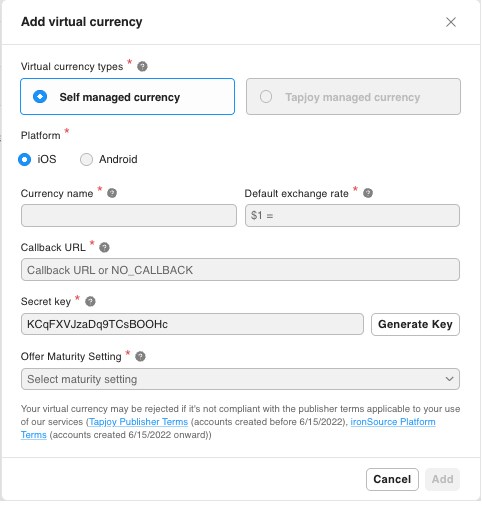
To set up virtual currency directly through the Tapjoy Dashboard interface, complete the following steps:
-
Select your app from the list in the upper-right corner.
-
Select Virtual Currency in the left side navigation.
-
Select Add Virtual Currency in the upper-right.
-
Complete the form. Refer to the following best practices for your currency configuration:
An example of a currency exchange rate with granularity is . A rate such as might reduce fill rates, because some offers might not be worth one unit of currency.
100 = $12 = $1An example of a too high exchange rate is . For Android, the maximum currency balance is 2,147,483,647. Avoid exchange rates that exceed this limit and block the balance retrieval.
100,000,000 = $1The system enables your currency within 15 mins. During that timeframe, offers will not display unless your device is a test device. To enable test offers, in the left menu, go to Settings > App Settings > Test Devices.
Migrate from Tapjoy managed currency to self-managed currency
If your app hasn't launched, you can swap the app's currencies by using the Tapjoy Dashboard. Ensure that you enter a correctly formatted URL into the callback URL field.
If your app is live, you can perform the following actions:
- Create a new app and SDK key to prevent old versions from losing rewards.
- Migrate user balances in the following ways:
- Use the previous SDK key to call (on first launch).
getCurrencyBalance - Update your system with the retrieved balance.
- Swap the SDK key for subsequent launches.
- Use the previous SDK key to call
- Disable your previous advertising campaigns and recreate them under the new App ID.
- Consult with your Tapjoy Account Manager before proceeding.
For external virtual currency server solutions, consider platforms like Parse or UrbanAirship.