Shortcuts window reference
View and navigate the Shortcuts window, including the key map and shortcuts table.
Read time 3 minutesLast updated 22 days ago
Explore the Shortcuts window to view and navigate keyboard shortcuts.
For information about managing shortcuts, refer to Manage keyboard shortcuts.
To access the Shortcuts window, from the main menu, select Edit > Shortcuts (macOS: Unity > Shortcuts).
Shortcuts window elements
The Shortcuts window contains the following elements.

The Shortcuts window with labels: A: Profile list B: Category list C: Shortcuts table D: Key map.
Label | Property | Description |
|---|---|---|
| A | Profile list | List of saved shortcut profiles and menu items to manage them. For more information, refer to Manage shortcut profiles. |
| B | Category list | Filter shortcuts by categories. This filter applies to the table, but not the key map. |
| C | Shortcuts table | A display of all actions that can take a shortcut, and the shortcuts assigned to them. You can use the table to manage shortcuts. |
| D | Key map | A keyboard-based display of assigned shortcuts. You can use this view to find and manage shortcuts, as an alternative to the table. |
The key map
The key map is a color-coded keyboard display that shows unassigned and assigned shortcuts. The color legend above the key map indicates what each color means.
To view a particular key's commands, hover your mouse over a shortcut key. The tooltip lists all the commands that use the key.

The A key commands listed in a tooltip.
To view key combinations, click a modifier key such as Shift, Ctrl (macOS: Cmd), or Alt. The key map updates to show the key combinations that include the modifier key. You can also temporarily activate modifier keys by pressing them on your keyboard.
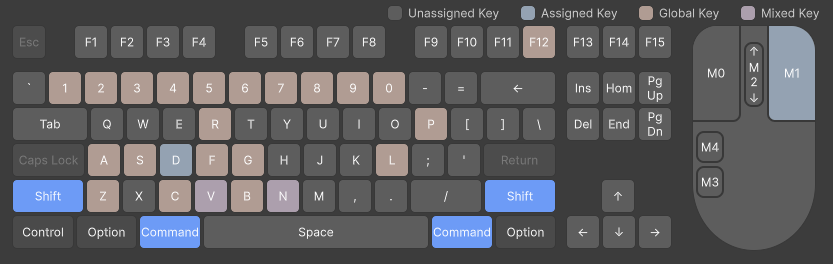
Activating modifier keys changes the key map to show commands for key combinations
The shortcuts table
The shortcuts table shows keyboard shortcuts by command. For each command, it shows the command name, context, type, and assigned shortcut:
Property | Description |
|---|---|
| Command | The name of the command. |
| Context | For commands that are only available in certain contexts, this column shows the context in which the command is available. For example, a command might be available only in the Game view or Scene view. |
| Type | The type of command: Action, Clutch, or Menu. For more information, refer to Introduction to keyboard shortcuts. |
To narrow down the table entries, you can:
- Use the Search box to search by command name. The search doesn't apply to any other column.
- Use the Category list to filter commands by their purpose.
- Search within a selected category. The Shortcuts window displays the search results in two tabs: one for the selected category and one for all commands.

The table view in two tabs, one for the selected category and one for all commands, both filtered by the same search.
Shortcut helper bar
To view shortcut and mouse controls as you work, enable the Shortcut helper bar.
To enable the Shortcut helper bar:
- From the main menu, select Edit > Preferences (macOS: Unity > Settings).
- In the General tab, select Enable Shortcut Helper Bar.
Apple touchpad shortcuts
You can use the Apple touchpad to navigate the view. For more information, refer to Scene view navigation.
Scene
?