The Debug class
Use the Debug class in your project code to write messages and errors to the Console window.
Read time 3 minutesLast updated 9 days ago
The Debug class allows you to visualize information in the Unity Editor that might help you understand or investigate what is going on in your project while it's running. For example, you can use it to print messages into the Console window, draw visualization lines in the Scene view and Game view, and pause Play mode in the Editor from script.
This page provides an overview of the Debug class and its common uses when scripting with it. For an exhaustive reference of every member of the Debug class, refer to the Debug script reference.
Logging errors, warnings and messages
Unity sometimes logs errors, warnings, and messages to the Console window. The class provides you with the ability to do exactly the same from your own code, as shown in the following example:
DebugDebug.Log("This is a log message.");Debug.LogWarning("This is a warning message!");Debug.LogError("This is an error message!");
The three types (error, warning, and message) each have their own icon type in the Console window.
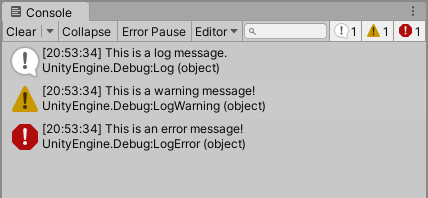
The Console window displays the three types of debug message: a regular log with a white exclamation icon, a warning with a yellow exclamation icon, and an error with a red exclamation icon.
Everything that is written to the Console Window (by Unity, or your own code) is also written to a Log File.
If Error Pause is enabled in the Console, any errors written to the Console via the class cause Play mode to pause.
DebugYou can also provide a second optional parameter to these log methods to indicate that the message is associated with a particular GameObject, like the following:
using UnityEngine;public class DebugExample : MonoBehaviour{ void Start() { Debug.LogWarning("I come in peace!", this.gameObject); }}
The benefit of this is that when you click the message in the console, the GameObject you associated with that message is highlighted in the Hierarchy, allowing you to identify which GameObject the message related to. In the following image, selecting the warning message highlights the Alien (8) GameObject.
I come in peace!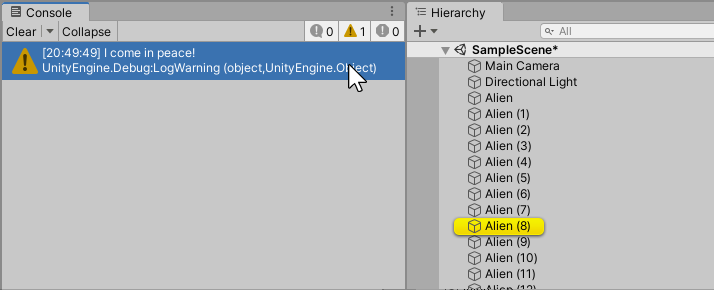
The Console window displays "I come in peace!" as a warning-level log message.
Using the Debug class
The class has two methods for drawing lines in the Scene view and Game view. These are and .
DebugDrawLineDrawRayIn this example, a script has been added to every Sphere GameObject in the scene, which uses to indicate its vertical distance from the plane where Y equals zero. Note that the last parameter in this example is the duration in seconds that the line stays visible in the Editor.
Debug.DrawLineusing UnityEngine;public class DebugLineExample : MonoBehaviour{ // Start is called before the first frame update void Start() { float height = transform.position.y; Debug.DrawLine(transform.position, transform.position - Vector3.up * height, Color.magenta, 4); }}
And the result in the Scene view looks like this:
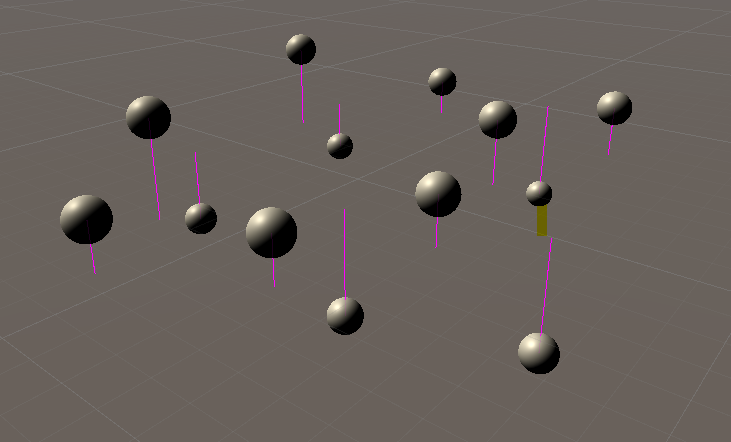
The Scene view displays a group of spheres, each with a magenta line indicating its distance from the plane where Y equals zero.
Excluding Debug code from non-development builds
The logging APIs aren't stripped from release builds, and write to log files if called. You can prevent this by using directives or a conditional attribute to make compilation of calls dependent on a scripting symbol that's only defined in development builds.
UnityEngine.Debug#ifDebugThe following example uses a conditional attribute with a scripting symbol called that is only defined in development builds:
ENABLE_LOGSpublic static class Logger { [Conditional("ENABLE_LOGS")] public static void Debug(string logMsg) { UnityEngine.Debug.Log(logMsg); } }
For more information, refer to Conditional compilation in Unity.