Local Cloud Code server
Start a Cloud Code server directly on your local machine.
Read time 4 minutesLast updated 9 days ago
You can accelerate back-end development by instantiating a Cloud Code server with C# modules deployed directly on your local machine. With this local Cloud Code server, you can iterate rapidly on game server logic in isolation, bypassing the need to push to a remote environment for every change.
More importantly, a local Cloud Code server unlocks diagnostic capabilities by allowing you to attach a debugger to the local process, granting the ability to set breakpoints, step through execution, and inspect memory to resolve complex server issues at runtime in Play mode.
Prerequisites
Before you start, make sure your project meets the following prerequisites:
- Unity 6.3 or later.
- Follow the Cloud Code modules steps to set up the Unity Editor.
- If you have existing modules, ensure you reference the following NuGet packages:
- v0.0.26 or later
com.unity.services.cloudcode.apis - v0.0.4 or later
com.unity.services.cloudcode.core
- You have the .NET 8.0 SDK or later installed on your machine.
Local Cloud Code Toolbar button
You can access all local server settings and operations through the Cloud Code Toolbar button. This button is disabled by default. To enable the Cloud Code Toolbar button:
- Select the More (⋮) menu in the Toolbar.
- Select Services > Cloud Code.
The Cloud Code Toolbar button now appears in the Editor's Toolbar.
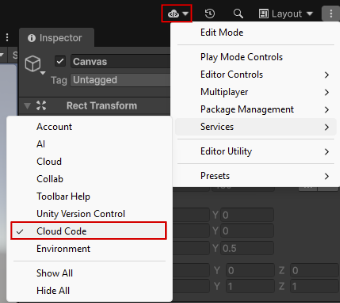
Enabling Cloud Code in the Editor from the Toolbar
Executing modules on the local server
To execute C# server functions on the local server from your game, select the Cloud Code Toolbar button, then Start Local Server.
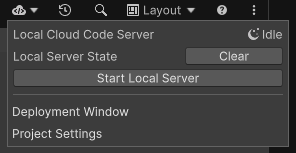
The Start Local Server button in the Toolbar
Starting the local server automatically compiles and deploys all Cloud Code module references in your project onto that server. The Cloud Code Toolbar button, and the window it opens, displays the state of the local server, for example, idle, starting, running, and its PID.
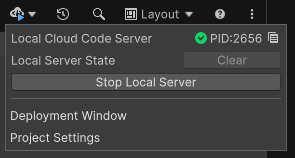
The Stop Local Server button in the Toolbar
Alternatively, you can reload subsequent code changes to your modules onto the started server by restarting the server, or redeploying the desired module through the Deployment window.
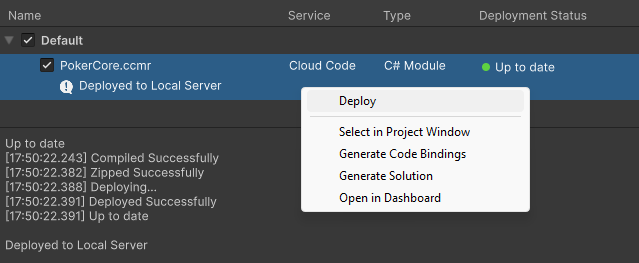
Redeploying a module in the Deployment window
With your deployed C# modules on the local server, server calls made from your game in Play mode are now redirected to the local server. Note that the determination of a local versus remote server call is made immediately when you enter Play mode in the Editor. If the local server is running, all server calls are directed locally. Likewise, if the local server isn't running as you enter Play mode, all server calls are directed remotely.
Local state persistence
The default behavior of scoped data on a local server is to persist even after you restart the server or redeploy a module. However, in certain situations, your development scenario might require you to reset the data of your or scope.
PlayerMultiplayerSessionTo reset your local scope state:
- Select the Cloud Code Toolbar button.
- If your server is currently running, select Stop Local Server.
- For the Local Server State option, select Clear.
The Local Server State Clear button in the Toolbar
Additional local server settings
You can configure the local server with the following additional settings before starting it:
- Port: The local port on your machine on which your local server will listen for calls.
- Secrets file: A JSON asset containing key-value secret pairs to be retrieved in your Cloud Code functions.
To access these settings, select Edit > Project Settings > Services > Cloud Code.
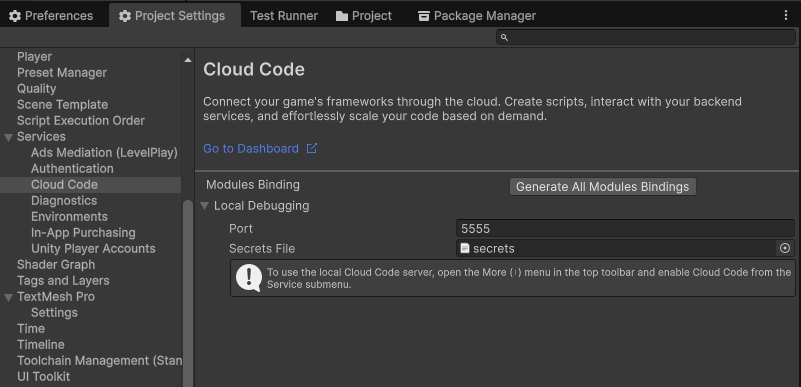
The Cloud Code Project Settings window
The following code shows how to update to reference the latest APIs for local Cloud Code servers to retrieve secrets in Cloud Code modules.
ModuleConfigusing Unity.Services.CloudCode.Core;using Unity.Services.CloudCode.Apis.Extensions;public class ModuleConfig : ICloudCodeSetup{ public void Setup(ICloudCodeConfig config) { config.AddGameApiClient(); }}