Manage packages in the Asset Store
Use the My Assets page of the Asset Store to organize the packages that you own and have downloaded.
Read time 3 minutesLast updated 4 months ago
To access the My Assets page do one of the following:
- Select the My Assets folder icon in the top navigation of the Asset Store.
- Select your user name in the top right of the navigation, then select My Assets.
- Go to https://assetstore.unity.com/account/assets.
The My Assets page lists the packages you purchased or downloaded from the Asset Store. The list matches any searches, filters, sorting, or categories you select.
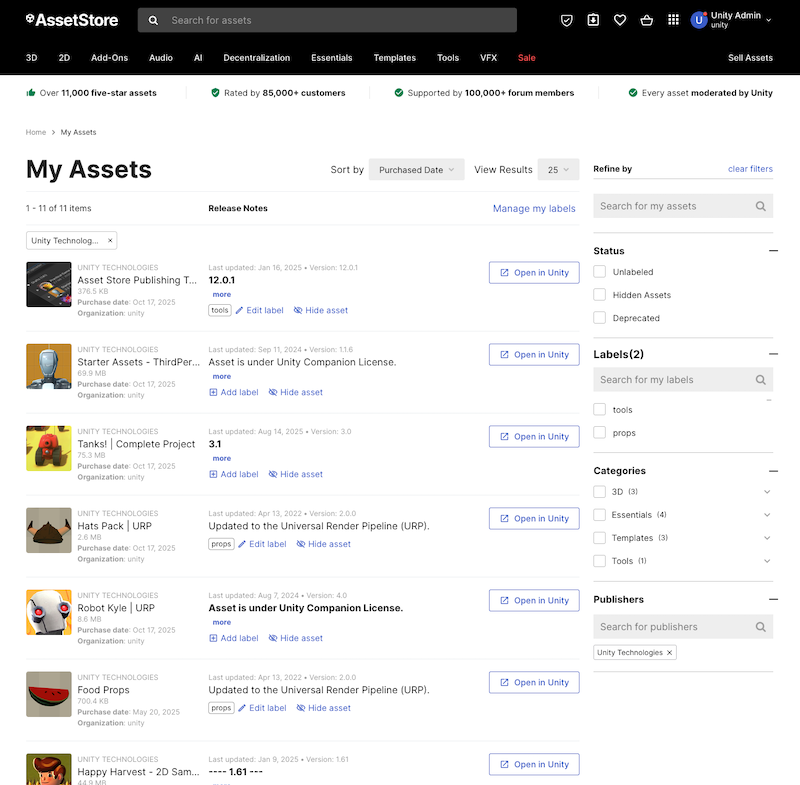
The My Assets page with a selection of assets displayed. Some assets have labels, and the list has been filtered by the Unity Technologies publisher.
You can organize and interact with your assets in the following ways:
- Search: Search by keyword to find a .package
?
- Filters: Use the filters to view the packages by status, , publisher, or label.category
?
- Labels: Assign labels to packages, and filter by label in the filter column.
- Open in Unity: Select to open the assets in the Unity Editor. If you have the Unity Editor open, the Package Manager window opens in the My Assets tab. If you don't have the Unity Editor open, the Unity Hub opens instead.
Hiding packages from the My Assets list
You can mark packages as hidden in your My Assets list. For example, if you no longer need a deprecated package, hiding it from your list in the Asset Store or the Package Manager window can reduce the clutter. Because you can't remove Asset Store packages from your account, this is the equivalent of deleting the package from your account.
To hide a single :
asset package
?
- In the Release Notes column, select Hide asset. The package is no longer displayed in the list.
To hide multiple packages:
- Select Manage my labels. A checkbox appears next to each entry in the list.
- Enable the checkbox next to each asset package you want to hide.
- Select Hide asset to hide all the selected assets.

An asset with the Hide asset link highlighted.
To find a hidden asset, select the Hidden Assets status from the filter sidebar.
Organize Asset Store packages with labels
You can use labels to organize your list of packages in the Asset Store and in the Package Manager window. You can only create and apply labels on the Asset Store website.
Assign labels to a package
To add, remove, or edit package labels, do the following:
-
Open the My Assets page.
-
Select one of the following options for the package:
- If it doesn't have any labels assigned, select Add label.
- If it has a label assigned, select Edit label.
-
An Edit Labels window appears. You can use this window to create, add, and remove any labels to the package.
-
Select Save.
You can use the Refine by list to filter your list of asset packages by label. The label also appears in the Unity Editor in the Package Manager window and you can use the Filters dropdown to filter the My Assets list by your assigned labels.
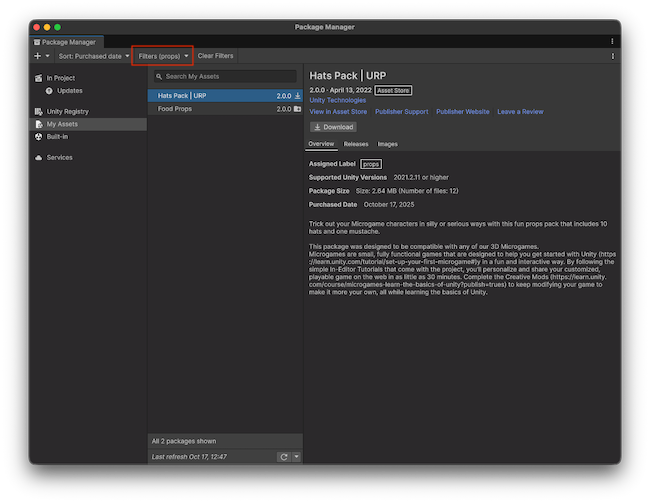
The Hats asset package in the Package Manager with the props label. This label has been selected in the Filters dropdown.
Add labels to multiple packages
To assign labels to multiple packages, do the following:
- Select Manage my labels to display checkboxes next to each package in the list.
- Enable the checkboxes next to the packages you want to add labels to.
- Select Edit label.
- The Edit Labels window appears. Use this window to assign the labels to the packages.
- Select Save.