Text Chat Sample
Explore the Text Chat Sample project for messaging features.
阅读时间1 分钟最后更新于 3 天前
这个以文本为中心的示例展示了全面的聊天体验,演示了发送、编辑和删除 DM 或频道消息以及获取过去的对话及其消息历史记录。
导入 Text Chat Sample
将 Vivox 包添加到 Unity 项目后,即可在 Package Manager 的 Vivox 页面上找到 Samples 选项卡。- 打开 Unity Package Manager 并选择 Vivox。
- 展开 Samples 部分。
- 选择 Import。
使用 Text Chat Sample
**先决条件:**在运行示例场景之前,请确保您的 Unity 项目已连接到 Unity Dashboard,并且已设置 Vivox 凭据。您可以在 Unity 编辑器中导航到 Services > Vivox > Configure 来执行此操作。 导入示例后,可以在 Assets 下的 Samples 文件夹中找到它。导航到 Samples > Vivox > versions # > Text Chat Sample > Assets > TextChatSample > Scenes 并运行 TextChatSample 场景。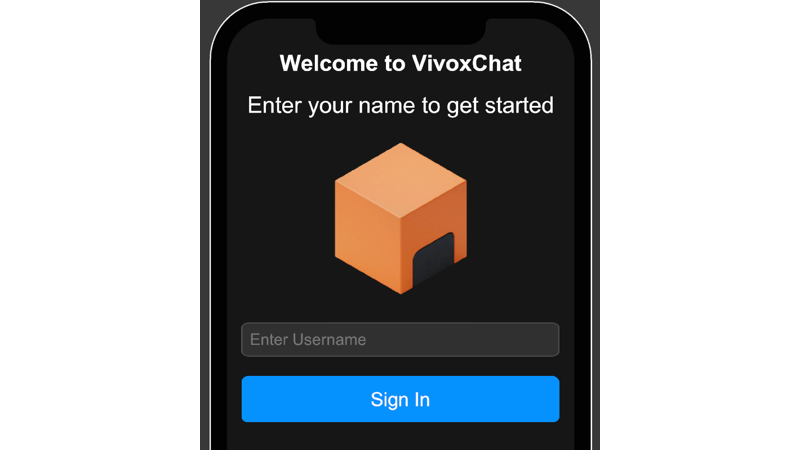
Vivox Text Chat Sample 登录屏幕。