Test your integration
Test your ironSource integration to ensure ads are properly set up and functioning before going live.
阅读时间1 分钟最后更新于 1 年前
Unity LevelPlay enables you to test your app's integration via the platform to make sure ads are loading and showing in your app.
Unity LevelPlay mediation testing
Confirm your configured mediated ad networks' are delivering ads on your test device.
Follow these steps:
- Go to Unity Levelplay in the left side nav bar and under Settings, select Test devices.
- Select the app you want to confirm is receiving ads at the top of the page.
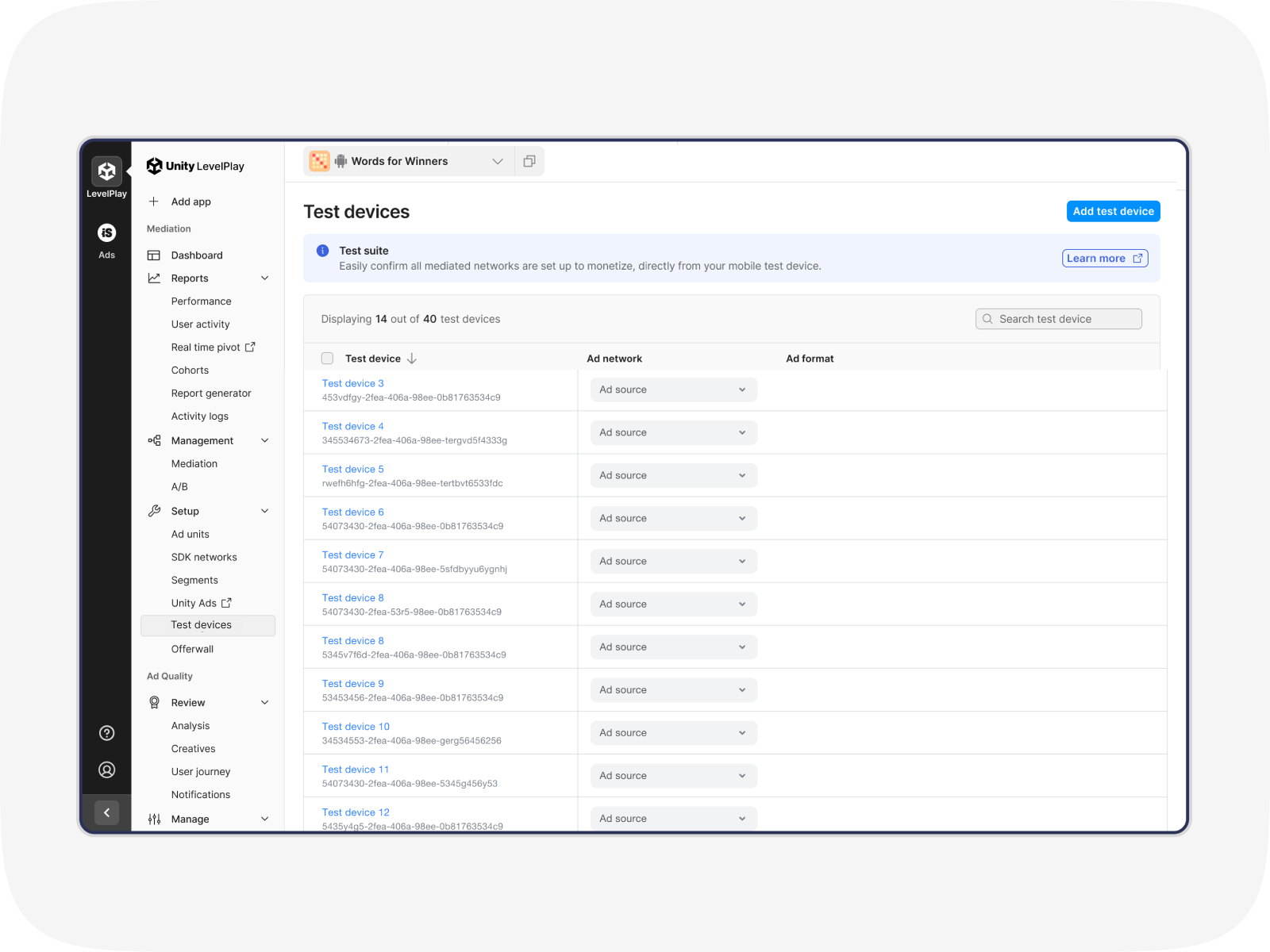
- Then, add a new test device by clicking Add test device in the top right corner of the page.
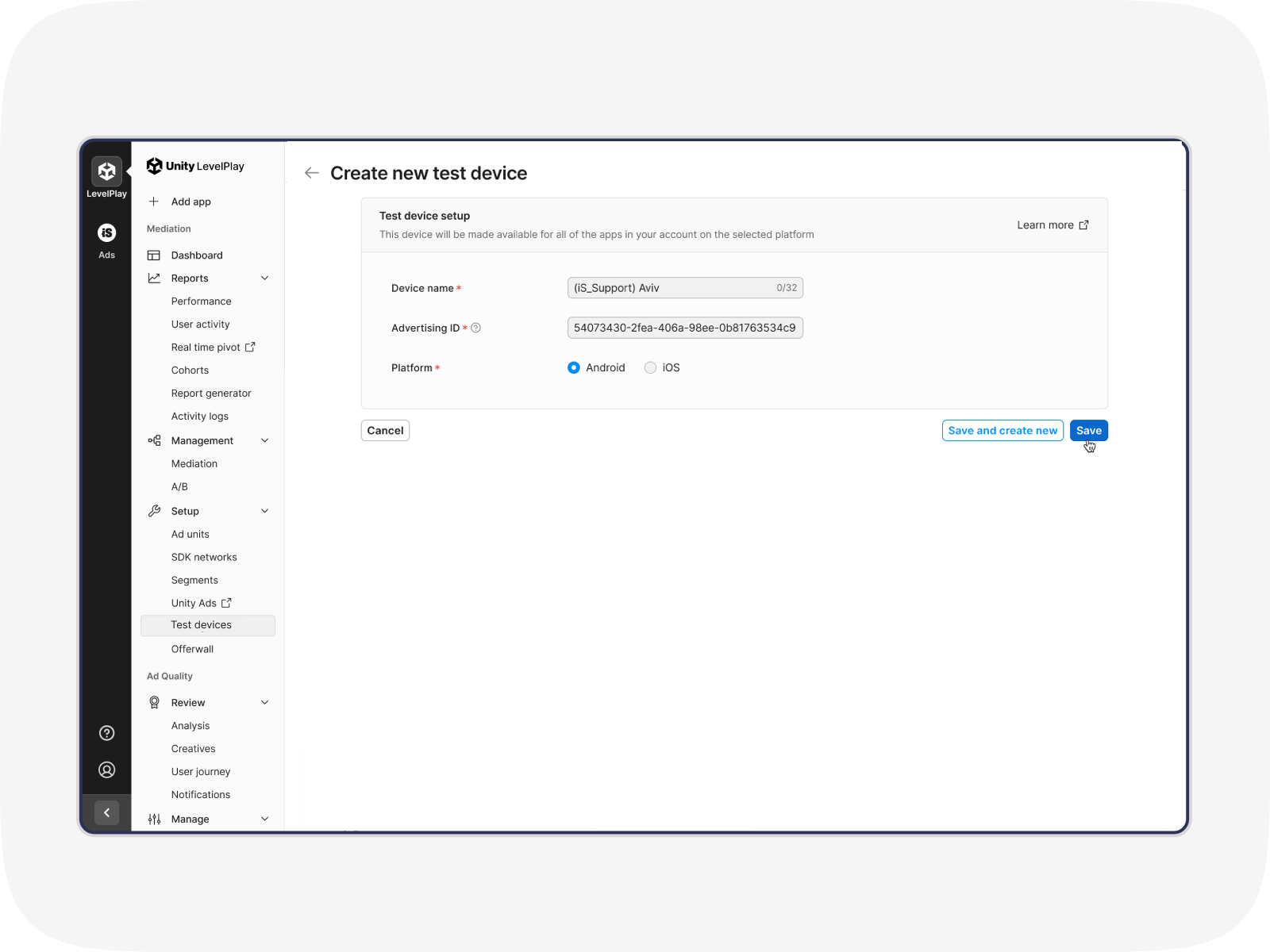
- Enter the Device Name and the relevant Advertising ID ( You can find your Advertiser ID using the integration verification tool). Select the OS platform and then select Save.
- After you've added your test device, you can test your configured networks and ad units. Back on the Test devices page, select the ad source and then the ad units you want to test
- Select Test ads at the end of the row. You'll then receive ads exclusively from that specific ad network on the assigned device so that you can check that ads are being served correctly.
ironSource Ads network testing
Set up devices that will receive test ad content from ironSource Ads to confirm your ad units are configured correctly.
Follow these steps:
- Go to ironSource Ads in the left side nav bar, and under Setup, select Testing
- Select the app you want to test ad content on at the top of the page. Then select Add test device in the top right corner of the page
- Enter the Device Name and the relevant Advertising ID ( You can find your Advertiser ID using the integration verification tool). Select the OS platform and then select Save.
- After you've added a test device, your integration test will automatically start on all ad units and be viewable on your test device. You can deactivate and then re-activate integration testing per device at any time using the toggle next to the device name