Chartboost integration
Integrate Chartboost with Unity LevelPlay on Android. This guide covers account setup, app configuration, ad location creation, campaign setup, parameter retrieval, activation in Unity Dashboard, adapter integration, and COPPA configuration.
Thời gian đọc 3 phútCập nhật lần cuối 18 ngày trước
This guide explains how to integrate Chartboost with Unity LevelPlay on Android. It covers the full process from account setup to integrating the Chartboost adapter and SDK into your project.
Topic | Description |
|---|---|
| Create and set up your account | Sign up to Chartboost and complete account, payment, notification, and user settings. |
| Add your app to the dashboard | Register each app in the Chartboost dashboard and configure formats and COPPA status. |
| Create ad location | Define bidding ad locations per format to control where Chartboost ads serve in your app. |
| Create a campaign | Set up publishing campaigns for rewarded and interstitial ads with your desired targeting. |
| Retrieve required parameters | Collect App ID, App Signature, User ID, User Signature, and Location IDs for LevelPlay setup. |
| Activate Chartboost | Enter Chartboost credentials in the Unity Dashboard and verify reporting API connectivity. |
| Add the Chartboost adapter | Integrate the Chartboost adapter and SDK into your Android project using Gradle or manual setup. |
| Configure COPPA behavior | Set Chartboost COPPA metadata to match your app's child-directed status. |
Prerequisites
Before activating Chartboost in Unity LevelPlay, ensure that you meet the following prerequisites for your app and project:- Your app integrates Rewarded Video, Interstitial, or Banner ads.
- Your project includes the LevelPlay SDK.
- Your app meets Chartboost's Android minimum OS requirement of API 19 (Android 4.4 KitKat). For more details, refer to the Android Getting Started documentation.
Create and set up your Chartboost account
Create and configure your Chartboost account so you can add your app, set payment details, and prepare ad locations for mediation with Unity LevelPlay.- Sign up for a Chartboost account.
- Create and verify your Chartboost account through email verification.
- Sign in to the Chartboost Dashboard and set up your account by following these steps:
- Adding payment details - ensure that Chartboost knows where to send your earnings.
- Configuring notification settings.
- Adding additional users as needed.
Add your app in the Chartboost dashboard
Register your app in the Chartboost dashboard to start configuring SDK integration and campaign settings. If this is your first time using Chartboost, follow the steps in First-time setup. Otherwise, skip ahead to Adding an app as a registered Chartboost user. Note: You must create a unique Chartboost app entry for each platform you support.First-time setup
When you log in to the Chartboost Dashboard for the first time:- Select Start making money!
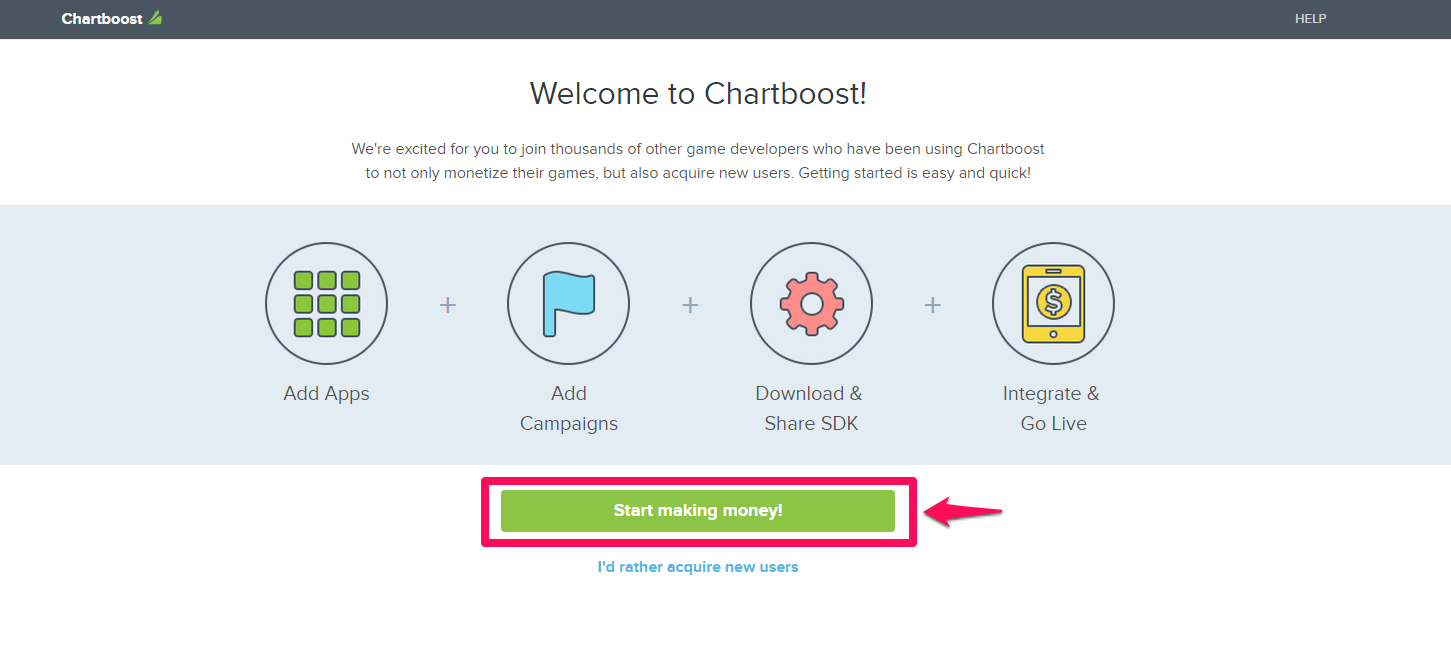
- Chartboost attempts to detect your live apps automatically. If your app is not detected, choose one of the following:
- Search your company manually
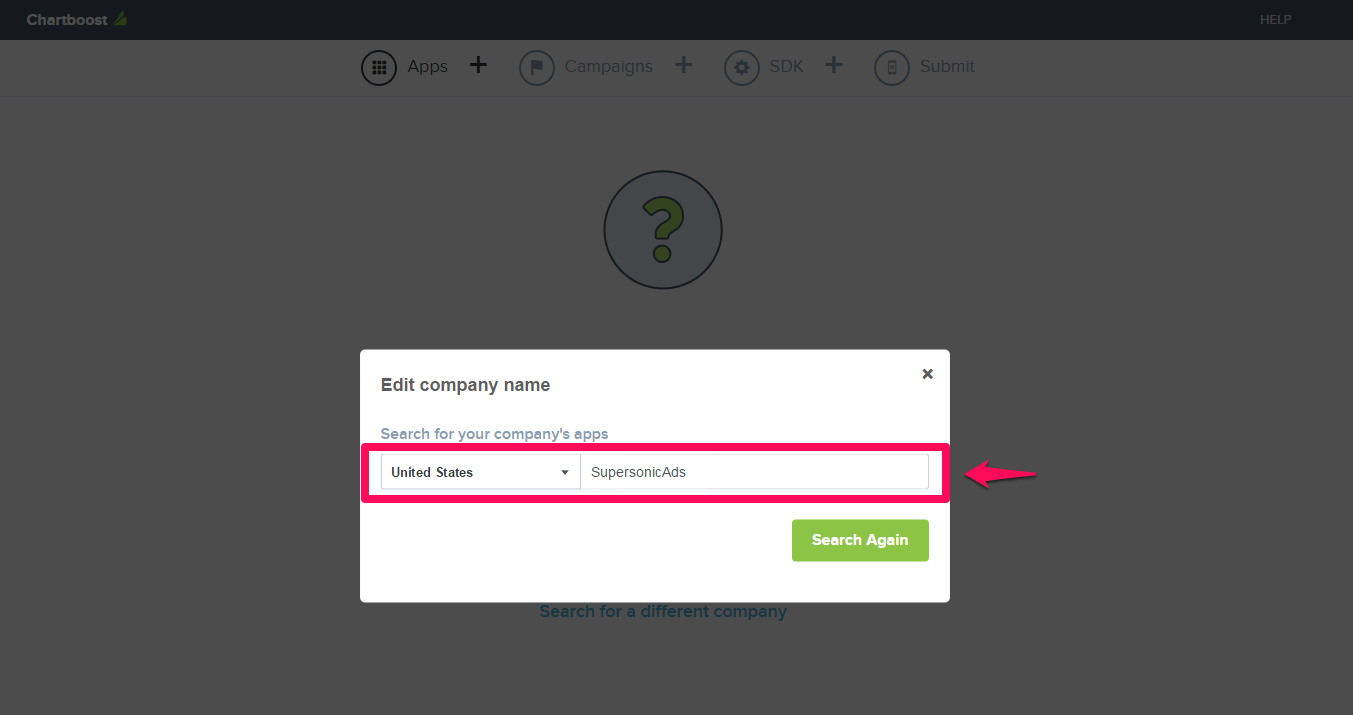
- Add your app manually (if your apps are not yet published)
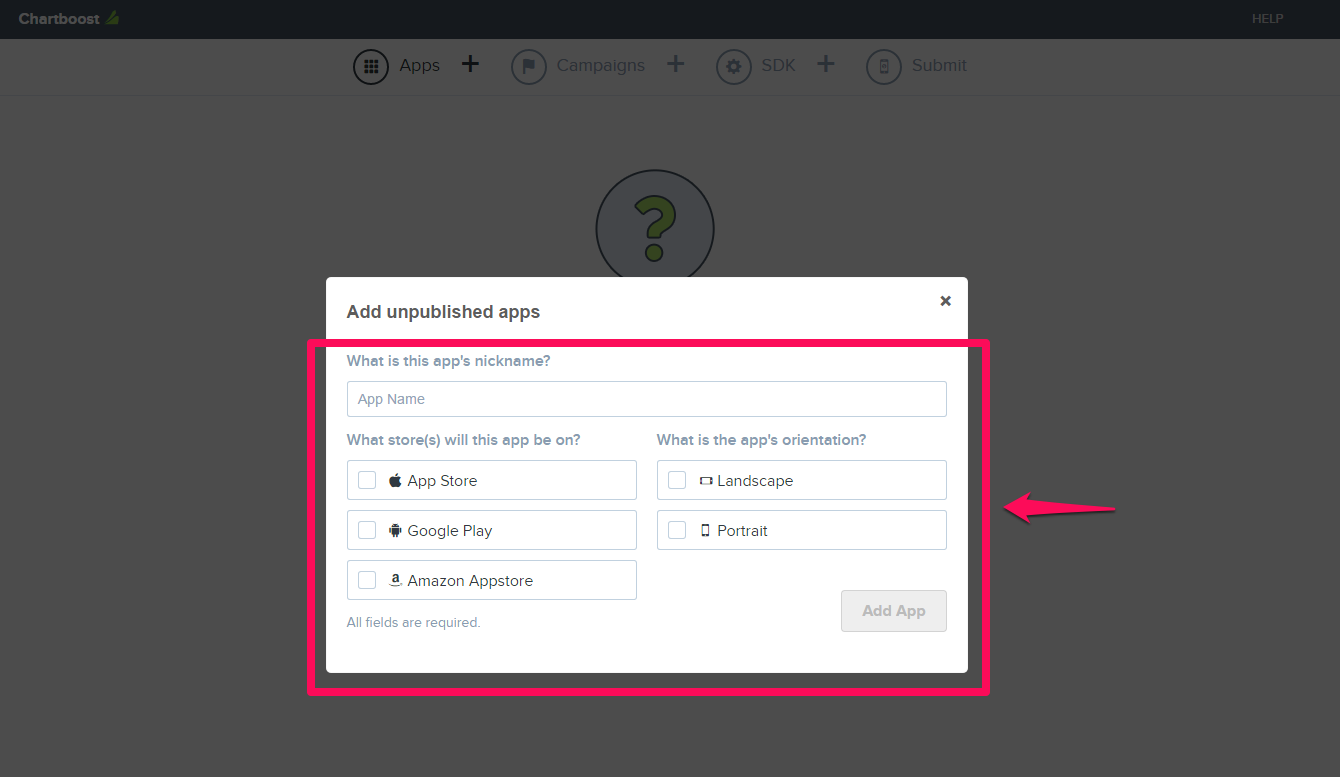
- Select the app you want to add, then select Add Selected.
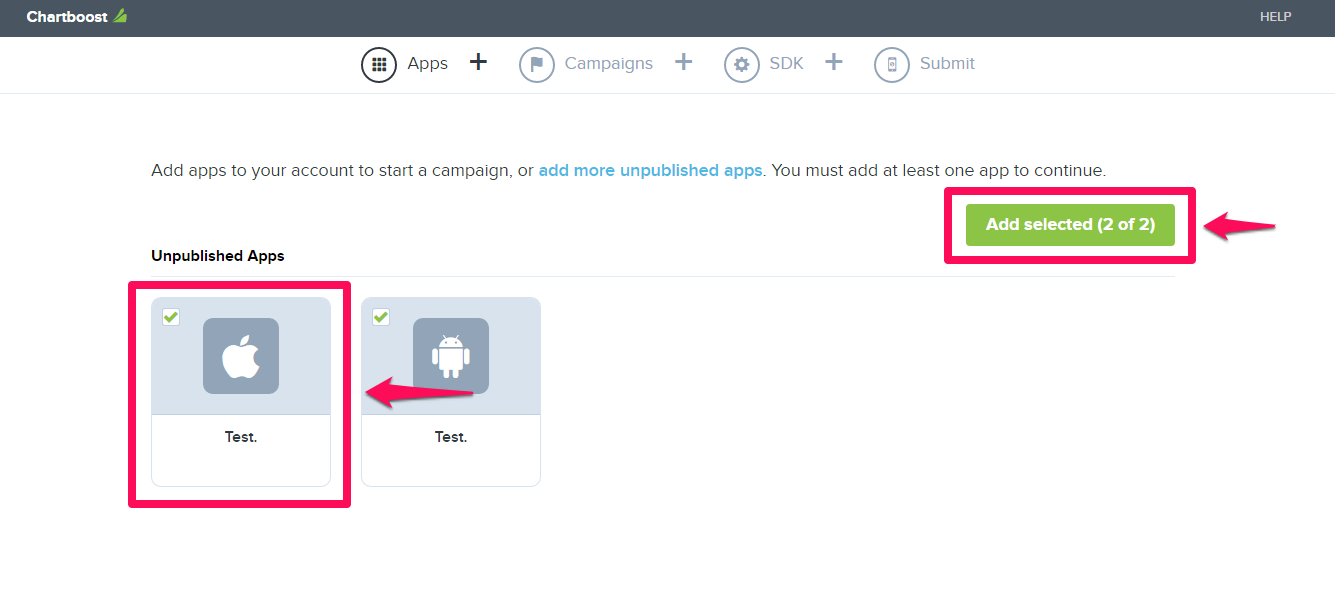
Adding an app as a registered Chartboost user
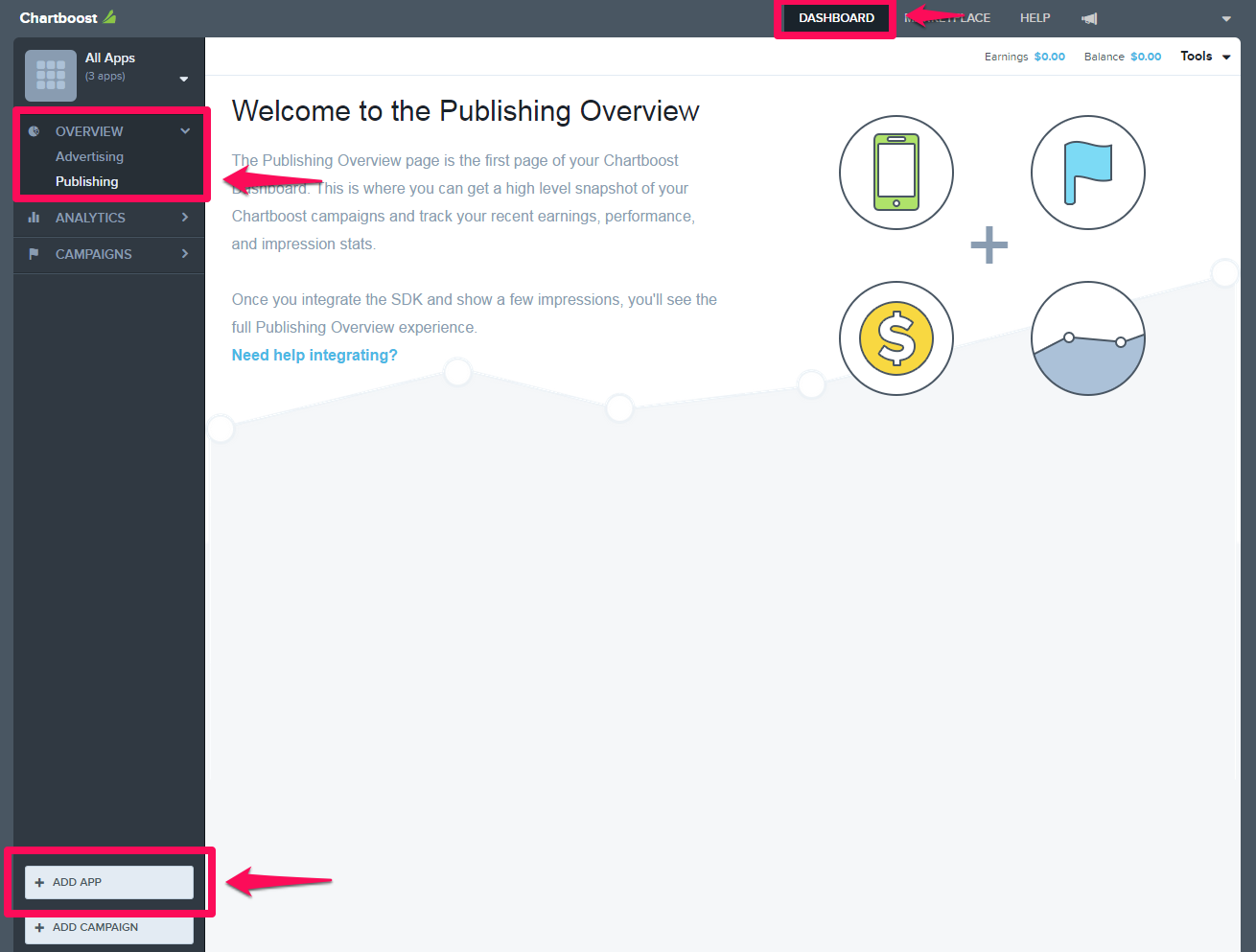
If you already have a Chartboost account and you're adding a new app:- Go to Dashboard > Publishing > Add App.
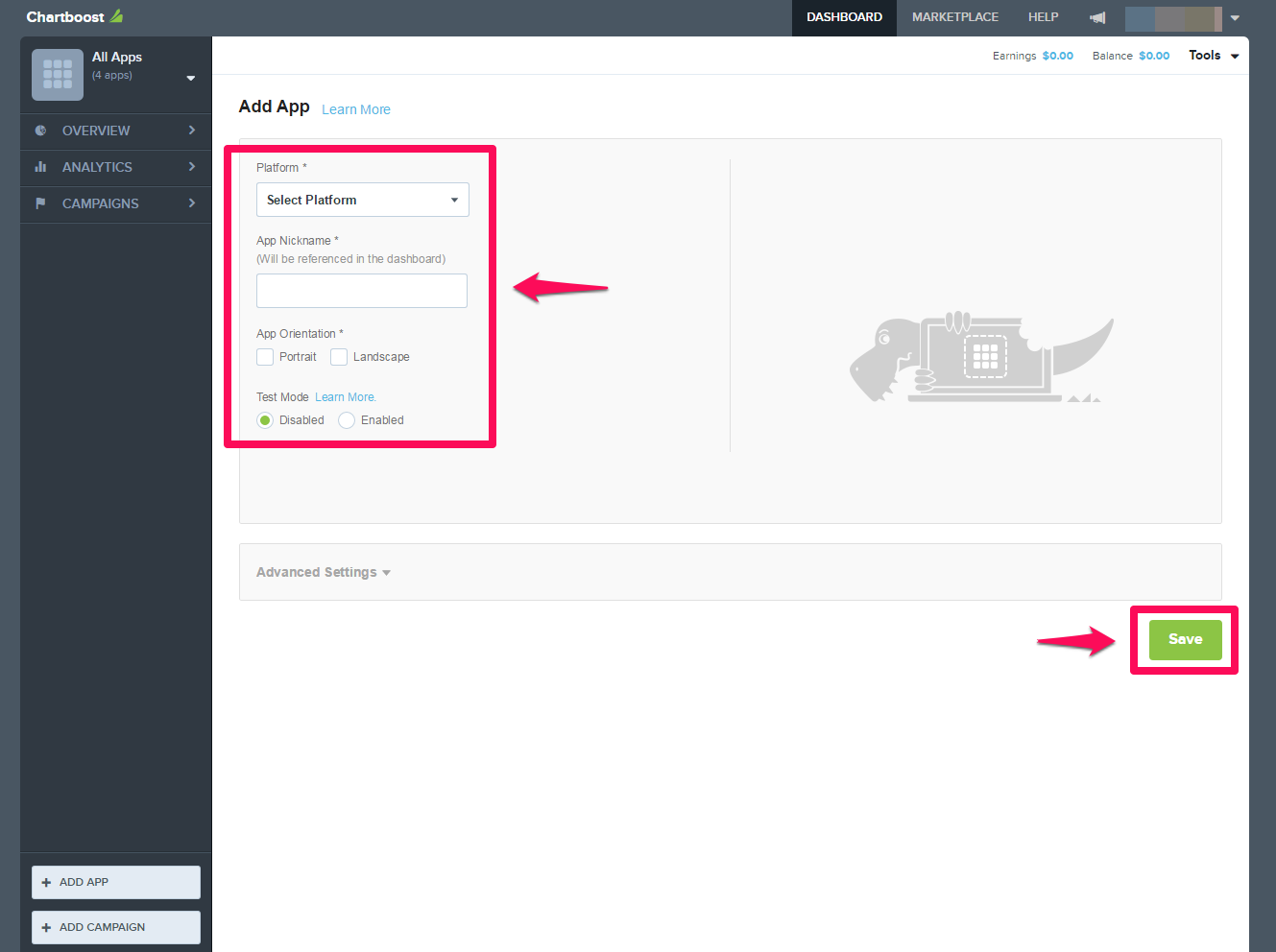
- Enter the app details:
- Platform: Select the operating system your app runs on (iOS or Android).
- App nickname: Enter a display name to identify the app in the dashboard.
- Orientation: Choose the default screen orientation your app supports.
- Test mode settings: Enable test mode to serve test ads during setup and QA.
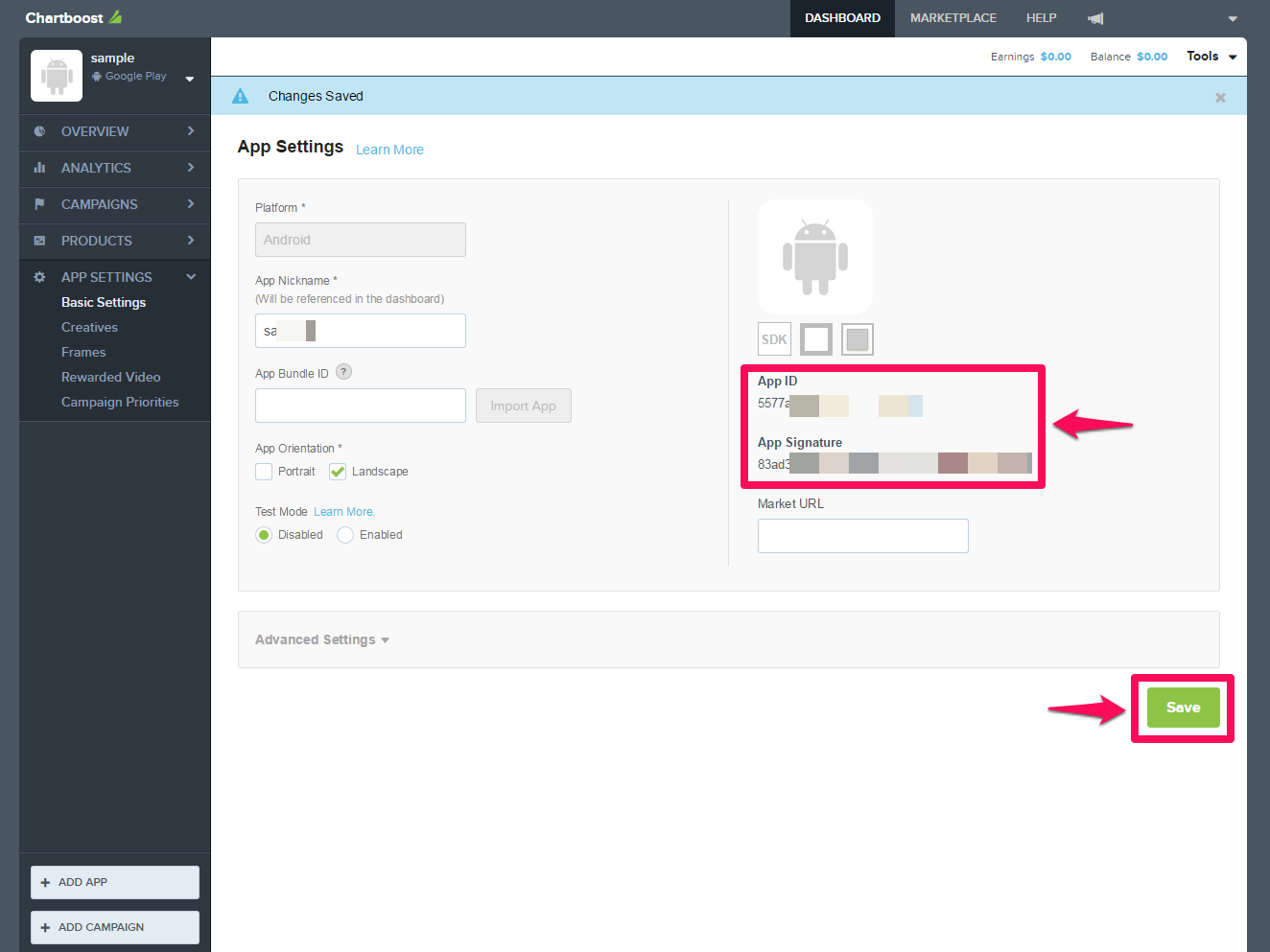
- Save the app to retrieve the App ID and App Signature.
Disable pre/post-roll messaging for rewarded video
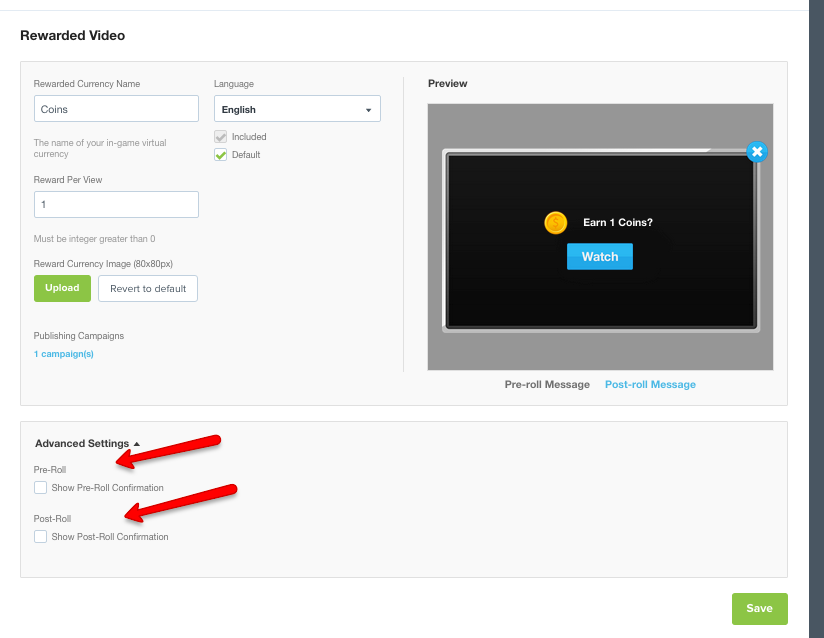
If you serve Chartboost rewarded video through LevelPlay, disable Chartboost's pre-roll and post-roll messaging:- In the Chartboost dashboard, open your app.
- Go to Basic Settings > Rewarded Video > Advanced.
- Uncheck both pre-roll and post-roll messaging options.
- Select Save.
Create ad locations
Ad locations define where and when Chartboost shows ads in your app. You create and manage ad locations in the Chartboost Dashboard, and you can add up to 100 unique location names per app and location type. For detailed steps on creating and managing ad locations, refer to the Chartboost Ad Locations documentation. Ad location names are case-sensitive and must follow these rules:- Maximum of 80 characters
- Upper or lower case letters allowed
- Numbers 0–9 allowed
- Allowed special characters:
$ & - _ , + / \ - Spaces are not allowed
Create a Chartboost publishing campaign
For interstitial and rewarded ads, create a publishing campaign in the Chartboost Dashboard:- In the Chartboost Dashboard, select Add a Campaign > Network Publishing.
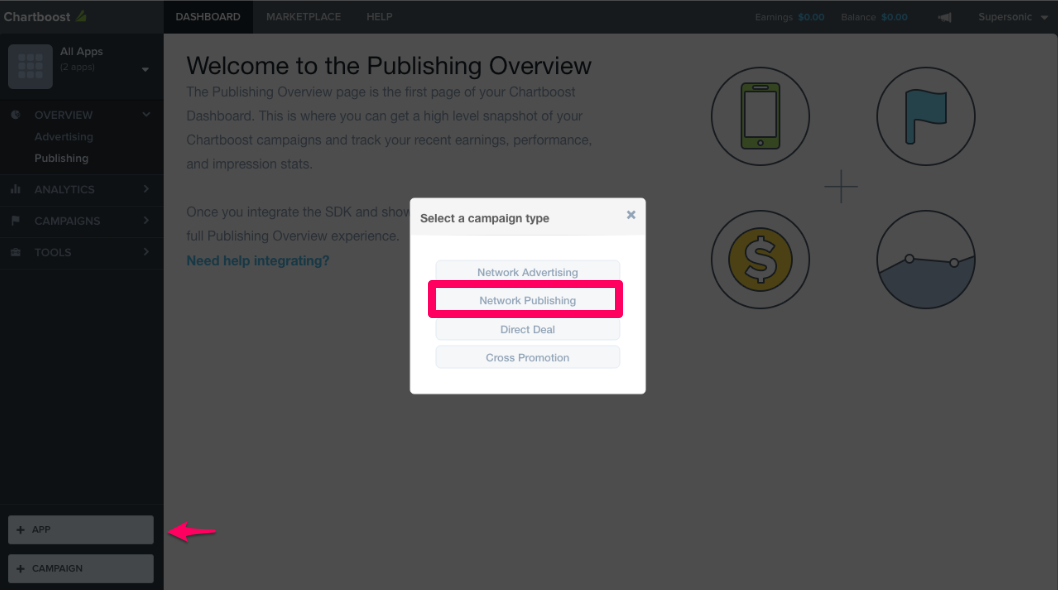
- Choose Rewarded Video or Static Interstitial.
- Create separate campaigns if you serve both formats.
- Configure targeting as needed (for example, geo, device, or user targeting).
- Save the campaign. Note that it can take up to 20 minutes to go live.
Retrieve required parameters
Unity LevelPlay requires the following Chartboost parameters to allow Unity LevelPlay to send ad requests to Chartboost and import reporting data:- App ID
- App Signature
- Location ID
- User ID
- User Signature
Where to find these parameters
Use the following dashboard paths to locate each parameter:- App ID and App Signature: Dashboard > App Settings > Basic Settings
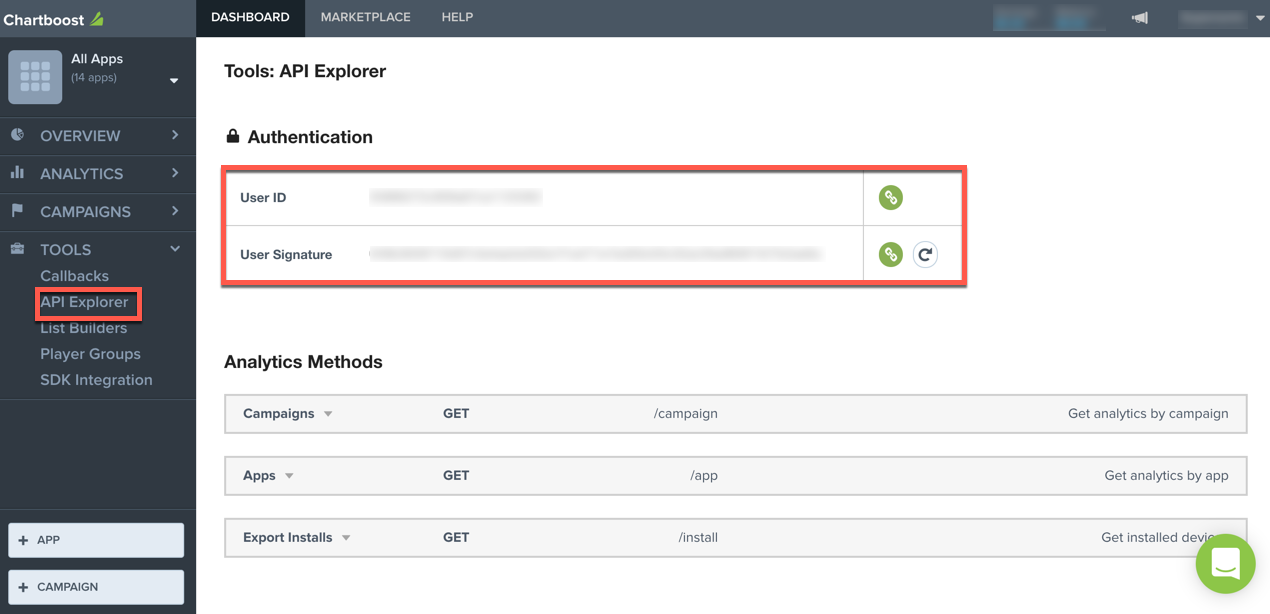
- User ID and User Signature: Tools > API Explorer
Activate Chartboost in the Unity dashboard
After you configure your app and campaigns in Chartboost and retrieve the required parameters, activate Chartboost in Unity LevelPlay: First, retrieve your parameters from Chartboost: App ID & App Signature: Navigate to Dashboard > App Settings > Basic Settings.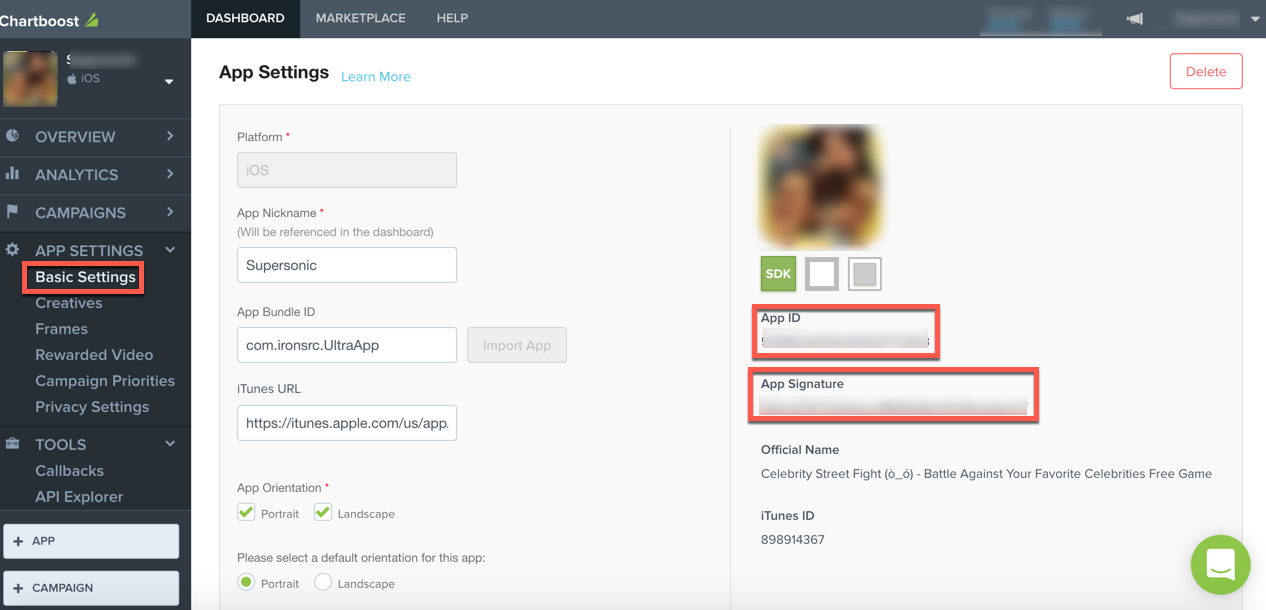
- Sign in to the Unity Dashboard.
- Go to Grow > LevelPlay > Setup > SDK Networks.
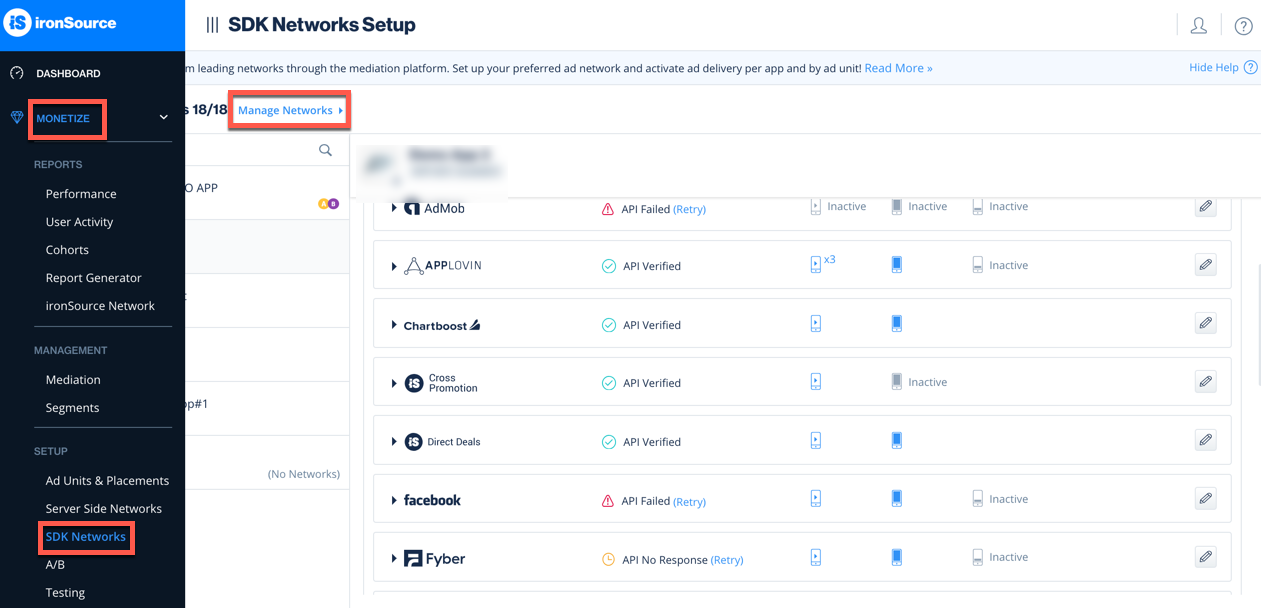
- From the list of networks, select Chartboost.
- Enter User ID and User Signature.
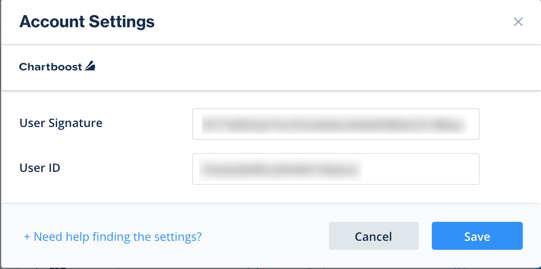
Add the Chartboost adapter to your Android project
To integrate the Chartboost SDK with Unity LevelPlay in your Android app, you can add the Chartboost adapter to your project using Gradle or install it manually.Use Gradle
Ensure the following Maven repository exists in your module-levelbuild.gradleAdd the Chartboost adapter and SDK dependencies to therepositories { mavenCentral() maven { url 'https://cboost.jfrog.io/artifactory/chartboost-ads/' }}
dependenciesbuild.gradledependencies { implementation 'com.unity3d.ads-mediation:chartboost-adapter:4.3.22' implementation 'com.chartboost:chartboost-sdk:9.9.2'}
Manual installation
Use the following steps to manually install and configure the Chartboost SDK.- Download the Chartboost adapter and SDK from the Chartboost adapter download page.
-
Add the Chartboost adapter to your project (for example, by placing the adapter AAR or JAR in your folder and referencing it from Gradle).
libs - Add the Chartboost SDK to your project following the installation steps in the Chartboost Android SDK documentation.
-
In your Gradle dependencies block, make sure you include both the adapter and SDK:
dependencies { implementation 'com.unity3d.ads-mediation:chartboost-adapter:4.3.22' implementation 'com.chartboost:chartboost-sdk:9.9.2'}
ProGuard users only
If you use ProGuard, add the following rule to your ProGuard configuration file:-keep class com.chartboost.** { *; }
Update AndroidManifest.xml
If you are using a JAR-based integration instead of an AAR, update yourAndroidManifest.xml-
Add the following permissions:
<uses-permission android:name="android.permission.INTERNET" /><uses-permission android:name="android.permission.WRITE_EXTERNAL_STORAGE" /><uses-permission android:name="android.permission.ACCESS_NETWORK_STATE" />
-
Add the following activity inside the tag:
<application><activityandroid:name="com.chartboost.sdk.CBImpressionActivity"android:theme="@android:style/Theme.Translucent.NoTitleBar.Fullscreen"android:configChanges="keyboardHidden|orientation|screenSize"android:excludeFromRecents="true"android:hardwareAccelerated="true" />
Use the integration helper
Build and run a development build of your app on a test device, then open the LevelPlay Integration Helper screen. Use it to confirm that the Unity LevelPlay SDK, the Chartboost SDK, and the Chartboost adapter all appear as integrated without errors. In development builds, enable adapter debug logs by calling the following method before initializing the Unity LevelPlay SDK:Note: Adapter debug logs are supported for SDK versions 6.5.2 and up. Before releasing your app, remove this call.IronSource.setAdaptersDebug(true);
Configure Chartboost COPPA behavior
Chartboost requires you to indicate whether your app is child-directed. In your app's initialization code, before you initialize the Unity LevelPlay SDK, configure whether your app is child-directed for Chartboost by setting theCHARTBOOST_COPPANot child-directed:IronSource.setMetaData("CHARTBOOST_COPPA", "YES");
You must also specify COPPA settings when you add the app in the Chartboost Dashboard. Ensure that your in-app metadata and Chartboost dashboard settings are consistent with your app's actual audience. For more details, refer to Chartboost's COPPA documentation.IronSource.setMetaData("CHARTBOOST_COPPA", "NO");