User management
Manage user access and roles to support team collaboration and maintain secure control over your LevelPlay account.
Thời gian đọc 1 phútCập nhật lần cuối 8 ngày trước
User management is a tool that supports team collaboration on your LevelPlay account. You can create a unique user login and profile for anyone who needs access to your LevelPlay account. For each user, you can assign corresponding privileges that allow different levels of access and control of the account.
Step 1. Navigate to the User Management Module
Owners on the ironSource platform can invite users to their corporate account. To do this, log in to your LevelPlay account and go to your profile dropdown on the top right of the screen. Select User Management.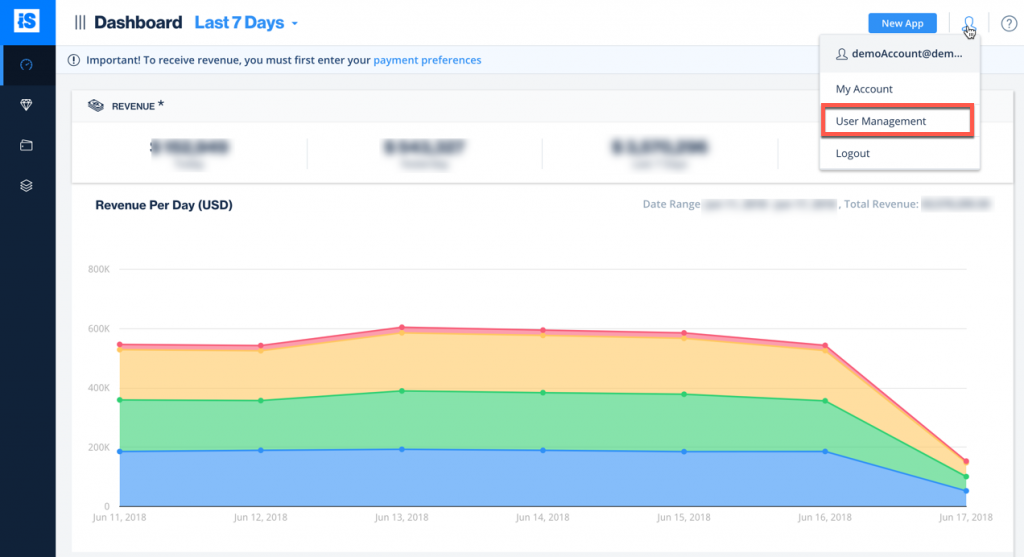
Step 2. Set Up New User Profiles
On the top right corner, select 'New User'.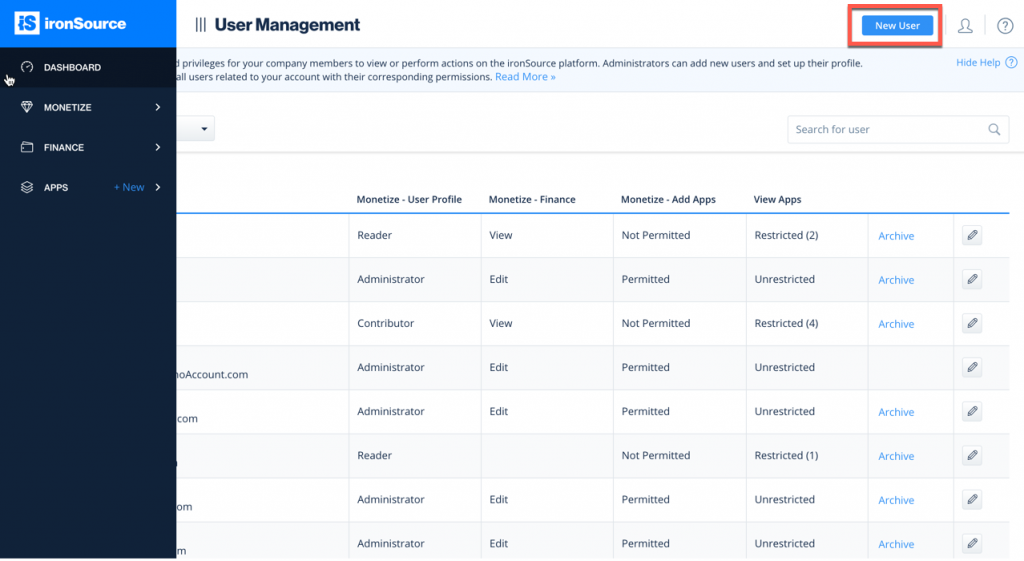
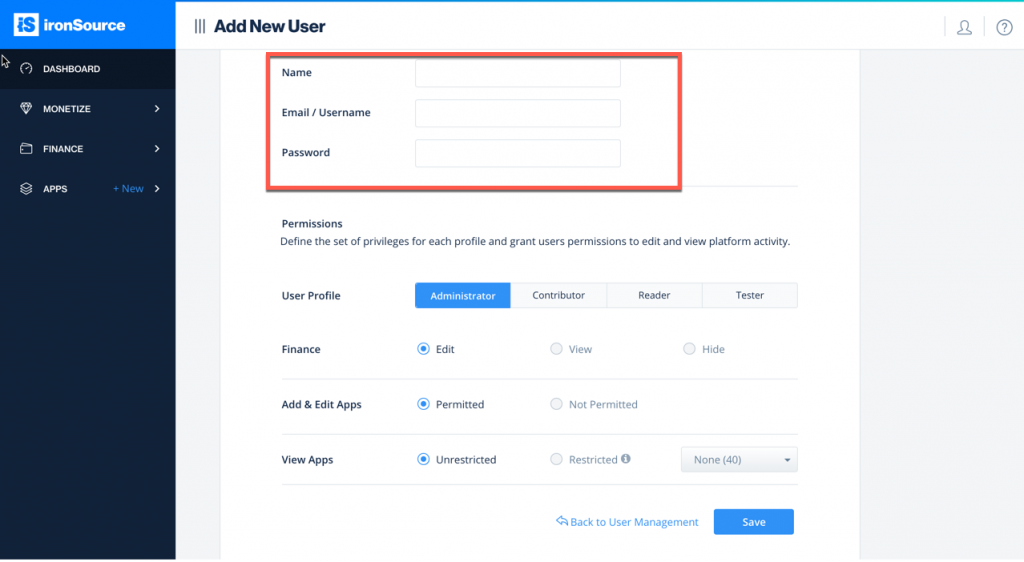
- Owner: Can perform all actions and view all settings on the LevelPlay platform as well as assign user profiles and define user privileges. There must be at least one active owner user for an account at all times
- Manager: Can perform all actions and view all activity on the LevelPlay platform, unless defined otherwise by the owner.
- User: Can view all pages but cannot perform any actions. This user cannot assign or manage user privileges
- Guest: A guest cannot view Reports and Finance data. This user can read only Setup section while able to setup test devices
