Integrate Adjust with Unity
Activate the Unity Ads integration in the Adjust dashboard, enable full data-sharing, map events, and create attribution links.
読み終わるまでの所要時間 2 分最終更新 2日前
Set up Adjust as your Mobile Measurement Partner (MMP) for Unity Ads User Acquisition campaigns. Integration includes the following setup tasks:
- Activate Unity Ads in the Adjust dashboard.
- Configure data-sharing settings.
- Map post-install events.
- Create an attribution link.
Prerequisites
Before setup, ensure you meet the following requirements:- Add at least one app in the Unity Ads User Acquisition dashboard.
- Retrieve your Game ID from the User Acquisition dashboard.
- Download the latest version of the Adjust SDK (v4.0.0. or later).
- Enable Adjust account permissions: Admin, Editor, or Custom Editor. Refer to Adjust's Manage users documentation for instructions.
Integrate Unity Ads with Adjust
Complete the following steps to integrate Adjust with your User Acquisition campaign:Activate Unity Ads in the Adjust dashboard
To activate the integration with Unity Ads, follow these steps:- In the Adjust dashboard, go to Campaign Lab > Partners.
- Select + New partner and search for Unity Ads.
- Choose your app and select Next.
- Enter your advertiser Game ID in the GAME ID field.
Configure data-sharing settings
To configure data-sharing settings, follow these steps:- From the What sources of data do you want to share options, select Data from all attribution sources.
- From the What other data do you want to share? options, select both Sessions and In-app revenue (from in app purchases).
Map events and parameters
To share in-app events with your User Acquisition campaign, do the following in Data sharing > Map your events:- Select + Map event.
-
Choose the event you want Adjust to share with Unity from the Adjust event list.
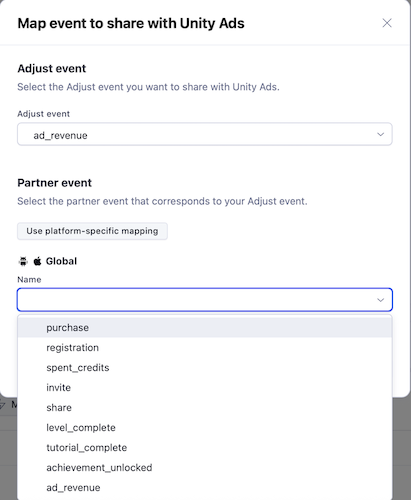
- Select or enter the Unity Ads event that corresponds with the correct Adjust event, as shown in the following table:
Adjust App event | Unity Ads Partner event |
|---|---|
| |
| |
| |
| |
- To map the same events for all platforms, select Use global mapping.
Create an attribution link
To create an attribution link, do the following in the integration setup:- On the Setup review page, select Create link.
- Copy the attribution link for integration in the Unity dashboard.