Purchase or download an Asset Store package
You must create a Unity account to download packages from the Asset Store.
読み終わるまでの所要時間 3 分最終更新 3ヶ月前
If you already have a Unity ID for the Unity Hub or the Unity Editor, use the same ID for your Unity Asset Store account.
After you get a from the Asset Store, sign in to the Hub or the Unity Editor with the same Unity ID you used on the Asset Store. Then, use the Package Manager window to add those Asset Store packages to your projects.
package
?
Create a Unity account
To create a new Unity account, go to Create a Unity ID and follow the instructions. You can also open the Unity Asset Store, select the user account icon, then select Create a Unity Account.
Find packages on the Asset Store
When you open the Asset Store, the main page displays current sales promotions and a curated list of Popular Assets.
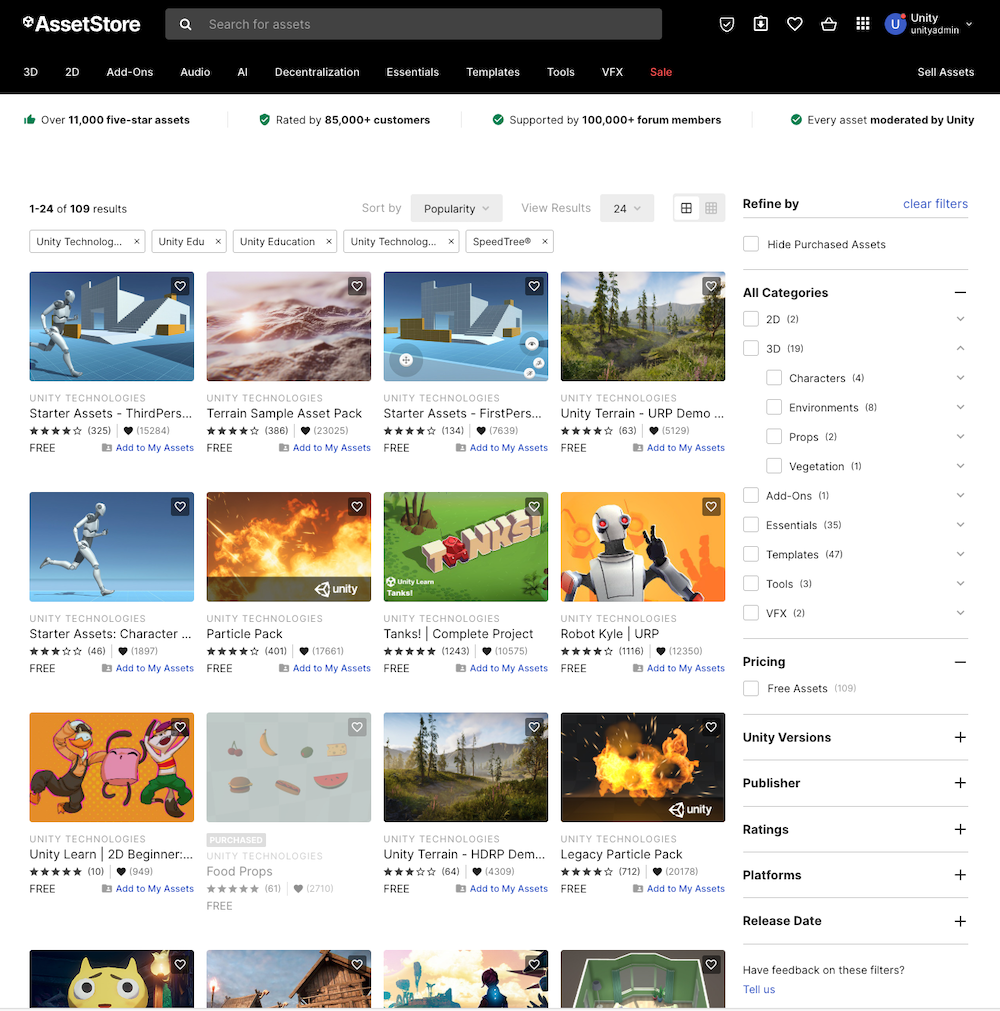
Unity's Asset Store, with a selection of assets by Unity displayed.
You can browse through the suggestions, or search for something specific. If you're looking for a specific asset, you can use any of these searching, filtering, and sorting methods alone or in combination:
- Search by name or keyword.
- Choose a of related Asset Store packages to browse from and refine the results by using the filter sidebar.category
?
- Choose to filter assets by price or rating.
- Choose a sort method from the Sort by menu. You can sort by relevance, popularity, rating, publish or update date, name, or price.
Buy a paid Asset Store package
To buy an :
Asset Store package
?
- From the package's main information page, select Buy Now, or select the Add to Cart icon. A message confirms that the package is in your shopping cart.
- When you're ready to pay for your item(s), select Proceed to Checkout, or access your cart and select Checkout. The Checkout page appears.
- On the Checkout page, enter all the required information, and select Pay now.
- When the Asset Store finishes processing your payment, it displays your newly purchased package(s) on an invoice page. Save this information so you can find the order number in the future. Publishers might request this number so they can confirm your purchase when providing support.
- When the transaction completes, you can start working with your package by selecting Open in Unity. If you open the Unity Editor later, the Package Manager lists your package in the My Assets context.
After you buy a paid Asset Store package from the Unity Asset Store, it's immediately available in the Package Manager window. You must log in with the same Unity ID you used on the Asset Store before the Package Manager window displays the package. For more information about managing packages in the Editor, refer to Manage Asset Store packages in the Editor.
Get a free Asset Store package
To get a free Asset Store package:
- Select Add to My Assets.
- A message confirms that the package is now in your My Assets library. You can start working with your package by selecting Open in Unity. If you open the Unity Editor later, the Package Manager lists your package in the My Assets context.
After you add a free Asset Store package to your My Assets library, it's immediately available in the Package Manager window. You must log in with the same Unity ID you used on the Asset Store before the Package Manager window displays the package. For more information about managing packages in the Editor, refer to Manage Asset Store packages in the Editor.