safeArea
Returns the safe area of the screen in pixels (Read Only).
Read time 2 minutesLast updated 25 days ago
Definition
- Type: Property
- Namespace: UnityEngine
- Assembly: UnityEngine.CoreModule
public static Rect safeArea { get; }
Remarks
On some displays, certain areas of the screen might not be visible to the user. This might be because the display's shape is non-rectangular or in the case of TV displays, it can be caused by overscan. Avoid placing user interface elements in areas outside the safe area rectangle. The maximum size of the safe area is the screen resolution in pixels and is defined as .
Rect(0, 0, Screen.width, Screen.height)Note: is relative to the application window, not the physical device screen. On Android 14 (API level 34) and earlier, if PlayerSettings.Android.renderOutsideSafeArea is disabled, Unity resizes the application window to fit the device safe area. The returned Rect typically equals , because the window no longer includes unsafe regions.
Screen.safeAreaRect(0, 0, Screen.width, Screen.height)Note: On Android 15 (API level 35) and later, PlayerSettings.Android.renderOutsideSafeArea has no effect. The application always renders into the display cutout (notch) area, so excludes it. Use to position important and interactive user interface elements.
Screen.safeAreaScreen.safeAreaNote: On Android, the status bar and the navigation bar also affect . Neither bar overlaps the application by default, so Android insets the application window to clear them and doesn't account for them. If you set a bar to overlap, the application renders behind it and excludes that area as well. To control this, use AndroidWindowInsets.SetOverlapping at run time, or the Status Bars and Navigation Bars options in the Android Player settings.
Screen.safeAreaScreen.safeAreaScreen.safeAreaNote: The origin of the safe area is located at the bottom-left corner of the screen. Therefore, if you intend to use or Screen.cutouts with a UI system like UI Toolkit, where origin is at the top-left corner, you must invert the coordinates. The following code snippet demonstrates how to do that:
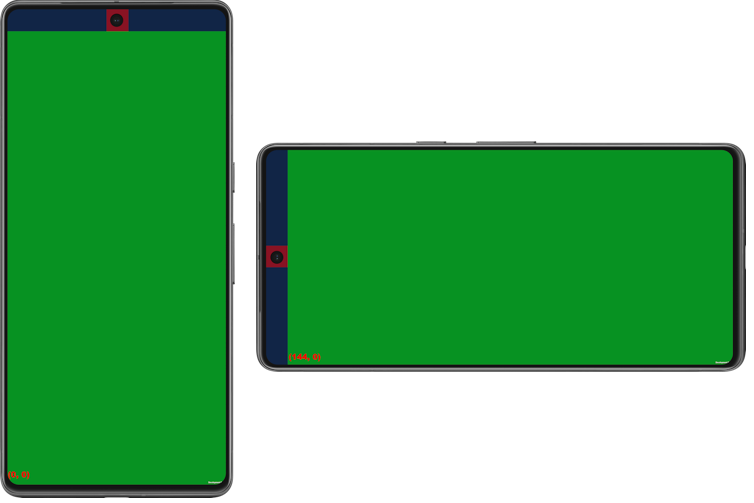
Screen.safeAreavar safeAreaForUIToolkit = new Rect(Screen.safeArea.x, Screen.height - Screen.safeArea.y, Screen.safeArea.width, Screen.safeArea.height);The following image depicts how the safe area and cutouts appear on Google Pixel 7 Pro (API 35) in portrait and landscape modes. The green area is the safe area, while the red area is a cutout.
\
Safe area and cutouts on Google Pixel 7 Pro (API 35) in portrait and landscape modes