Viewport Right-click Menus
Contextual menu actions available in the Asset Transformer Studio viewport
読み終わるまでの所要時間 3 分最終更新 2ヶ月前
The viewport offers actions accessible from contextual menus (right-click).
Depending on whether one occurrence, multiple occurrences, or no occurrence are selected, the contextual menu is different.
With nothing Selected

Menu option | Description |
|---|---|
| Show All | Shows all the occurrences of the tree, by setting each occurrence's visibility to |
With one Occurrence Selected
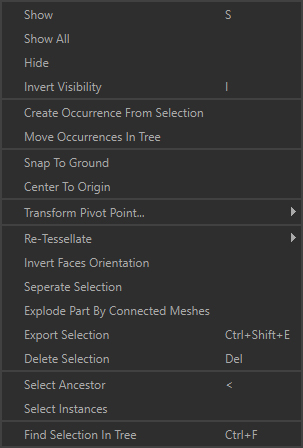
Menu option | Description | Keyboard Shortcut |
|---|---|---|
| Show | Shows the selected occurrences, by setting visibility to | S |
| Show All | Shows all the occurrences of the tree, by setting visibility to | |
| Hide | Hides the selected occurrences, by setting visibility to | H |
| Invert Visibility | Inverts the selected occurrences' visibility. | I |
| Create Occurrence From Selection | Creates a new occurrence parenting the selected occurrences, grouping them. | |
| Move Occurrences In Tree | Moves the selected occurrences in the tree by parenting them to the Tip: This can also be done by drag-and-dropping in the Product Structure. | |
| Snap to Ground | Positions the selected part on the ground (the whole selection, not each Part individually).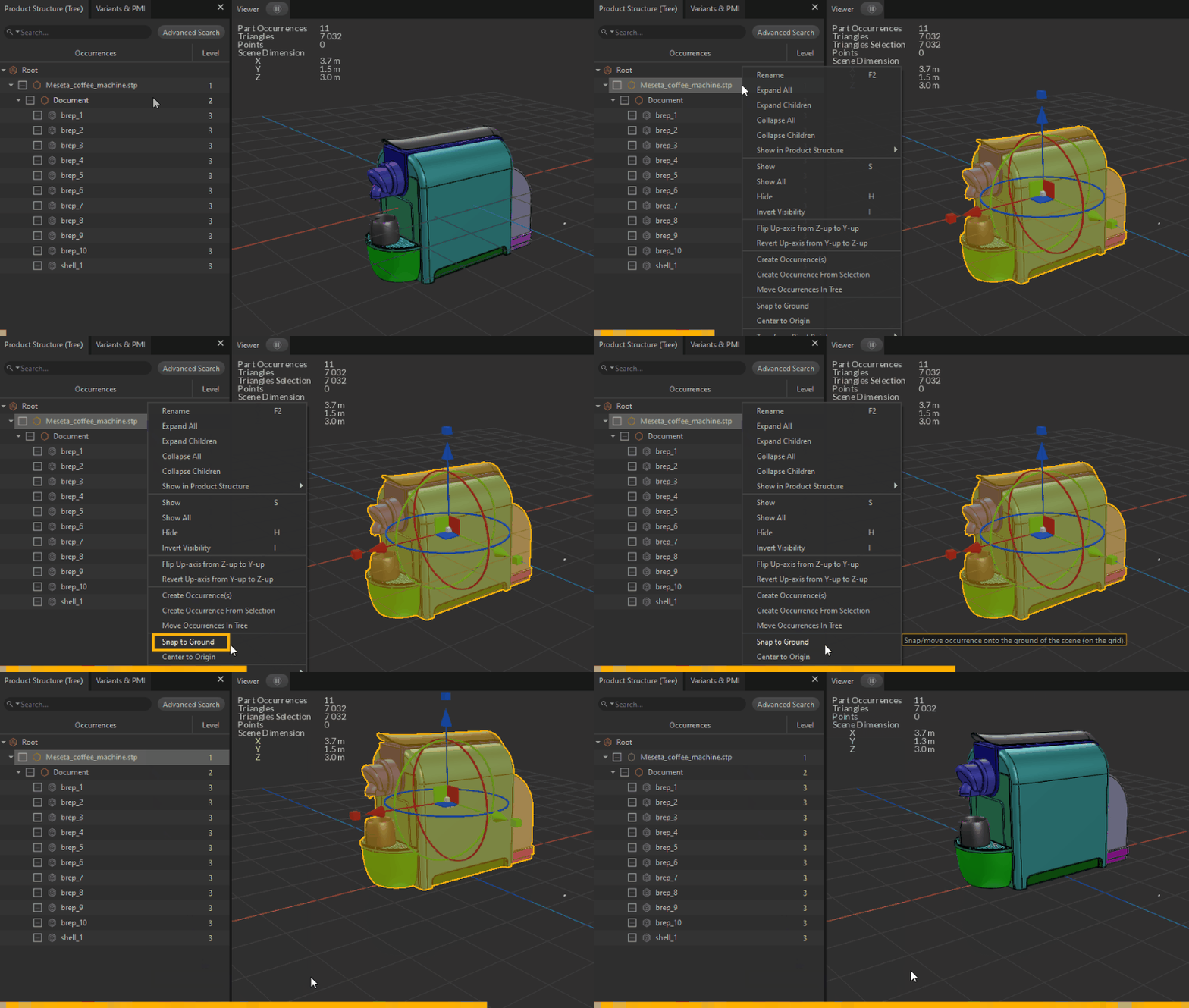 | |
| Center to Origin | Positions the selected part at the origin of the scene (the whole selection, not each Part individually).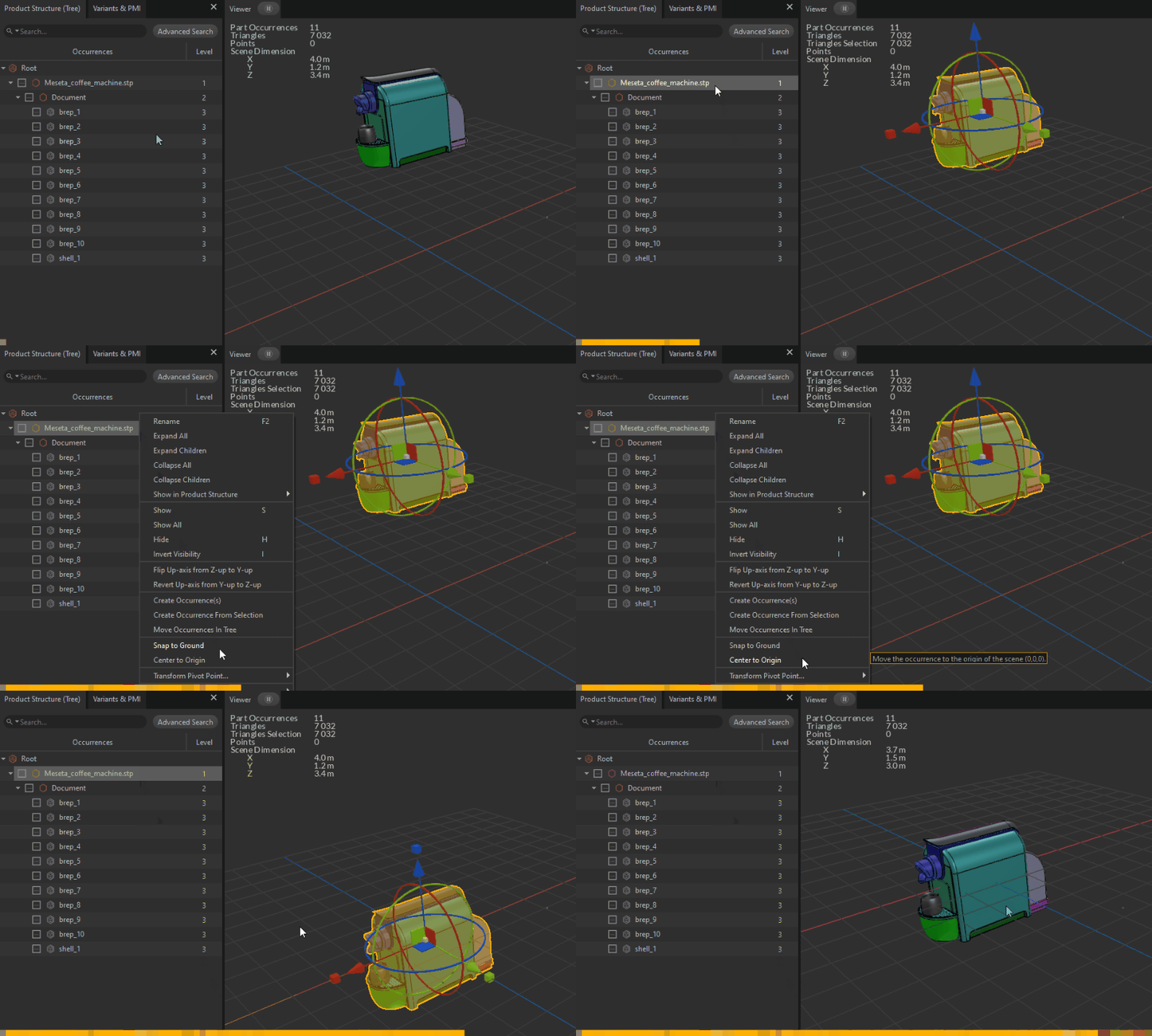 | |
| Transform Pivot Point | Used to manage the pivot point of the selected occurrences. | |
| Re-Tessellate | Lists functions used to manage re-tessellation capabilities. | |
| Invert Faces Orientation | Inverts the orientation of the mesh faces of the selected occurrences. | |
| Separate Selection | Creates a new Part out of a selection of submeshes (patches, polygons…). | |
| Explode Part By Connected Meshes | Splits all the connected meshes within a Part into one new Part per connected mesh, for the selected Parts. | |
| Export Selection | Exports the selected occurrences to a supported file format. | |
| Delete Selection | Deletes the selected occurrences. | DEL |
| Select Ancestor | Selects the first common ancestor of the current selection. | < |
| Select Children | Selects the children for each occurrence of the current selection. | > |
| Select Instances | Selects all the instances of the currently selected occurrence. | |
| Find Selection In Tree | Highlights and focuses the view on the selected occurrences in the Product Structure. | CTRL+F |
With Multiple Occurrences Selected
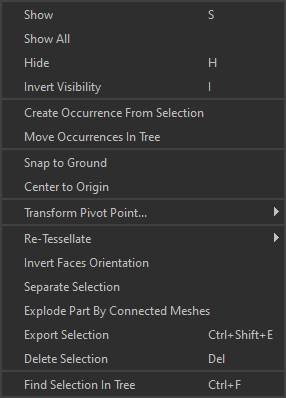
Menu option | Description | Keyboard Shortcut |
|---|---|---|
| Show | Shows the selected occurrences, by setting visibility to | S |
| Show All | Shows all the occurrences of the tree, by setting visibility to | |
| Hide | Hides the selected occurrences, by setting visibility to | H |
| Invert Visibility | Inverts the selected occurrences' visibility. | I |
| Create Occurrence From Selection | Creates a new occurrence parenting the selected occurrences, grouping them. | |
| Move Occurrences In Tree | Moves the selected occurrences in the tree by parenting them to the Tip: This can also be done by drag-and-dropping in the Product Structure. | |
| Snap to Ground | Positions the selected part on the ground (the whole selection, not each Part individually). | |
| Center to Origin | Positions the selected part at the origin of the scene (the whole selection, not each Part individually). | |
| Transform Pivot Point | Used to manage the pivot point of the selected occurrences. | |
| Re-Tessellate | Lists functions used to manage re-tessellation capabilities. | |
| Invert Faces Orientation | Inverts the orientation of the mesh faces of the selected occurrences. | |
| Separate Selection | Creates a new Part out of a selection of submeshes (patches, polygons…). | |
| Explode Part By Connected Meshes | Splits all the connected meshes within a Part into one new Part per connected mesh, for the selected Parts. | |
| Export Selection | Exports the selected occurrences to a supported file format. | |
| Delete Selection | Deletes the selected occurrences. | DEL |
| Find Selection In Tree | Highlights and focuses the view on the selected occurrences in the Product Structure. | CTRL+F |