Main Toolbar
Asset Transformer Studio main toolbar reference
読み終わるまでの所要時間 3 分最終更新 2ヶ月前

The Main Toolbar contains shortcuts to Asset Transformer Studio main functionalities:
Item | Description |
|---|---|
 Guided import | Used to import CAD/3D files using the See also: Import Mode, Importing Files, Supported File Formats |
 Raw import | Used to import CAD/3D files using the See also: Import Mode, Importing Files, Supported File Formats |
 Export model | Used to export the current scene to a supported file format. See also: Exporting Files, Supported File Formats |
 Save project | Used to save the current project |
 Reset | Used to reset the current Asset Transformer Studio scene |
 Materials | Opens the Material Editor, containing all materials available in the current project |
 Preferences | Opens the application Preferences |
 Function List | Opens Asset Transformer Studio's Function List |
 Scene Override Material | Temporary visual override of all materials visible in the scene using predefined shaders/materials: - Checker: displays all objects with UVs (texture coordinates) applied with a checker texture. Objects with no UVs applied are displayed in a flat purplish color. - Clay: displays all objects of the scene with the same white material (clay-like). Handy to check where faces are flipped, combined with the Rendering Mode set to - Specular: displays all objects of the scene with the same reflective orange material. - Zebra: displays all objects of the scene with a zebra shader to visualize light reflection breaks. - Color By Part: displays each object of the scene with a different randomized color. - Vertex colors: displays the colors applied to mesh vertices, if any. If no color is applied, the mesh appears transparent. |
 Rendering mode | Back-face culling rendering modes: - Back-face Color (default): displays back faces with a flat pink color. Handy for spotting triangle faces that are improperly oriented. - Back-face Culling: displays back faces as transparent faces. - Double-sided: displays the 2 sides of all faces for each object in the scene. |
 Isolate | Used to isolate the selection of parts from the rest of the scene in order to focus on it. |
 Show / no show | Use to switch the viewport display between visible occurrences (visibility or inherited visibility ON) and hidden occurrences (visibility or inherited visibility OFF). |
 Fit to view | Fits camera-view to the selection (or to all objects in the scene if no selection) |
 Fullscreen | Use to switch to a full-screen viewport display. Click F11 key again (or ESC), or the Windowed button to exit full-screen mode (this button is located in the lateral toolbar: move your mouse to the right-hand side of the screen to display it). |
 Selection mode | Used to select the type of geometries that can be selected in the viewport: Part (default mode), Connected Mesh, Patch or Polygons.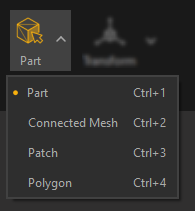 |
 Transform gizmo | Toggle ON or OFF to activate the transformation gizmo displayed in the viewport, used to move a Part in the scene. Use Move Pivot Only to adjust only the pivot point's position and rotation for the selected Part. 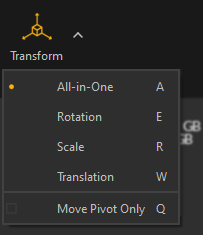 |
 Show B-Reps | Displays native CAD representation (CAD faces). They are represented as primitive wireframes. |
 Show Wireframe | Displays wireframe: mesh edges are drawn in the viewport |
 Show Shaded | Displays shaded mesh: polygon faces are drawn in the viewport |
 Show Outlines | Displays mesh outlines information. Outlines are either CAD patches boundaries (displayed black by default) or Lines (displayed white by default).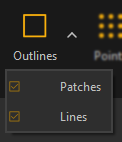 |
 Show Points | Displays vertices (CAD points, free vertices, point clouds) |
 Skeleton | Displays the skeletons of rigged models when existing |