Install the Unity Hub on Linux
Install Unity Hub on Ubuntu, RHEL, CentOS, or Fedora using apt or dnf, or run it as a portable AppImage, and manage updates automatically.
Read time 8 minutesLast updated a month ago
You can install the Unity Hub on the following Linux Distributions:
- Ubuntu
- Red Hat Enterprise Linux (RHEL), CentOS, or Fedora. These distributions are not officially supported and Unity makes no guarantee that the Hub works on them.
You can also run the Hub as a portable AppImage. An AppImage doesn't require root access or installation and works on most Linux distributions.
Install the Hub
To install the Unity Hub on an Ubuntu Linux distribution, add the Unity Hub repository and the public signing key to verify the integrity of the packages.
-
Run the following command to add the public signing key:sudo install -d /etc/apt/keyringscurl -fsSL https://hub.unity3d.com/linux/keys/public | sudo gpg --dearmor -o /etc/apt/keyrings/unityhub.gpg
-
Run the following command to add the Unity Hub repository. This creates an entry in:
/etc/apt/sources.list.dsudo tee /etc/apt/sources.list.d/unityhub.sources > /dev/null << EOFTypes: debURIs: https://hub.unity3d.com/linux/repos/debSuites: stableComponents: mainSigned-By: /etc/apt/keyrings/unityhub.gpgEOF -
Update the package cache and install the package:sudo apt updatesudo apt install unityhub
If any of the previous commands fail, check the following:
- The directory exists.
/etc/apt/keyrings - The user or group installing the Hub has write permissions to the directory.
/etc/apt/keyrings - The user or group installing Hub has at least read permissions to the resulting file .
/etc/apt/keyrings/unityhub.gpg
To remove the Unity Hub from the system, run the following command:
sudo apt remove unityhub
Install a beta version of the Hub
Unity distributes Unity Hub beta versions for Linux through the same repository, under a different distribution.
-
Add the public signing key, if you haven't already:sudo install -d /etc/apt/keyringscurl -fsSL https://hub.unity3d.com/linux/keys/public | sudo gpg --dearmor -o /etc/apt/keyrings/unityhub.gpg
-
Add a beta repository entry to:
/etc/apt/sources.list.dsudo tee /etc/apt/sources.list.d/unityhub-beta.sources > /dev/null << EOFTypes: debURIs: https://hub.unity3d.com/linux/repos/debSuites: unstableComponents: mainSigned-By: /etc/apt/keyrings/unityhub.gpgEOF -
Update the package cache and install the package:sudo apt updatesudo apt install unityhub=<version>Wherefollows the format of
<version>(note the3.22.0~beta.1, not a hyphen; Debian package versions sort a pre-release with a tilde, and~only matches the exact version string). Runapt install unityhub=<version>to see the exact version string of the candidate beta.apt-cache policy unityhub
Auto update Unity Hub on Linux
Once you've configured the Unity Hub repository in your package manager, the Hub checks for a new version periodically, based on your operating system's settings.
You might receive the following popup from your Software Manager when a new version is available.
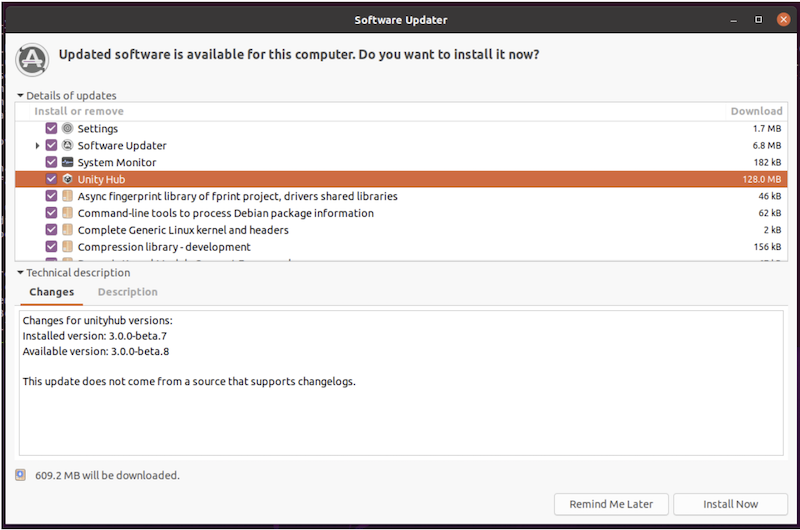
Update Notification on Ubuntu
You can also check for new versions by running the following command in your terminal:
sudo apt update
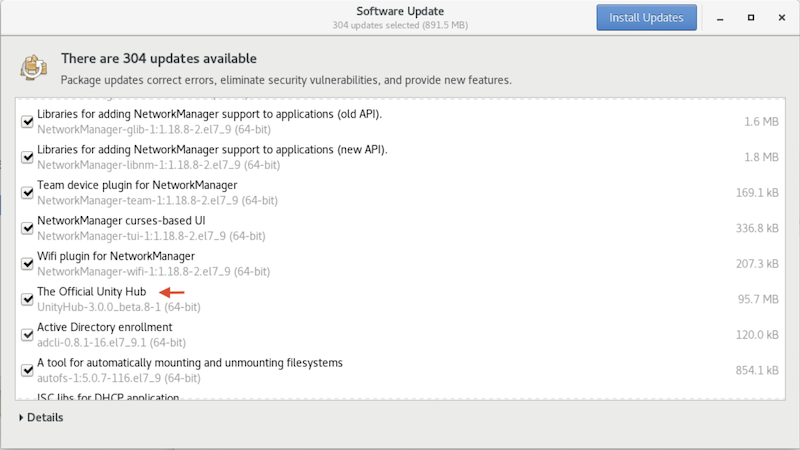
Linux installation troubleshooting
Only the beta version displays if you have both and repositories configured. By default, the command lists the latest version of the package. To install the stable version of the Unity Hub, you can do the following:
STABLEUNSTABLEaptInstall the stable version of the Unity Hub in Debian:
-
Disable the beta repository. If you set the beta repository up before Unity Hub's docs moved to the DEB822format, the file is named
.sourcesinstead. The following command disables whichever one exists:unityhub-beta.listif [ -f /etc/apt/sources.list.d/unityhub-beta.sources ]; then sudo mv /etc/apt/sources.list.d/unityhub-beta.sources /etc/apt/sources.list.d/unityhub-beta.sources.bakfiif [ -f /etc/apt/sources.list.d/unityhub-beta.list ]; then sudo mv /etc/apt/sources.list.d/unityhub-beta.list /etc/apt/sources.list.d/unityhub-beta.list.bakfisudo apt updatesudo apt install unityhub -
Query the specific version of the Hub.sudo apt install unityhub=3.x.x
Install the stable version of the Unity Hub in RHEL/CentOS/Fedora:
-
Disable the beta repository.sudo mv /etc/yum.repos.d/unityhub_beta.repo /etc/yum.repos.d/unityhub_beta.repo.baksudo dnf check-updatesudo dnf install unityhub
-
Query the specific version of the Hub.sudo dnf list unityhubsudo dnf install unityhub-<version info>
This can happen when doesn't exist or you don't have access to create the file. To fix this error, manually create the folder with the following command:
sources.list.dsudo mkdir -p /etc/apt/sources.list.d
If you receive a lock file error, an associated process number should also display. In this example, the process number is .
4076E: Could not get lock /var/lib/dpkg/lock-frontend. It is held by process 4076
If this error displays, use the following command to stop the process. In the command, replace with the process number that your device displays.
4076sudo kill -9 4076
If you remove the Unity Hub after you perform this command and this error shows up, follow the instructions in the command line to fix it.
sudo apt remove unityhubE: dpkg was interrupted, you must manually run 'sudo dpkg --configure -a' to correct the problem. ubuntity@ubuntu:~$ sudo dpkg --configure -a
The AppImage needs FUSE 3 to mount itself. Most desktop distributions already include it (it's a common dependency of the desktop environment), but a minimal, server, or container install may not. You have two options:
-
Install your distribution'spackage (the package is named
fuse3on Debian, Ubuntu, RHEL, and Fedora), then run the AppImage normally.fuse3 -
Run the AppImage with theflag, which extracts and runs it without mounting:
--appimage-extract-and-run./UnityHubSetup-x86_64.AppImage --appimage-extract-and-run