# Google Ad Manager integration
> Integrate Google Ad Manager as an ad network in Unity LevelPlay by creating an Ad Manager account, setting up inventory, and linking it to your LevelPlay account.
> **Important:**
>
> The following documentation discusses products or services (“Third-party Products”) not developed, owned, or operated by Unity.
> This information might be outdated or incomplete and is provided for your convenience.
> Your use of any Third-party Product is subject to its own terms.
> Unity makes no warranties regarding these products and isn't liable for any damages or losses arising from their use, including issues related to content, advertising, or materials from Third-party providers.
Follow these instructions to set Google Ad Manager live as an ad network on the Unity LevelPlay mediation.
## Prerequisites
* Ensure that you correctly integrate Rewarded ads, Interstitial ads, or Banner ads into your application. Refer to the following platform-specific guides for integration instructions:
**Integration guides:**
* [Rewarded ads](/grow/levelplay/sdk/ios/rewarded-ads-integration.md)
* [Interstitial](/grow/levelplay/sdk/ios/interstitial-integration.md)
* [Banner](/grow/levelplay/sdk/ios/banner-integration.md)
* AdMob SDK supports iOS version 10+, and will serve ads for users on iOS version 11+.
## Step 1. Create a Google Ad Manager account
1. To access Google Ad Manager ad inventory through Unity LevelPlay's mediation, [create an Ad Manager account](https://admanager.google.com/home/).
2. In order to monetize with Google ad manager, Google AdSense account need to be created
3. Connect your AdSense account to your Ad Manager account
## Step 2. Create Inventory in Google Ad Manager
1. Google AdManager guide can be found [here](https://support.google.com/admanager/answer/6238692?hl=en)
2. Orders:
1. Add at least one order
2. Connect your AdSense as an Advertiser to the order
3. Line Items
1. Add a Line Item for each ad unit you are looking to monetize (Int / RV / BN / NTV BN)
2. Select video Line item
3. Line item type = Ad exchange
4. Apps
1. The application should be added automatically from your Admob account
2. If not, create a new application (Inventory > Apps > Add app)
5. Ad unit
1. Add ad unit for each price point
## Step 3. Activate **Google Ad Manager** in your LevelPlay account
Sign in to your Google account when setting up Ad Manager on the LevelPlay SDK Networks Setup page. This will ensure that all of the necessary parameters to run Ad Manager's interstitials, rewarded ads, and banners will be automatically retrieved.
1. In your Google Ad Manager account, obtain the following information:
| App ID | The unique ID assigned to your app on the Ad Manager dashboard |
| ------------- | ----------------------------------------------------------------------------------------------------------------------------------------------------------------------------------------- |
| API Key | The unique identifier for your Ad Manager account. This allows the Unity LevelPlay Mediation to import performance data from your Ad Manager account to use in reporting and optimization |
| Ad Unit ID | The unique ID assigned to your app's ad unit on the Ad Manager dashboard |
| Client ID | The unique identifier that specifies the relationship between your account and the ad unit |
| Client Secret | The secret key that pairs with the Client ID |
| Refresh Token | The refresh token the client application already received |
2. Configure Google Ad Manager's parameters in your LevelPlay account.
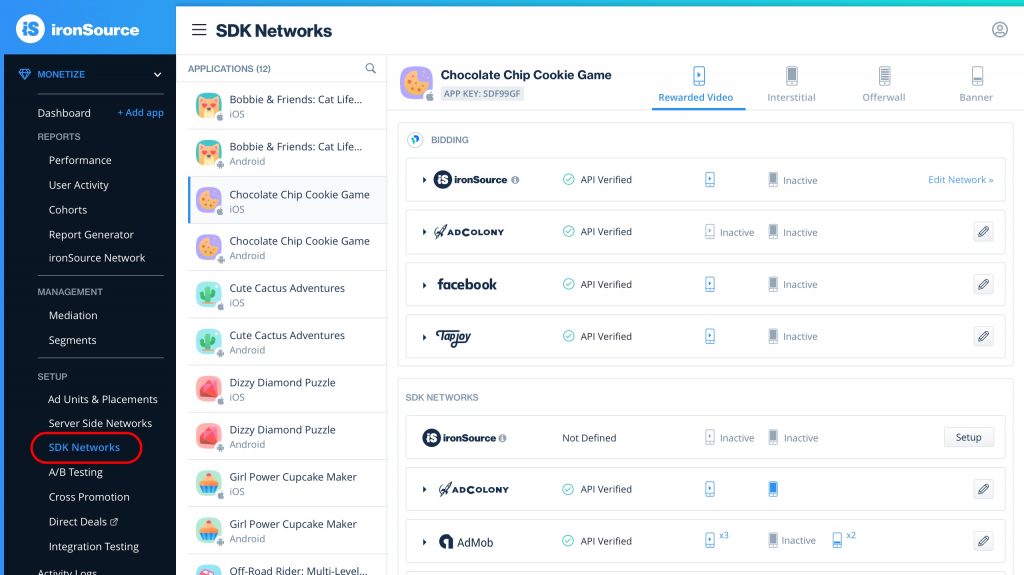
* Log in to your ironSource account and go to **Monetize** > **SETUP** > **SDK Networks**.
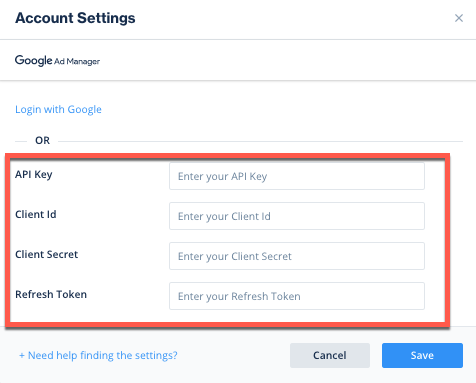
* Select Google Ad Manager from the list of **Available Networks** and enter the Ad Manager's **API Key**, **Client** **ID**, **Client Secret,** and **Refresh Token**; or select the **Login with Google** option.
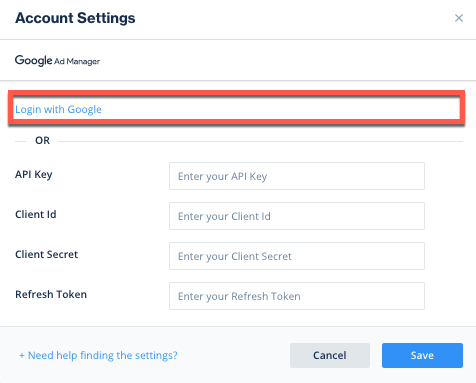
* Select **Save**. Ad Manager will be enabled and listed in the **Available Ad Networks** table.
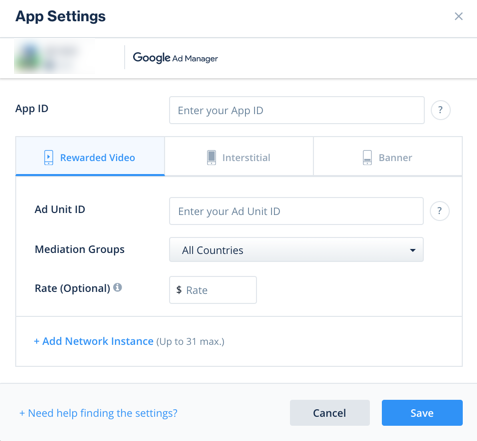
* Select Ad Manager from the setup list of ad networks and select the tool **Define** button. Insert the **App ID** and **Ad Unit** **ID** under **interstitial**, **rewarded** or **banner settings**.
- Verify your integration with the Reporting API. This column will check your integration through the Reporting API and return three possible responses: Verified, Failed, and No Response. If you do not see **Verified,** double check your integration and the information you entered, then select **Retry** until you see **Verified**.
## Step 4. Add the Admob Adapter to Your Build
> **Note:**
>
> As of AdMob SDK 7.69.0+, AdMob are using XCFramework. If you are using CocoaPods for your AdMob integration, make sure you have CocoaPods Version 1.9.0+.
>
> As of V7.42.0 **(Adapter version 4.3.3 onwards)**, AdMob's SDK requires publishers to add their AdMob App ID to the app’s plist as described [here](https://developers.google.com/admob/ios/quick-start#update_your_infoplist). Alternatively, you can make this change programmatically
>
> ```xml
> GADApplicationIdentifier
> [APP_ID]
> ```
>
> Replace the "GADApplicationIdentifier" value with the APP ID value you retrieve in step 3.
LevelPlay SDK supports both **Cocoapods** and **Manual** download mechanisms.
### Cocoapods
To integrate the AdMob SDK with Cocoapods, enter the following line in your podfile and you're good to go!
```ruby
pod 'IronSourceAdMobAdapter','5.6.0'
```
### Manual Download
1. **Download the AdMob Adapter** Add the AdMob Adapter and SDK to your build. You can find the latest AdMob Adapter and SDK [here](/grow/levelplay/sdk/ios/mediation-networks.md#manual-download-for-mediation-adapters). As the AdMob Adapter does not contain the AdMob SDK. You **need** to add the AdMob SDK to your project as well.
2. **Add the AdMob frameworks to your Project** After you download the Adapter and SDK, drop the Adapter and SDK **framework** files into your Xcode Project.
3. Open **Target** > **Build** **Settings** > **Architectures** and confirm that your Xcode Project uses **Base SDK** version **8.0** or greater and that it does not use armv6 architecture.
4. **Linker Flags:** Add two separate linker flags to **Target** > **Build** **Settings** > **Linking** > **Other Linker Flags**: -**ObjC**
## Step 5. Update Info.plist
As of V7.42.0 **(Adapter version 4.3.3 onwards)**, AdMob's SDK requires publishers to add their AdMob App ID to the app’s plist as described [here](https://developers.google.com/admob/ios/quick-start#update_your_infoplist). Alternatively, you can make this change programmatically
```xml
GADApplicationIdentifier
[APP_ID]
```
Replace the "GADApplicationIdentifier" value with the APP ID value you retrieve in step 3. Not doing so results in crashes originated with AdMob's SDK. For more information, refer to [AdMob's guide](https://developers.google.com/admob/ios/quick-start#update_your_infoplist).
## Step 6. Additional Steps
### Child-directed setting - COPPA
Unity LevelPlay’s mediation lets publishers communicate AdMob Child-directed settings directly to the AdMob network. This feature is enabled using LevelPlay SDK 6.14.0+, AdMob iOS Adapter 4.3.11+.
Use the following syntax, to set AdMob **tagForChildDirectedTreatment** with the parameter YES:
1. **Objective-C**
```objective-c
[LevelPlay setMetaDataWithKey:@"AdMob_TFCD" value:@"true"];
```
2. **Swift**
```swift
LevelPlay.setMetaDataWithKey("AdMob_TFCD", value: "true")
```
Use the following syntax, to set AdMob **tagForChildDirectedTreatment** with the parameter NO:
1. **Objective-C**
```objective-c
[LevelPlay setMetaDataWithKey:@"AdMob_TFCD" value:@"false"];
```
2. **Swift**
```swift
LevelPlay.setMetaDataWithKey("AdMob_TFCD", value: "false")
```
To learn more about Child-directed settings Under AdMob network visit [here](https://developers.google.com/admob/ios/targeting#child-directed_setting).
### Users under the age of consent - GDPR
Unity LevelPlay's mediation lets publishers communicate with AdMob network, a Tag For Users under the Age of Consent in Europe (TFUA) request. This feature is enabled using LevelPlay SDK 6.14.0+, AdMob iOS Adapter 4.3.11+.
Use the following syntax, to set **tagForUnderAgeOfConsent** with YES:
1. **Objective-C**
```objective-c
[LevelPlay setMetaDataWithKey:@"AdMob_TFUA" value:@"true"];
```
2. **Swift**
```swift
LevelPlay.setMetaDataWithKey("AdMob_TFUA", value: "true")
```
Use the following syntax, to set **tagForUnderAgeOfConsent** with NO:
1. **Objective-C**
```objective-c
[LevelPlay setMetaDataWithKey:@"AdMob_TFUA" value:@"false"];
```
2. **Swift**
```swift
LevelPlay.setMetaDataWithKey("AdMob_TFUA", value: "false")
```
To learn more about Child-directed settings Under AdMob network visit [here](https://developers.google.com/admob/ios/targeting#users_under_the_age_of_consent).
### Ad Content filtering
Unity LevelPlay’s mediation lets publishers communicate with AdMob network, maximum ad content rating for all ad requests. This feature is enabled using LevelPlay SDK 7.12.0+, AdMob iOS Adapter 4.3.28+.
Use the following syntax, to set **maxAdContentRating:**
1. **Objective-C**
```objective-c
[LevelPlay setMetaDataWithKey:@"AdMob_MaxContentRating" value:@"MAX_AD_CONTENT_RATING_G"];
```
2. **Swift**
```swift
LevelPlay.setMetaDataWithKey("AdMob_MaxContentRating", value: "MAX_AD_CONTENT_RATING_G")
```
The possible values for this property are based on digital content label classification as defined by Google:
* MAX\_AD\_CONTENT\_RATING\_G
* MAX\_AD\_CONTENT\_RATING\_PG
* MAX\_AD\_CONTENT\_RATING\_T
* MAX\_AD\_CONTENT\_RATING\_MA
To learn more about Ad Content Rating property Under AdMob network visit [here](https://developers.google.com/admob/ios/targeting#ad_content_filtering).
### Content URL mapping support
Unity LevelPlay supports Google’s content mapping for apps, and allows you to share URLs using "Google\_Content\_Mapping" settings. This feature is enabled using LevelPlay SDK 7.7.0+, AdMob Adapter 4.3.51+. Learn more about Google’s content mapping [here](https://support.google.com/admob/answer/11050896).
To pass a single-content URL, use the following syntax:
1. **Objective-C**
```objective-c
[LevelPlay setMetaDataWithKey:@"Google_Content_Mapping" value:@"https://www.example.com"];
```
2. **Swift**
```swift
LevelPlay.setMetaDataWithKey("Google_Content_Mapping", value: "https://www.example.com")
```
To support multiple urls, use the same key and share up to 4 URLs:
1. **Objective-C**
```objective-c
[LevelPlay setMetaDataWithKey:@"Google_Content_Mapping"
values:[@[@"https://www.example1.com", @"https://www.example2.com"] mutableCopy]];
```
2. **Swift**
```swift
LevelPlay.setMetaDataWithKey("Google_Content_Mapping", values: ["https://www.example1.com", "https://www.example2.com"])
```
## Step 7. Enable Native ads (closed beta)
### Resources bundle
For Google Adapter versions that are below 4.3.49, the resources bundle contains the Native Banner Custom views for the different banner sizes. Follow these steps to add the resources bundle to your project:
1. Select your project target
2. Go to the build phases tab
3. Open the Copy Bundle Resources and select the **+** icon
4. Choose the ISAdMobResources.bundle and select **Add**
> **Note:**
>
> The AdMob Native Validator feature is enabled by default for test ads, Visit the AdMob [website](https://developers.google.com/admob/ios/native/validator) to disable the feature.
## Verify Your Ad Network Integration
To verify your LevelPlay SDK and additional Ad Networks' integration, follow this [document](/grow/levelplay/sdk/ios/integration-helper.md).
## Next steps
To leverage additional mediation ad networks, integrate the [adapters](/grow/levelplay/sdk/ios/mediation-networks.md) and follow our integration guides.