Configure a particle trigger
Create and configure a trigger on the particles of a Particle System.
Read time 5 minutesLast updated 13 days ago
To begin, specify which Colliders in the Scene the particles can interact with. To do this, assign one or more Colliders to the Colliders list property. To increase the number of Colliders in the list, click the Add (+) button beneath the list of Colliders. To remove a Collider from the list, select the Collider and click the Remove (-) button. If you have not yet assigned a Collider to an index of the list, you can use the smaller Add (+) button, to the right of the empty entry, to create and assign a new Collider. This creates a new GameObject as a child of the Particle System and attaches a Sphere Collider to it, then assigns the Collider to the empty entry.
After you add the Colliders, you can then specify what a particle does when it meets the criteria for passing a particular trigger event type. There are four event types that describe how a particle can interact with a Collider. They are:
- Inside: A particle is inside a Collider's bounds.
- Outside: A particle is outside a Collider's bounds.
- Enter: A particle enters a Collider's bounds.
- Exit: A particle exits a Collider's bounds.
In the Inspector, there is a drop-down for each of these event types that lets you select what should happen to a particle if it passes the trigger event's conditions. The options are:
- Callback: Allows you to access the particle in the OnParticleTrigger() callback function.
- Kill: Destroys the particle. You can not access the particle in the OnParticleTrigger() callback function.
- Ignore: Ignores the particle. You can not access the particle in the OnParticleTrigger() callback function.
Accessing particles within OnParticleTrigger()
If you select Callback as the reaction to one of the trigger events, you can access the particles that fulfill the event condition from an attached script. To do this, you first need to add the function to an attached script. Inside this function, call the ParticlePhysicsExtensions.GetTriggerParticles() function to get the list of particles that fulfill the trigger event's criteria. This function takes a ParticleSystemTriggerEventType, which specifies the trigger event you want to get the particles for (Inside, Outside, Enter, or Exit), and a list of Particles which the function populates with the result. From the list, you can access, modify, or destroy any particle. The function can also take an optional parameter which outputs collision information, such as which Collider each particle triggered. The Collider Query Mode property controls what information is available through this parameter.
OnParticleTrigger()For more information on the API and how to use it, see the below example.
Examples
Interaction with a collider
The example below causes particles to turn red as they enter the Collider's bounds, then turn green as they leave the Collider’s bounds.
using UnityEngine;using System.Collections;using System.Collections.Generic;[ExecuteInEditMode]public class TriggerScript : MonoBehaviour{ ParticleSystem ps; // these lists are used to contain the particles which match // the trigger conditions each frame. List<ParticleSystem.Particle> enter = new List<ParticleSystem.Particle>(); List<ParticleSystem.Particle> exit = new List<ParticleSystem.Particle>(); void OnEnable() { ps = GetComponent<ParticleSystem>(); } void OnParticleTrigger() { // get the particles which matched the trigger conditions this frame int numEnter = ps.GetTriggerParticles(ParticleSystemTriggerEventType.Enter, enter); int numExit = ps.GetTriggerParticles(ParticleSystemTriggerEventType.Exit, exit); // iterate through the particles which entered the trigger and make them red for (int i = 0; i < numEnter; i++) { ParticleSystem.Particle p = enter[i]; p.startColor = new Color32(255, 0, 0, 255); enter[i] = p; } // iterate through the particles which exited the trigger and make them green for (int i = 0; i < numExit; i++) { ParticleSystem.Particle p = exit[i]; p.startColor = new Color32(0, 255, 0, 255); exit[i] = p; } // re-assign the modified particles back into the particle system ps.SetTriggerParticles(ParticleSystemTriggerEventType.Enter, enter); ps.SetTriggerParticles(ParticleSystemTriggerEventType.Exit, exit); }}
See the images below for the result of this example:
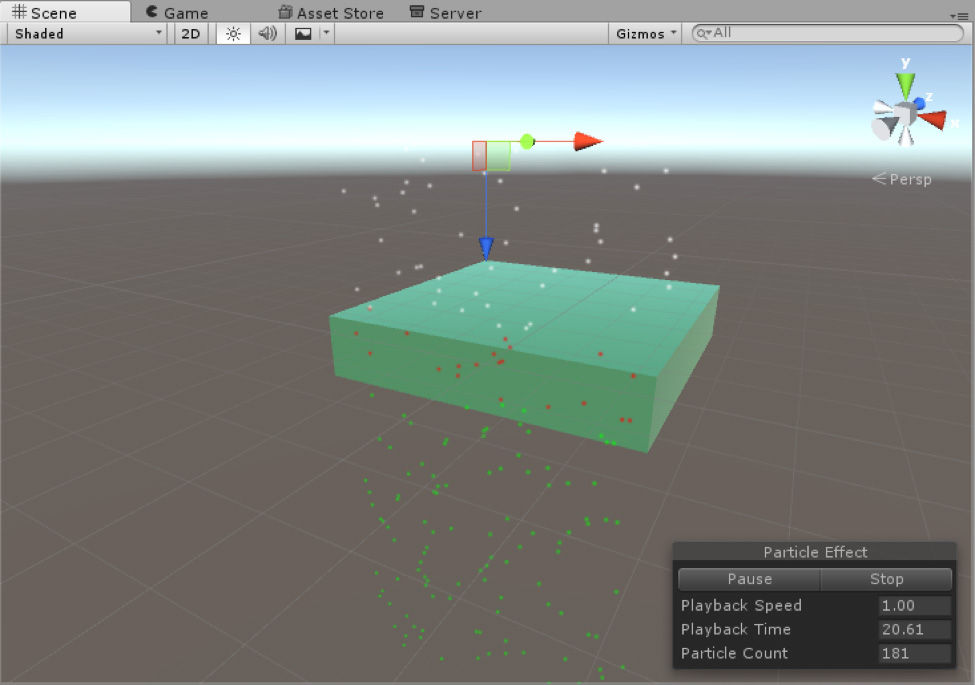
Editor view
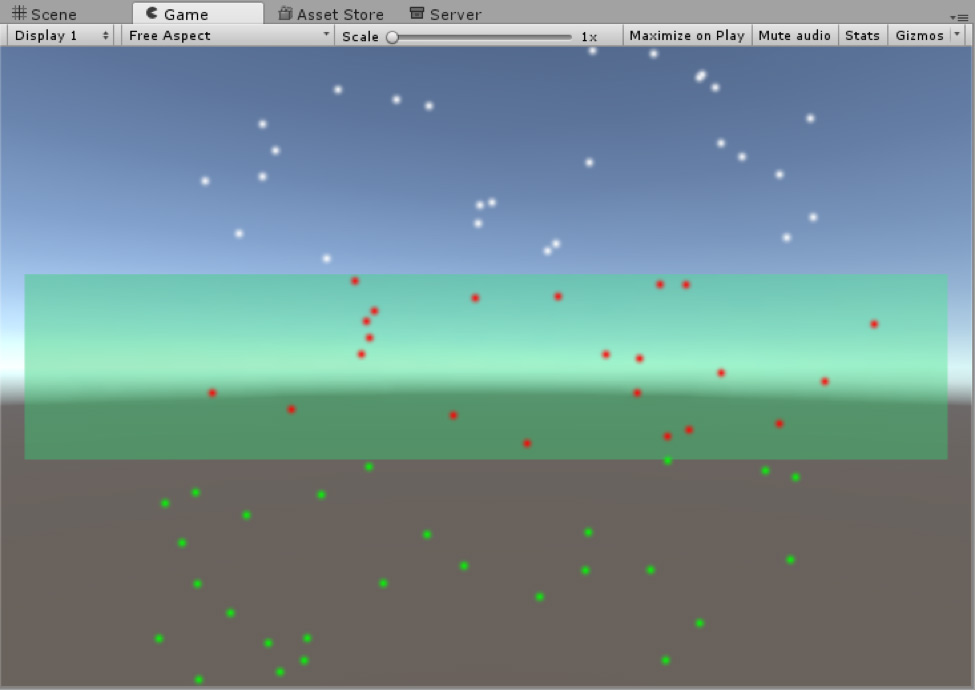
Game view
Interaction with multiple colliders
The following example takes advantage of the additional collision data you can extract from the function. It causes particles inside the first Collider's bounds to turn red, inside the second Collider's bounds to turn blue, or inside both Colliders to turn green. It also turns particles white if they are not inside a Collider. For this example, Collider Query Mode is set to All.
GetTriggerParticles()using UnityEngine;using System.Collections;using System.Collections.Generic;[ExecuteInEditMode]public class TriggerScript : MonoBehaviour{ void OnParticleTrigger() { ParticleSystem ps = GetComponent(); // particles List inside = new List(); List exit = new List(); // get int numInside = ps.GetTriggerParticles(ParticleSystemTriggerEventType.Inside, inside, out var insideData); int numExit = ps.GetTriggerParticles(ParticleSystemTriggerEventType.Exit, exit); // iterate for (int i = 0; i < numInside; i++) { ParticleSystem.Particle p = inside[i]; if (insideData.GetColliderCount(i) == 1) { if (insideData.GetCollider(i, 0) == ps.trigger.GetCollider(0)) p.startColor = new Color32(255, 0, 0, 255); else p.startColor = new Color32(0, 0, 255, 255); } else if (insideData.GetColliderCount(i) == 2) { p.startColor = new Color32(0, 255, 0, 255); } inside[i] = p; } for (int i = 0; i < numExit; i++) { ParticleSystem.Particle p = exit[i]; p.startColor = new Color32(1, 1, 1, 255); exit[i] = p; } // set ps.SetTriggerParticles(ParticleSystemTriggerEventType.Inside, inside); ps.SetTriggerParticles(ParticleSystemTriggerEventType.Exit, exit); }}
See the following image for the result of this example:
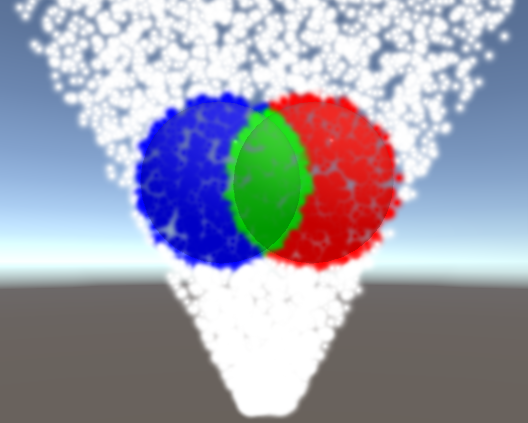
Game view